Automating tasks in SOLIDWORKS is a great way to improve productivity, reduce repetitive work, and make our work lives easier. While most of us are familiar with basic shortcuts (which you should be taking advantage of as well!), the automation capabilities in SOLIDWORKS go far beyond shortcut bars and hotkeys.
Whether it be automated drawing generation, design tables, custom macros, global variables and equations, or even brand-new AI-based tools, automation in SOLIDWORKS can save countless hours in our everyday engineering and design workflows.
In this article, we’ll discuss the top seven ways to use automation in SOLIDWORKS and show how these features can help us spend less time on routine tasks and more time solving complex design challenges.
1. SOLIDWORKS AI-Powered Virtual Assistants – LEO & AURA
Engineers and designers are increasingly benefiting from AI-powered assistants that reduce the time spent searching for information and navigating complex workflows. SOLIDWORKS users are no exception, with two specialized assistants that come with Cloud Services: LEO and AURA.

LEO: The Engineer & Builder (BETA)
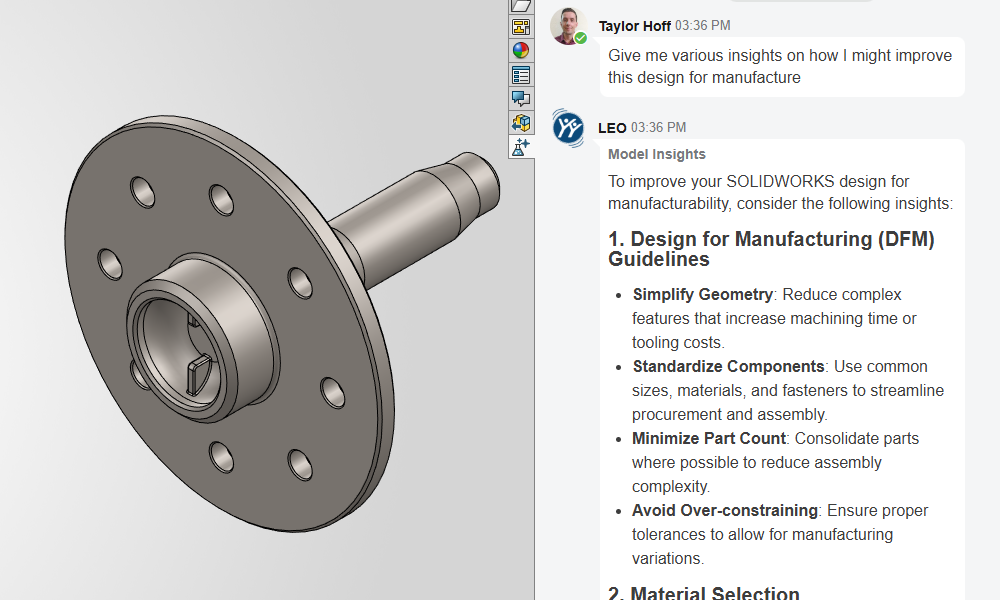
LEO is a virtual assistant that can be accessed directly in SOLIDWORKS. It serves as an intelligent guide to engineering design, validation, manufacturing, and systems integration.
LEO allows us to input prompts in SOLIDWORKS to create assembly structures, convert images to mesh geometry, add parametric features to imported files, evaluate assemblies, run simulation studies, resolve design errors, and more.
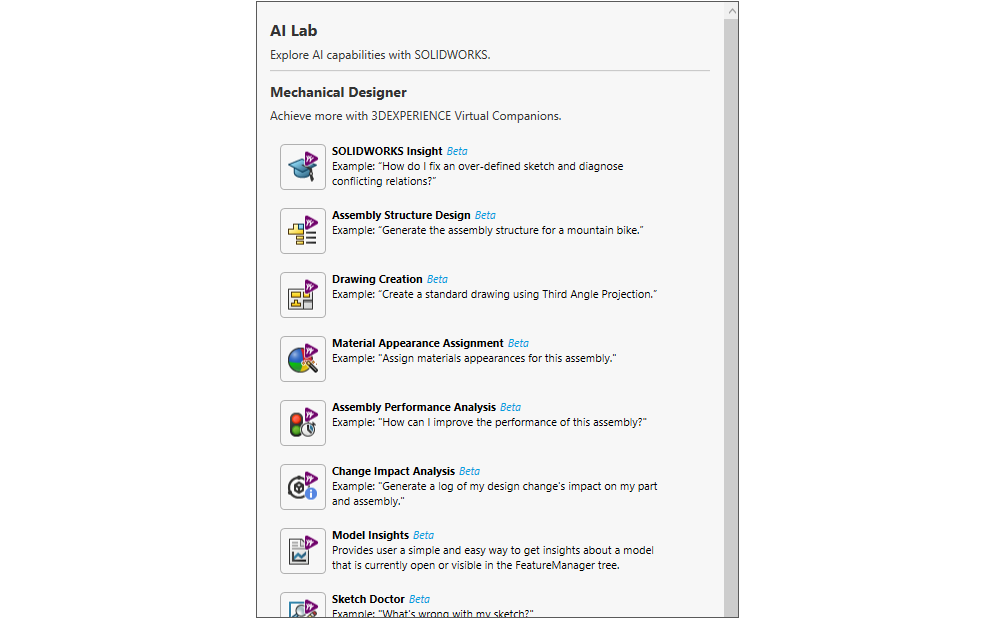
It significantly bolsters our ability to solve problems with contextual solutions without leaving SOLIDWORKS. For both new and experienced users, LEO can significantly improve design efficiency and accelerate our everyday modeling, assembly, and drawing tasks.
AURA: The Connector & Explorer (BETA)
While LEO focuses on enhancing capability and productivity, AURA — also accessible directly within SOLIDWORKS — extends those benefits across the broader 3DEXPERIENCE ecosystem. It helps us locate product data, access resources, retrieve project information, and leverage enterprise knowledge.
By acting as a centralized knowledge assistant, AURA reduces the work associated with finding the information and managing the data we need to develop and mature our designs.
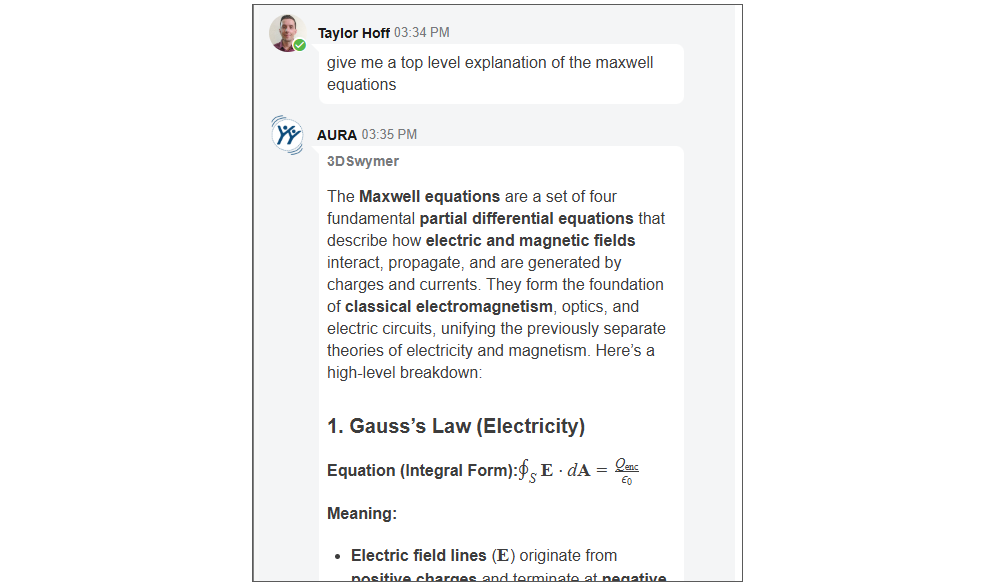
AURA also helps us quickly access and apply engineering and design knowledge on the larger internet to gain insight into engineering theory, design fundamentals, physics, math, best practices, and more that further aid product development.
Additional AI companions are also in development for those of us who need to supplement our scientific research skills, with expertise in materials science, hypothesis development, microbiology, chemistry, laboratory analysis, and more.
Together, LEO and AURA paired with the other benefits of Cloud Services create a more connected and efficient engineering environment, allowing us to spend less time searching for answers and more time focusing on design and innovation.
Check out our YouTube channel where we talk more about AURA and LEO.
Note: the AI assistants are currently in BETA and are still improving day by day!
2. Design Tables
Design tables have long been a staple of automation in SOLIDWORKS but are often underutilized.
With design tables, we can use Excel to drive configuration-specific dimensions, feature states, custom properties, appearances, and much more. They allow us to create, remove, customize, and manage entire families of parts and assemblies from a single spreadsheet. Once the “bones” of a part or assembly are set up, we can very quickly create large numbers of configurations, each with their own specific parameters.
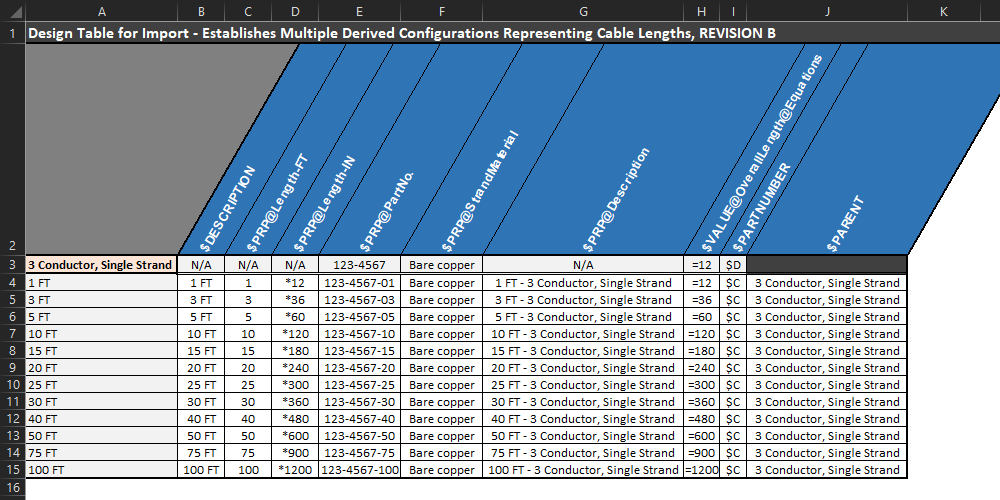
The true efficiency gain comes from the speed at which bulk changes can be implemented across a large number of configurations.
Say, you need to create 100 different configurations of a part in SOLIDWORKS. That sounds like a cumbersome task…
But with design tables, it’s as easy as filling out configuration data in Excel to create different product sizes, configurable equipment options, or customer-specific variations, and every change propagates automatically throughout the model the next time it’s opened.
Design tables can deliver substantial time savings when managing large numbers of configurations.
Read more about customizing and using design tables:
3. Smart Components & AI Fastener Recognition
Smart Components are an excellent example of how SOLIDWORKS can automate design intent for specific parts and features.
Smart Components allow us to create components that capture mates, features, and even other components for use in an assembly.
Common applications are tasks that require the same assembly operations, geometry, or partner components each time they are used. For example:
- Bushings and bearings
- Mounting brackets
- Hinges
- Sensors
- Slip-fit and interference-fit components
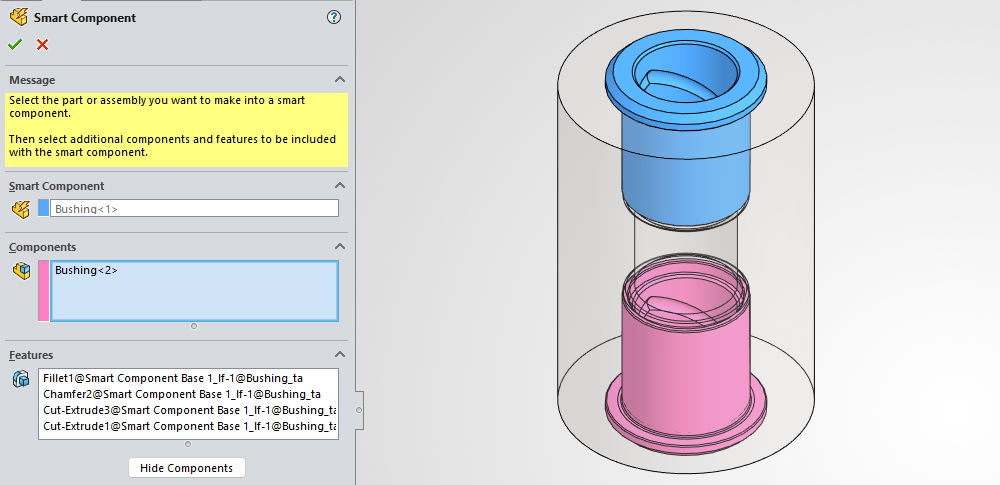
For example, let’s say we have a press-fit bushing that we intend to use across many designs. This bushing needs a specific hole size for a proper interference fit every time it’s used. Instead of manually creating that specifically sized hole every single time we want to use the bushing, we can instead make it a Smart Component.
By doing so, we can set up the bushing to automatically insert a hole with the exact diameter we need and, along with Mate References, automatically mates it to that hole every time it’s used, significantly reducing the work required to add it to our assemblies.
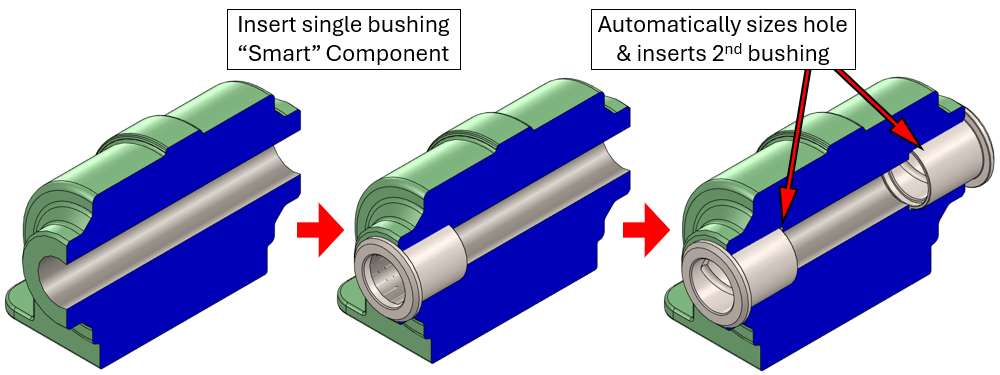
Smart Components eliminate repetitive modeling and assembly work and ensure consistency across designs. For components that are used the same way every time they are inserted into an assembly, creating Smart Components is a no-brainer.
Note: Smart Components don’t force you to use the “smart” features and mates, so we still have full flexibility to use just the part by itself. The automation is there when we need it and not when we don’t!
Read more on Smart Components:
- How to Save Time and Effort with SOLIDWORKS Smart Components
- Automating the Nuts and Bolts of an Assembly with Smart Fasteners
Automatic Fastener Mates with AI
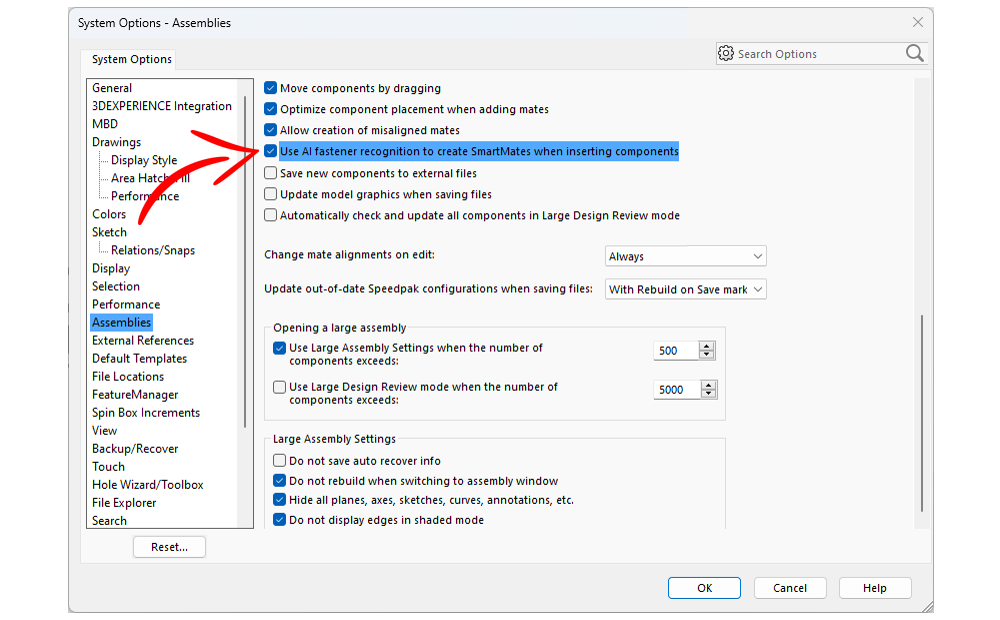
Additionally, with Cloud Services, we can also take advantage of automatic fastener recognition.
This AI-powered feature automatically recognizes fastener models (e.g., bolts, screws, nuts) and mates them in place when used in an assembly. And this feature works with SOLIDWORKS Toolbox parts and a wide range of fastener models, whether they are native SOLIDWORKS files or imported geometry from a STEP or Parasolid file.
4. Global Variables & Equations
Global variables and equations are a fantastic way to automate design intent in our models by creating intelligent relationships between model parameters.
Global variables are just that: variables that can be applied globally within a model. We generally use them to establish independent variables that we want to use to drive our designs (but they also act as dependent variables!).
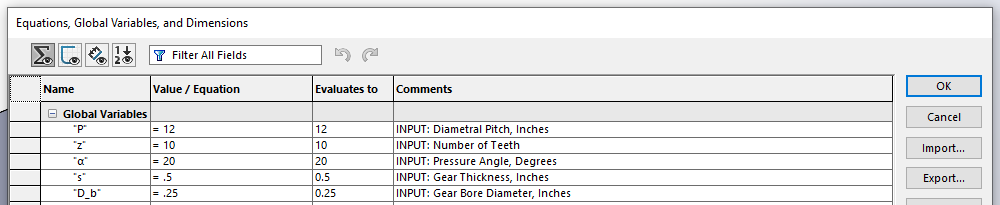
We can centralize key design values as global variables that then propagate to a wide range of other model parameters, reducing work and mitigating potential errors associated with editing values one by one — that’s where equations come in.
Equations are how we tie global variables to model parameters, such as dimensions, pattern counts, suppression states, and even other global variables.
At their simplest, equations can be used to maintain consistency by linking dimensions together. For example, setting one dimension equal to another. But they can also be used to create far more robust relationships.
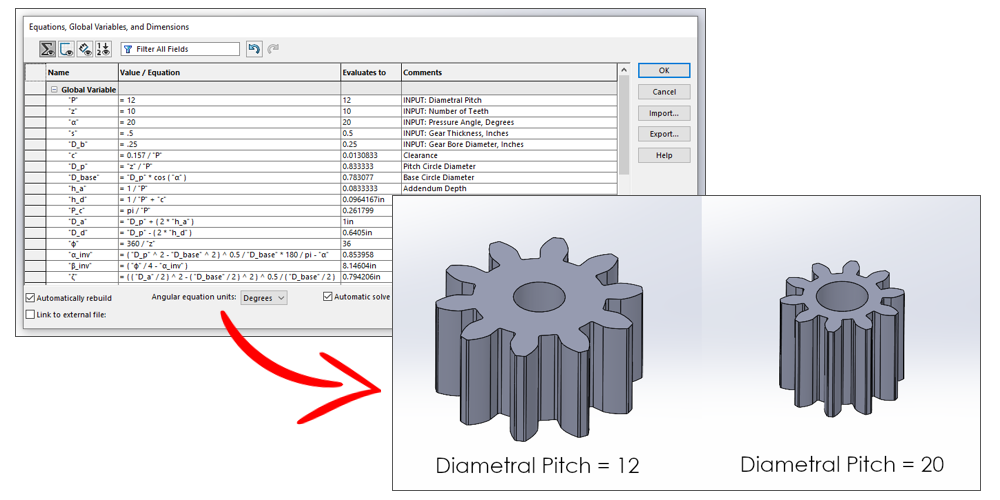
As designs become more sophisticated, global variables and equations can evolve into powerful parametric systems that control entire models.
Complex mathematical relationships, conditional logic, and interconnected variables can be used to drive any number of dimensions, feature states, and design characteristics from a small set of inputs. This enables us to automate design updates and create highly adaptable models with minimal effort.
Check out our article on parametric spur gear modeling using global variables and equations for an example of how they can be used to automate changes to model geometry.
5. Task Scheduler
One of the most overlooked automation tools in SOLIDWORKS is the Task Scheduler, included with SOLIDWORKS Professional and above.
The Task Scheduler is a tool that automates many time-consuming tasks by running them while we are away from our computer. We can schedule jobs to run during lunch breaks, overnight, or after leaving for the day.
Common tasks include:
- Batch exporting models or drawings to various formats (e.g., PDF, DXF, STEP)
- Running simulations
- Updating file references
- Modifying custom properties
- Importing files
- Running custom macros and scripts
By offloading these activities to Task Scheduler, we can save an enormous amount of our valuable time.
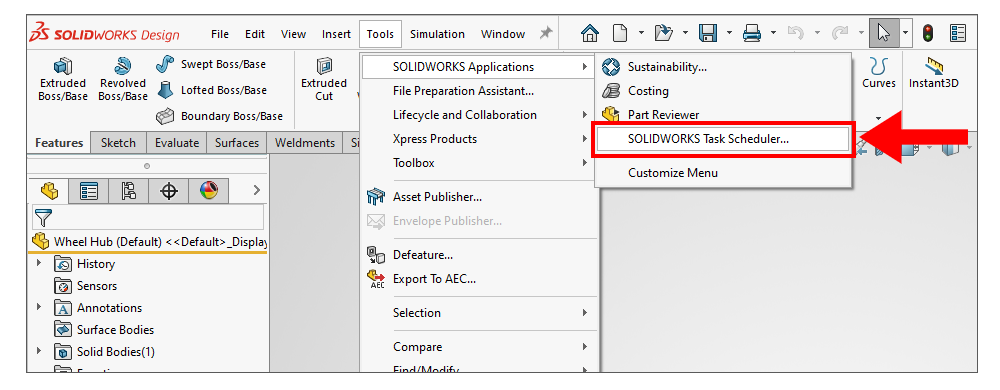
Task Scheduler comes in most handy when working with large datasets or large groups of files.
For example, when upgrading SOLIDWORKS versions, Task Scheduler can automatically convert thousands of files to that new version without manual intervention with the “Convert Files” task.
Another example might be automatically generating drawings for an entire folder of models with the “Create Drawings” task. Or we can automatically check large numbers of drawings to ensure they comply with our design and documentation standards — and automatically fix errors when found! — using the “Design Checker” task. The list goes on…
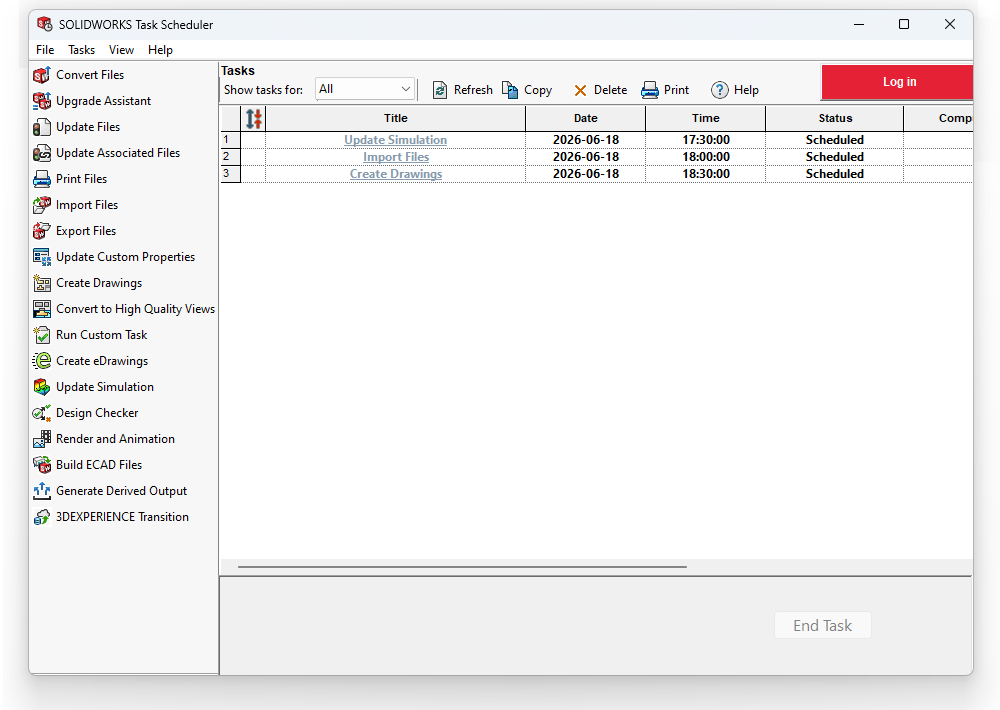
These types of tasks may not be technically complex, but by automating them through Task Scheduler, we can nearly eliminate minutes, hours, and days of otherwise tedious work.
6. SOLIDWORKS Macros & Utilizing the API
When the default or “built-in” tools aren’t sufficient, macros and the SOLIDWORKS API offer near-endless possibilities to automate our workflows.
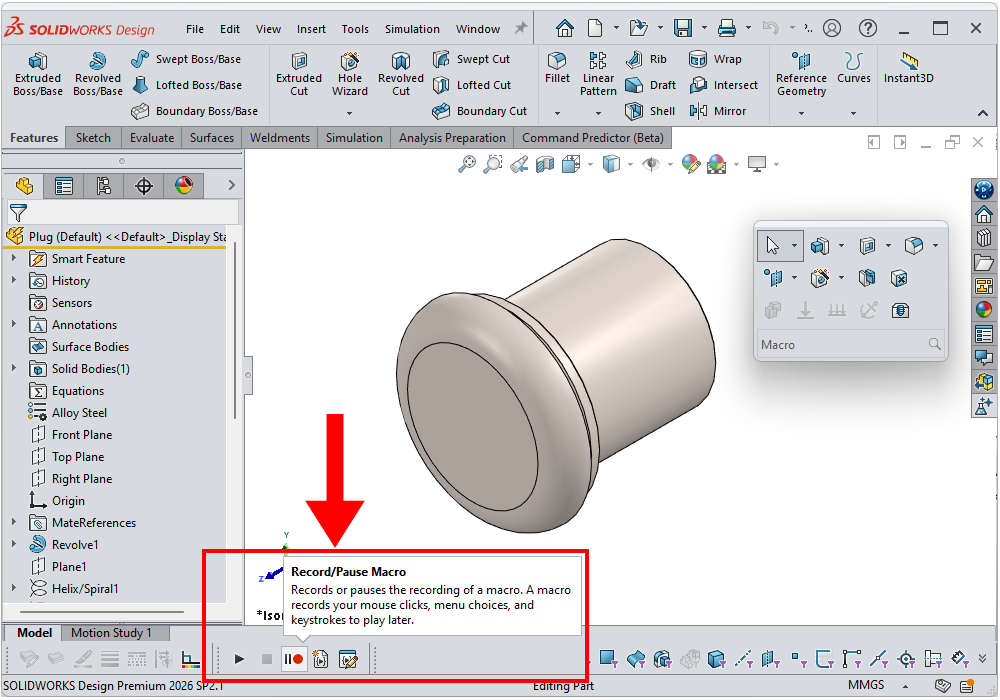
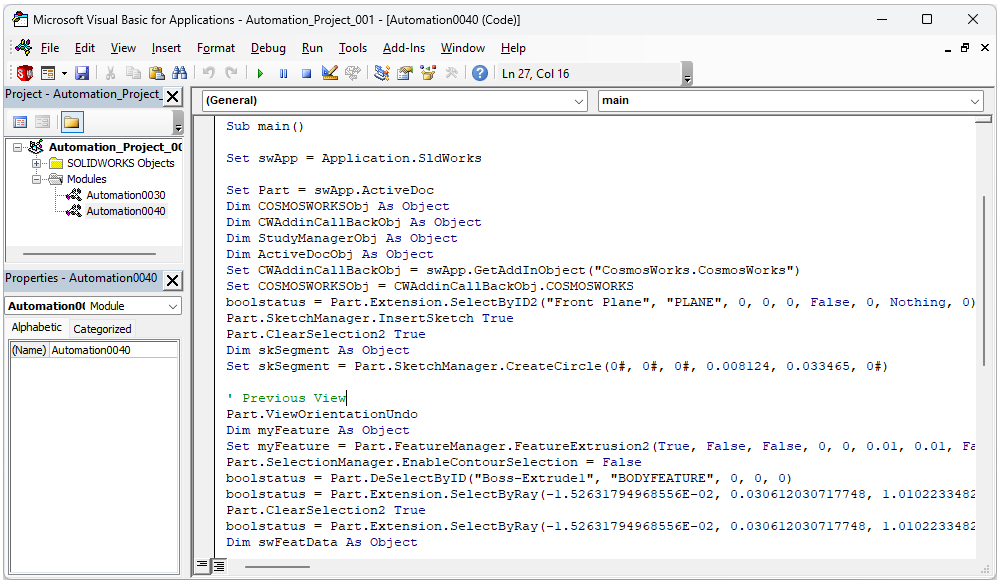
Macros provide one of the fastest entry points into custom SOLIDWORKS automation. The built-in macro recorder allows us to capture a sequence of actions performed within SOLIDWORKS and save them for repeated use, eliminating the need to manually perform those same operations over and over again.
Tasks such as exporting files, updating custom properties, generating drawings, and modifying model settings can often be automated with a simple recorded macro.
Custom Automation with the SOLIDWORKS API
For even greater automation capabilities, the SOLIDWORKS API opens the door to virtually unlimited customization.
Using programming languages (such as VBA, VB.NET, or C#), engineers and developers can create custom macros, standalone applications, and integrated add-ins that interact directly with SOLIDWORKS data. These tools can automate complex modeling processes, enforce company standards, integrate with external systems, generate design variants, or perform calculations and validations that would otherwise require significant manual effort.
While highly customized API tools typically require significant effort to develop, the resulting productivity gains can be substantial.
Read more about using macros and the SOLIDWORKS API:
- SOLIDWORKS API: Creating a Keyboard Shortcut for Tree Display
- Getting Started with SOLIDWORKS API Automation
- Connecting SOLIDWORKS API Macros to Documents
- Top 5 Commonly Used Interfaces in the SOLIDWORKS API
Watch webinars and presentations on the API:
7. SOLIDWORKS-Integrated Automations – PDM & DriveWorks
While the automation techniques and tools we have discussed so far are built directly within SOLIDWORKS, we also have access to tools that integrate directly with SOLIDWORKS to add additional automation capabilities: SOLIDWORKS PDM and DriveWorks.
SOLIDWORKS PDM: Data Management Automation
Data management automation with SOLIDWORKS PDM (product data management) plays a critical role in reducing manual overhead and ensuring engineering data remains consistent, traceable, and up to date.

By automating things like revision control, approval workflows, and reference management, PDM removes many of the repetitive administrative tasks that typically slow down design teams.
It also enforces compliance and approved processes automatically through configurable workflows. Once properly set up, PDM’s automated data handling significantly reduces the effort needed to manage data manually.
Learn more about SOLIDWORKS PDM:
- SOLIDWORKS PDM – Automate Processes & Safely Store Data
- Integrating PDM and PLM with Your Stack
- Beyond Engineering with SOLIDWORKS PDM
DriveWorks: Automated Configure, Price, Quote (CPQ) System
DriveWorks, on the other hand, is an automated CPQ (Configure, Price, Quote) system that allows organizations to extend data-driven automation beyond engineering into sales, marketing, and management workflows.
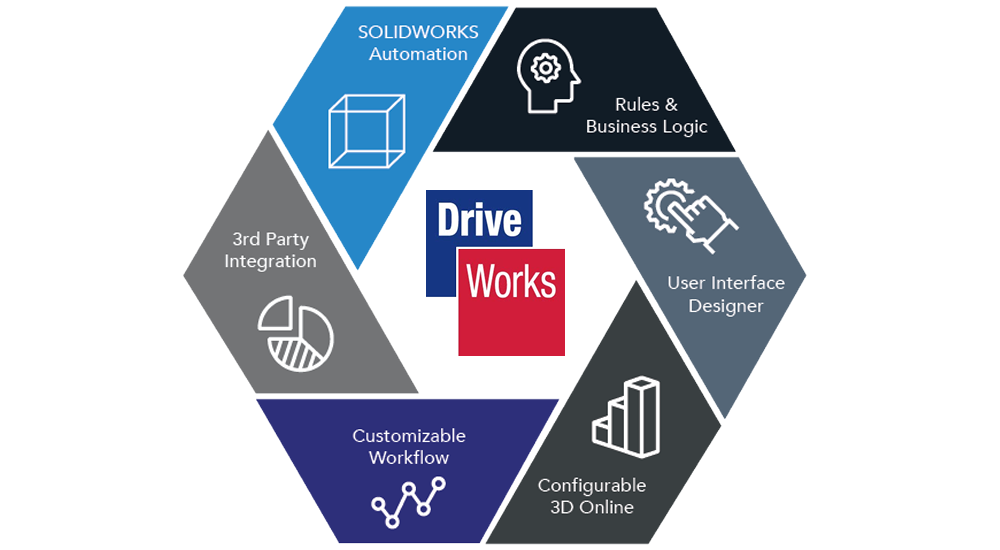
DriveWorks can integrate with many different software and systems and enable fully automated product configurators that translate customer requirements into validated SOLIDWORKS models, drawings, bills of materials (BOM), and pricing outputs — often with zero engineering intervention.
This CPQ capability allows sales teams to generate accurate quotes and product configurations in real time, while engineering teams benefit from standardized, rule-driven design generation.
Note: And don’t forget, every license of SOLIDWORKS comes with DriveWorks Xpress — a “lite” version of DriveWorks that has an impressive amount of functionality for being an Xpress tool. If you’re interested in trying an upgraded version, DriveWorks Solo, a 30-day free trial is available.
Learn more about DriveWorks:
- DriveWorks – Design Automation & Product Configurator
- Modeling for Design Automation with DriveWorks
- Getting Your Products Ready with DriveWorks Pro 3D CPQ Configurator
- DriveWorks Case Study: Waimea
Get the Most Out of Automation in SOLIDWORKS
Ultimately, automation in SOLIDWORKS is about reshaping how we, as engineers, designers, and CAD-users interact with the design process itself.

When routine effort is reduced — whether through parametric control, automated documentation, or system-driven workflows — we have more time for engineering judgment, iteration, and refinement of real design intent.
We can choose the right level of automation for the task at hand, gradually building toward workflows that are less manual and more adaptive. Automation is not a destination but an ongoing evolution that allows us to spend our time more strategically so we can make better engineering decisions.
As always, if you have any questions or want to know more about automation and the other tools in SOLIDWORKS, reach out to us! We are always happy to discuss how the SOLIDWORKS suite of software solutions can address your engineering and design challenges and help you improve your workflows and development processes.
Be sure to check out our webinar on SOLIDWORKS automation as well: