DriveWorks is a powerful automation and configure, price, quote (CPQ) platform that works seamlessly with your SOLIDWORKS 3D models, transforming manual, repetitive design tasks into fast, rule-driven completed projects.
By embedding intelligence directly into SOLIDWORKS parts, assemblies, and drawings, DriveWorks allows engineers to automatically control dimensions, features, configurations, custom properties, and even file structure based on user input.
The result is rapid, error-free generation of fully engineered, sales-ready purchase orders that enable teams to scale customization, reduce engineering time, and deliver consistent, high-quality designs every time.
Exploring the 3D Configurator Demos
DriveWorks has example 3D configurator projects that are designed to show — in a practical and approachable way — how 3D CPQ and design automation work together to automate custom projects. These projects reflect real-world workflows and serve as templates that can be adapted to almost any engineered-to-order product.
Anyone can access these configurator example projects online for free through the DriveWorks website. Once you’re on the configurator demos page, scroll down to see the list of available demo projects that can be tested and configured.
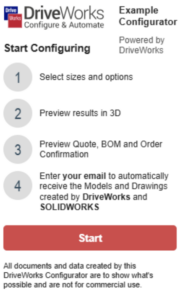
The custom shelving project was used for this blog. When you open the shelving project in DriveWorks, you are immediately introduced to the core structure of a DriveWorks solution. But first, you’ll have to click the “Start” button on the Start Configuring menu.
How the Configurator Works
Every project is built around the user input, which is controlled through forms, rules, and processes, and automated outputs are generated for sales, engineering, and manufacturing. This structure mirrors how a CPQ system bridges the gap between customer requirements and production-ready data.
After you click “Start” on your example 3D configurator, your experience typically begins with the user form design, which represents the CPQ front end. This is what a sales user or customer interacts with. The form contains dropdowns, numeric fields, and checkboxes for options such as size, material, or additional features.
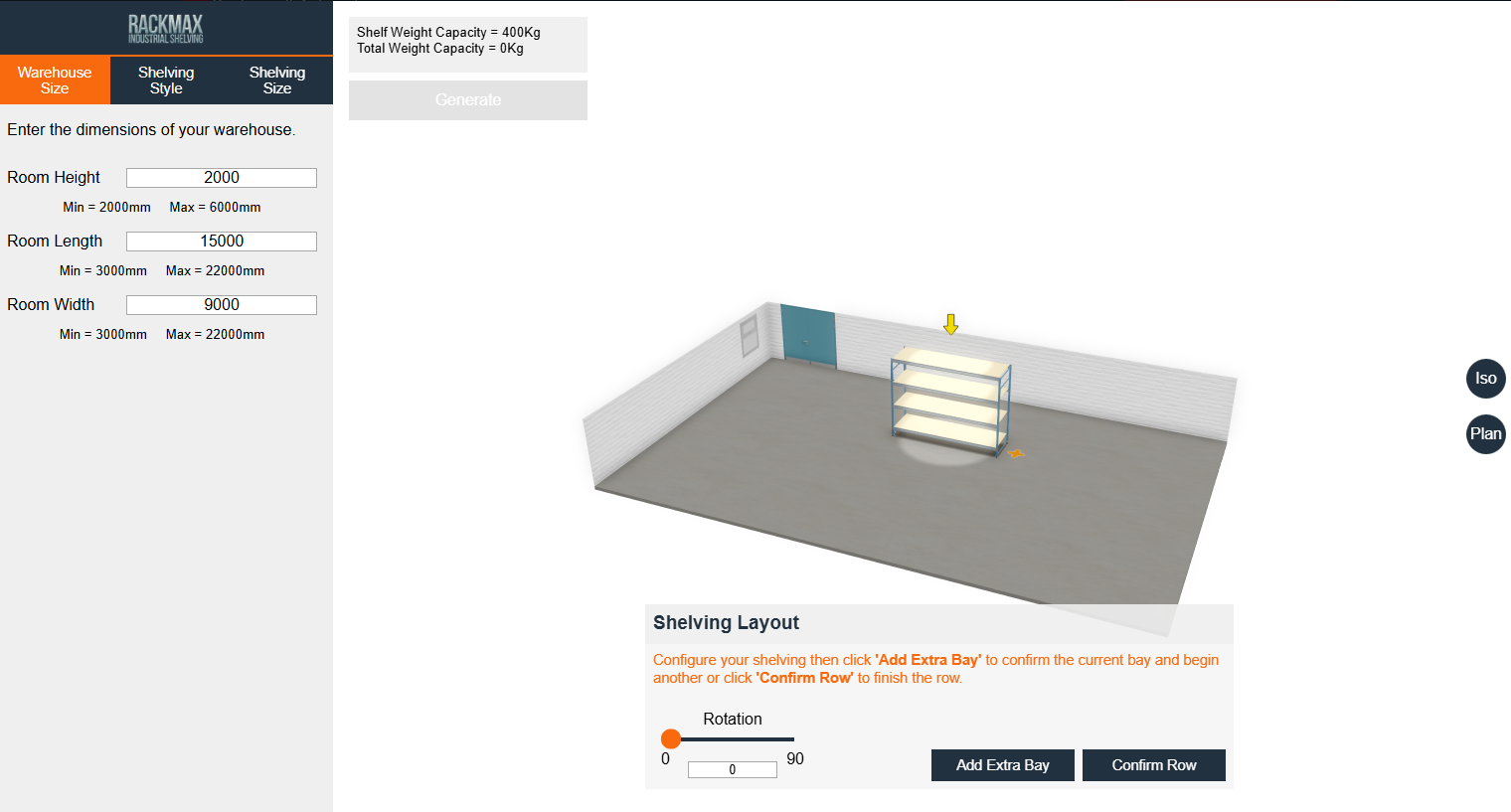
As values are entered, DriveWorks immediately applies logic behind the scenes. Invalid combinations can be prevented. Dependent options can appear or disappear. And calculated values like price, weight, or lead time can update automatically. This ensures the configuration is both accurate and manufacturable from the start.
The Importance of Rules in Configurations
Behind the form sits the rules engine, which is the heart of the project. Rules drive the dimensions of the capture model and its business logic in a readable, structured way. These rules validate inputs, calculate values, and determine how the product should be built.
For example, a rule might automatically add reinforcement when a product exceeds a certain size, select an appropriate material gauge based on the chosen material, or calculate pricing from the product’s dimensions and selected options. This approach removes reliance on knowledge among your team and ensures consistent results across every configuration.
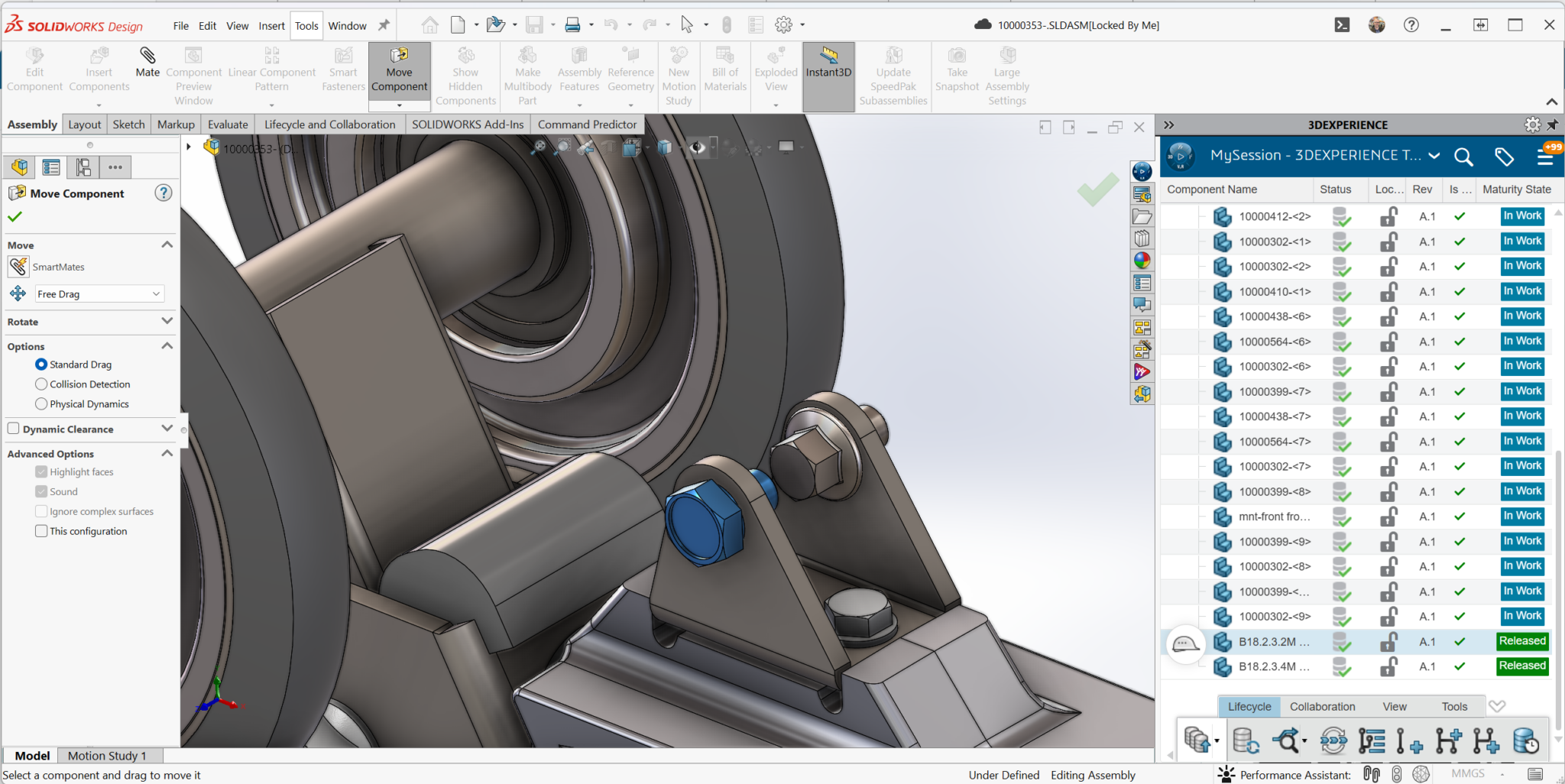
Those same rules are then linked directly to SOLIDWORKS models and assemblies. In our example project for a custom industrial shelf, changing a single value on the form can drive multiple dimensions, suppress or unsuppressed components, and update custom properties across the entire model.
The Additional Features that Make DriveWorks Pro Powerful
Optional features are automatically included (or you can remove them), and assemblies adapt instantly to match the selected configuration. This is true design automation and engineering intent applied automatically without manual CAD rework.
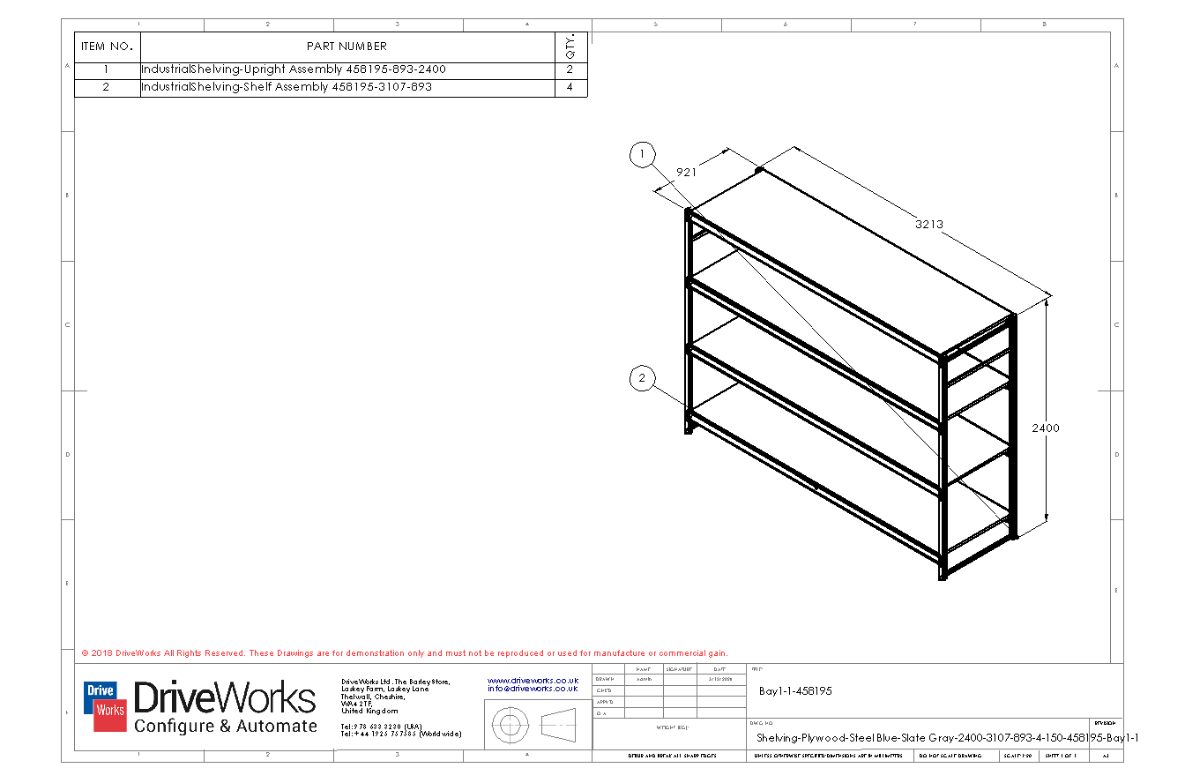
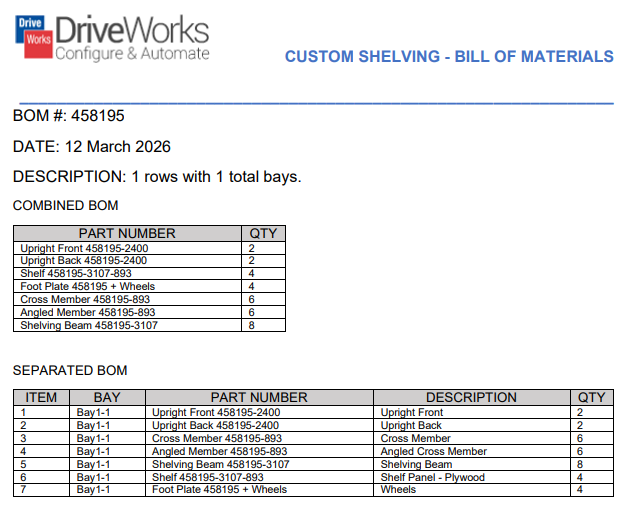 DriveWorks Pro can generate a bill of materials for custom shelving directly from the configured inputs.
Depending on the configuration, the system can generate SOLIDWORKS files, PDFs, DXFs for manufacturing, bill of materials (BOMs), and ERP-ready data files. Outputs files are named consistently, saved to the “Specification” file locations, and only created when required. This ensures downstream teams receive exactly the information they need, without extra manual steps.
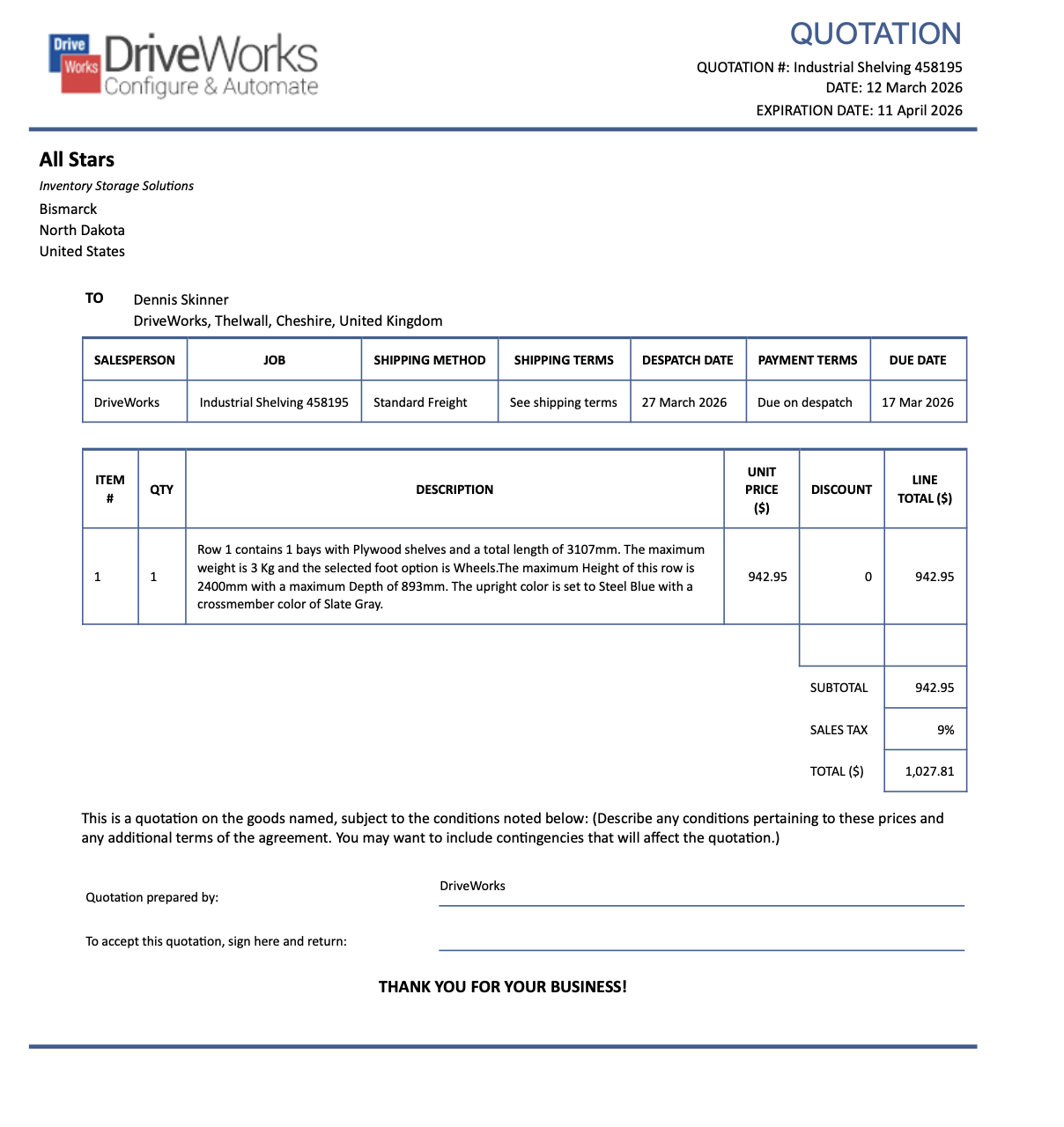
When you run the project, DriveWorks creates a specification, which serves as a permanent record of that project. This specification can be reopened, regenerated, or revised at any time, making it ideal for quotes, orders, and repeat business. It effectively ties together sales intent, engineering data, and manufacturing outputs.
The Final Note
Ultimately, DriveWorks illustrates how CPQ, design automation, and manufacturing outputs can be unified into one streamlined process. Sales teams can configure products confidently. Engineering logic is reused rather than recreated. And production-ready deliverables are generated automatically. You can scale customization efficiently and profitably across any product line. Learn more about whether DriveWorks is right for you in this buyer’s guide or start a 30-day free trial of DriveWorks Solo.
If you have any questions about DriveWorks, reach out to us. We’re happy to help!