
When building SOLIDWORKS API macros, one of the first questions to answer is: which SOLIDWORKS document should the macro work with?
Most macros need a file to act on, whether that means editing the active part, creating a new drawing, or opening an existing assembly.
In this blog, we’ll show you how to connect the SOLIDWORKS API to the active document or open a new or existing document.
Accessing Documents with API Statements
We can access these SOLIDWORKS documents using statements of this type:
- swApp.ActiveDoc
- swApp.NewDocument (parameters)
- swApp.OpenDoc6 (parameters)
We’ll discuss parameters in a later post, but notice that before we call each function, we specify them as “swApp.” In order to access functions, we need to specify to the code where these functions are coming from. In the case of these first few functions, they all belong to the top level SOLIDWORKS application.
Storing the Active Document as a Variable
Usually, you’ll also want to do something with the SOLIDWORKS document, such as get some information about the geometry, add custom properties, or traverse the feature tree. Thus, it’s helpful to store the newly created, opened, or accessed document into a variable.
Our statements would then look like this:
- Dim swDoc As ModelDoc2
- Set swDoc = swApp.ActiveDoc
The “Dim” statement is used to declare a variable in which to store some type of data (in this case, a ModelDoc2 object), and that swApp is the variable commonly used to store a pointer to the SOLIDWORKS application.
In this case, what we’re doing is declaring the swDoc variable as a ModelDoc2 object (an umbrella object that encompasses parts, drawings, and assemblies) and then taking whichever document is currently active in SOLIDWORKS and assigning its address to the swDoc variable. By declaring swDoc as a ModelDoc2 object, we have access to all the functionality defined in the IModelDoc2 interface.
Understanding How API Functions Connect to Documents
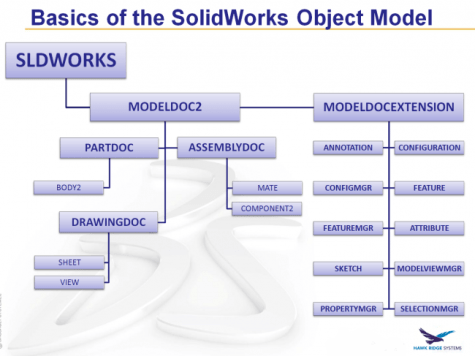
The SOLIDWORKS Object Model extends far, far beyond what is shown here, but it is helpful to have a visual representation of the basic structure. The implication of the Object Model’s structure is that we have to access features through the specific interfaces that are defined by the API.
For example, under the IModelDocExtension interface, there is an “InsertBomTable2” method that creates a Bill of Materials table in an assembly or drawing document. However, we can’t just drop “InsertBomTable2” into our code and expect the program to figure out what we want. We have to start from the “SldWorks” application object, then go to a ModelDoc2 object, then go to that object’s ModelDocExtension interface, and then finally call the InsertBomTable2 method.
The actual code to do this would look something like this:
Dim swApp As SldWorks.SldWorks

Dim swDoc As ModelDoc2

Dim swDocExt As ModelDocExtension

Sub main()

Set swApp = Application.SldWorks

Set swDoc = swApp.ActiveDoc

Set swDocExt = swDoc.Extension

swDocExt.InsertBomTable2 parameters

End Sub
Actual execution of the above code would require proper parameters to follow
the swDocExt.InsertBomTable2 function call.
Again, we’ll talk about how to figure out the parameters of functions from the Help file in a later post.
If you’re interested in the SOLIDWORKS API, make sure to check out the webinars and blogs:
- Getting Started with SOLIDWORKS API Programming
- Getting Started with the SOLIDWORKS API Automation
- Top 5 Commonly Used Interfaces in the SOLIDWORKS API
- SOLIDWORKS API: Creating a Keyboard Shortcut for Tree Display
We’re here to help if you have any questions. Reach out to us!