Engineering drawings are the primary method of controlling and communicating manufacturing, inspection, and quality information for the products you design. Documenting your designs with clear, well-defined drawings is an extremely important part of the development process. But it can also be one of the most tedious and time-consuming.
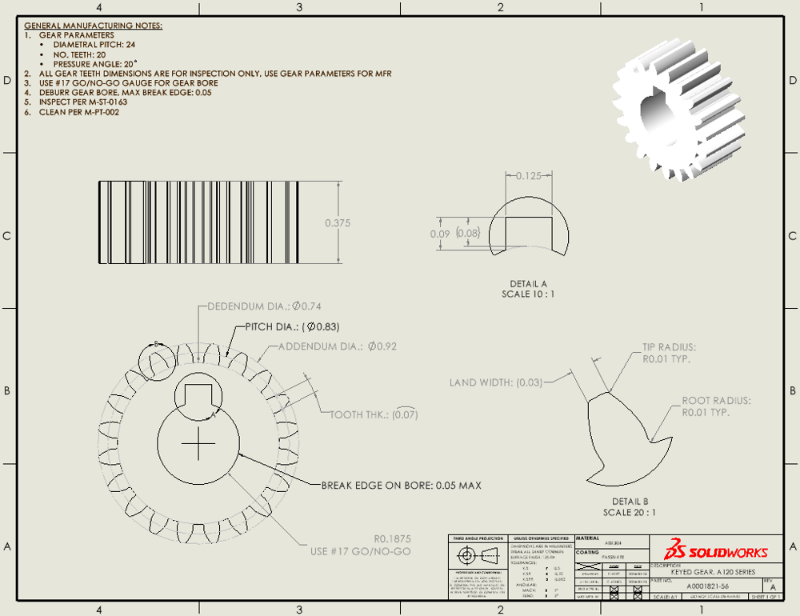
Inserting views, configuring sheet formats, adding dimensions, formatting annotations, etc. can consume valuable time — time that could otherwise be spent addressing design and engineering challenges.
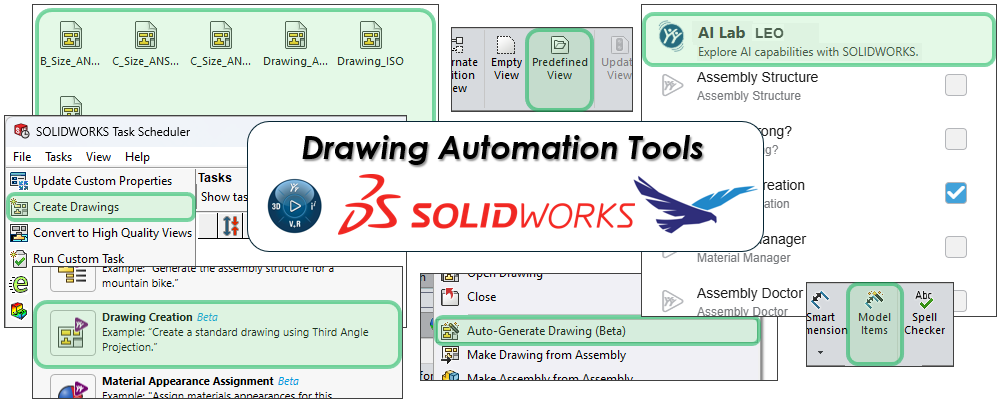
To that end, SOLIDWORKS has continued to evolve its automation capabilities. And thankfully, in 2026 there are multiple ways to help automate the drawing creation process. Whether it’s drawing templates, predefined views, or taking advantage of the latest AI-powered capabilities, there’s likely a solution that can help speed up the creation of your drawings.
Set Up Robust Drawing Templates
It might seem like a no-brainer, but a simple way to automate parts of the drawing process begins with defining robust Drawing Templates.
Far too many users create drawings from a blank template or one of the default templates installed with SOLIDWORKS. They need to manually change document settings, adjust scales, configure sheet properties, adjust title block information, etc. every single time they create a drawing. While there is technically nothing wrong with doing it this way, it is a very inefficient way to create drawings and opens the door for inconsistency and error.
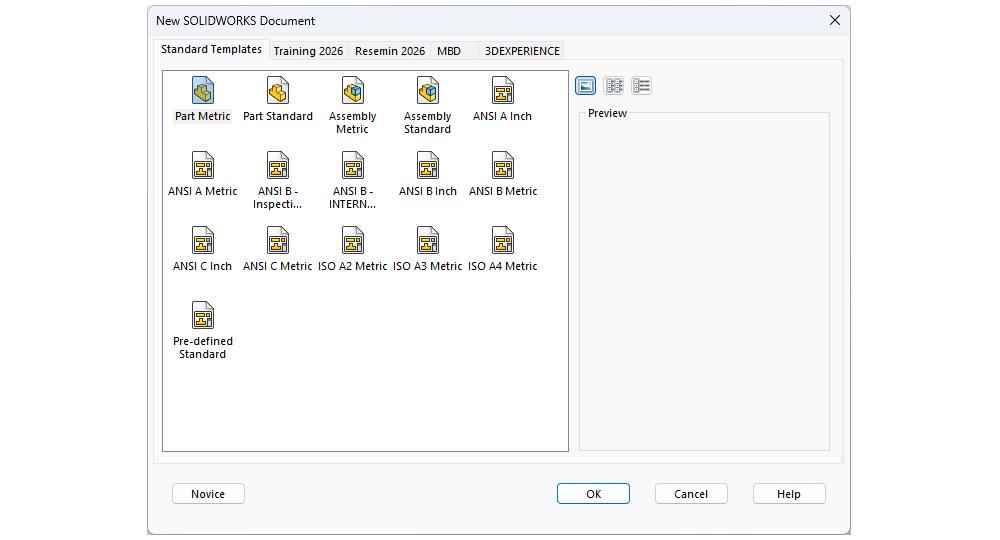
By creating well-defined drawing templates that capture standard information and the settings you need, you can vastly improve consistency and efficiency when creating drawings. Templates allow you to customize a wide range of settings, annotations, and drafting standard options that will be automatically applied to every drawing you create.
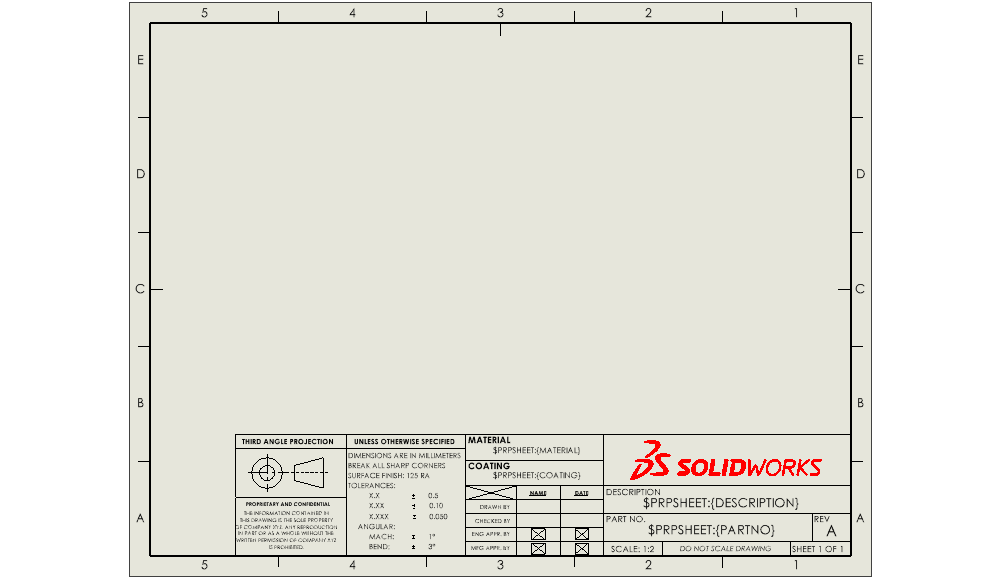
A well-designed template (along with an accompanying sheet format) can include things like:
- Sheet (paper) size
- Annotation and dimensioning styles
- Standard title block information (e.g., block tolerances, confidentiality statements, standard process information) and general notes
- Drafting standards (e.g., ANSI vs. ISO)
- Company logos, slogans, and standards
- Default custom properties (e.g., Revision, DrawnBy, DrawnDate)
You likely have a standard template (or templates) used across your company or department. But even so, it’s still often a good idea to take a step back to evaluate how well your template fits your workflows. If there is information you are consistently needing to add manually or a setting you are constantly changing each time you create a drawing, it’s likely your drawing templates could be improved. Ideally, you should let your templates “automate” as much as possible before you start creating an actual drawing.
Creating well-defined templates should always serve as the first step to automating the drawing process. They help you save tons of time and make your drawings more consistent. They also supplement most of the other SOLIDWORKS drawing automation tools we discuss later in this article — starting with a good template will set you up for success no matter how far down the drawing automation rabbit-hole you decide to go!
Using Predefined Views in Drawing Templates
Once you have your templates established, a simple way to make those templates more effective is to set up placeholder views directly in the template using the Predefined View tool.

Predefined View allows you to place view placeholders in drawings, and more importantly, in drawing templates. You can use these placeholders to define Front, Top, Right, Isometric, or other standard views in your drawing template. Then when using that template, SOLIDWORKS automatically populates your drawing with each applicable view.
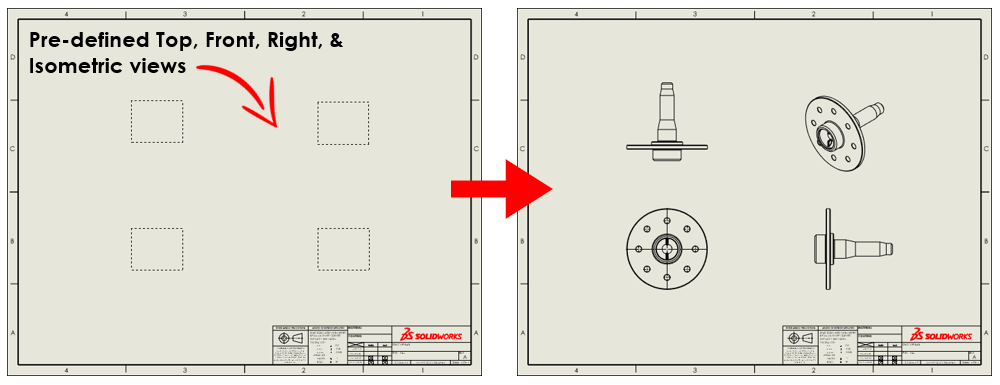
You can also customize predefined views to define things like view scale, display style, view quality, etc., per view. You can even import model annotations automatically when using predefined views to help save even more work.
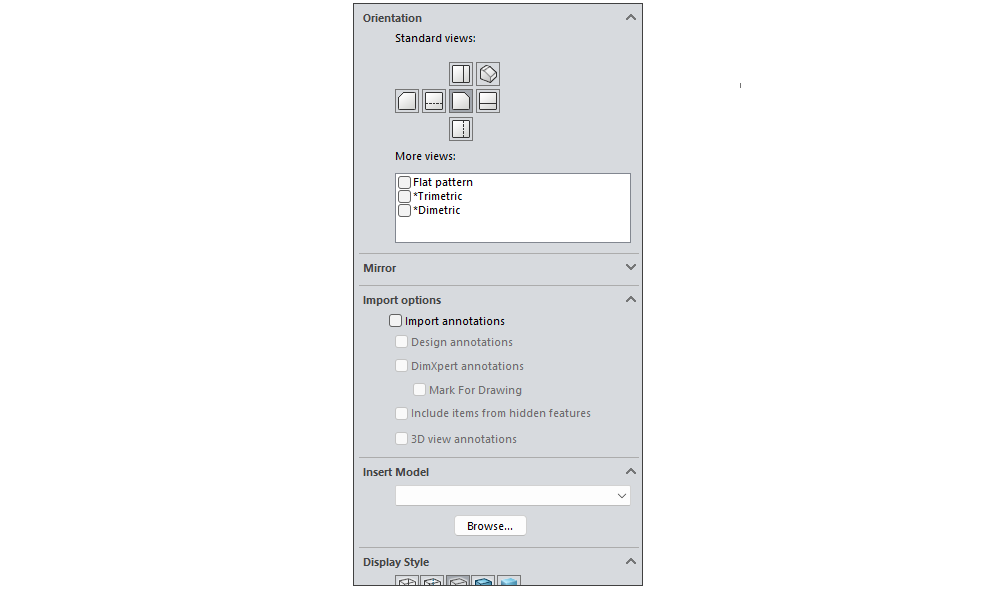
Predefined views often work best for components whose detail can be captured by standard drawing views, but they can serve as a starting point for more complex parts/drawings as well. In either case, Predefined View can further improve your drawing templates and help you save time and effort when documenting your designs.
Pro-tip: For templates that don’t use predefined views, you also have access to the “Standard 3 View” tool to automatically insert the standard orthographic views (Front, Top, Right) into your drawings as well.
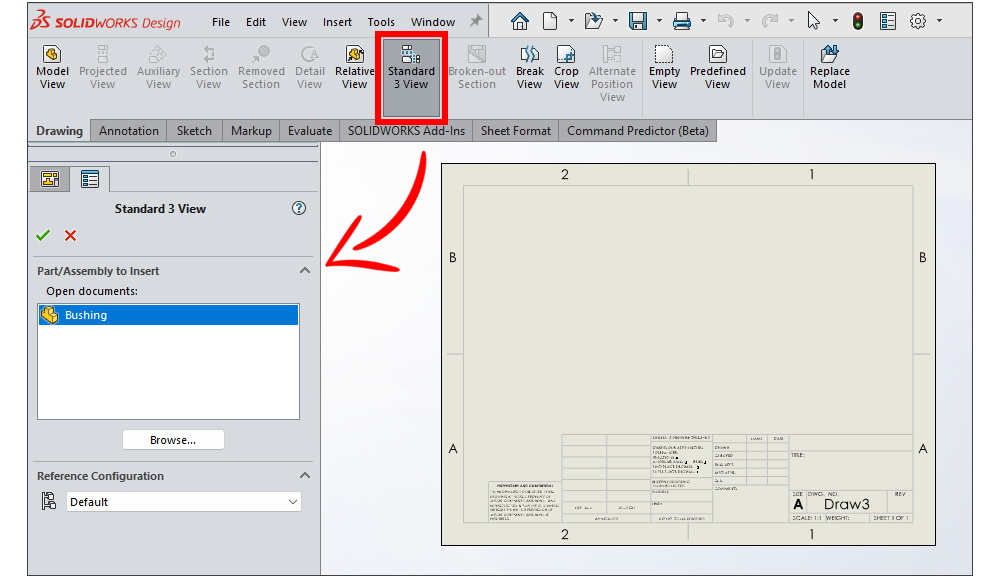
Auto-Generate Drawing Command (Beta)
For users looking to automate even more of the process, SOLIDWORKS includes the Auto-generate Drawing (Beta) command. Rather than simply placing views, this tool takes a more intelligent approach to drawing creation. After selecting a part or assembly, SOLIDWORKS analyzes the geometry and automatically creates a drawing using views that best represent the model.
The Auto-Generate Drawing command is available with Cloud Services. It allows you to begin a drawing with much of the work already completed for you: automatically creating drawing views, dimensions, and annotations. It allows you to spend less time building documentation and more time focusing on important drawing details.
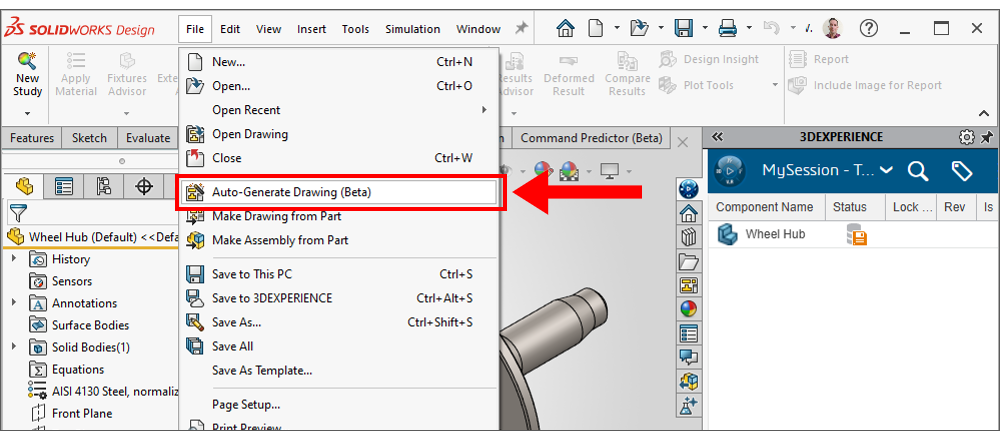
This tool works best when your model can be well-defined with standard drawing views and dimensions (e.g., prismatic machined parts) but can also be used as a starting point for more complex drawings. It offers a great way to establish a foundation for your documentation and reduce much of the busy work associated with setting up views and annotations.
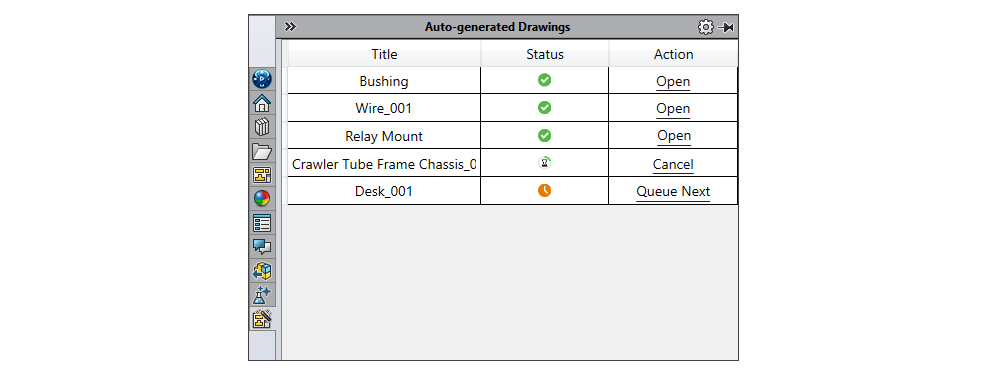
AI-Powered Drawing Creation with LEO
You may have heard about the new AI assistants in SOLIDWORKS, AURA and LEO (with more in development). You can read more about the capabilities of these AI-powered agents in our SOLIDWORKS Automation article and SOLIDWORKS AI Assistants video to get more familiar with them. These assistants have the potential to vastly improve your efficiency and capabilities in SOLIDWORKS (and design in general), and generating drawings is no exception.
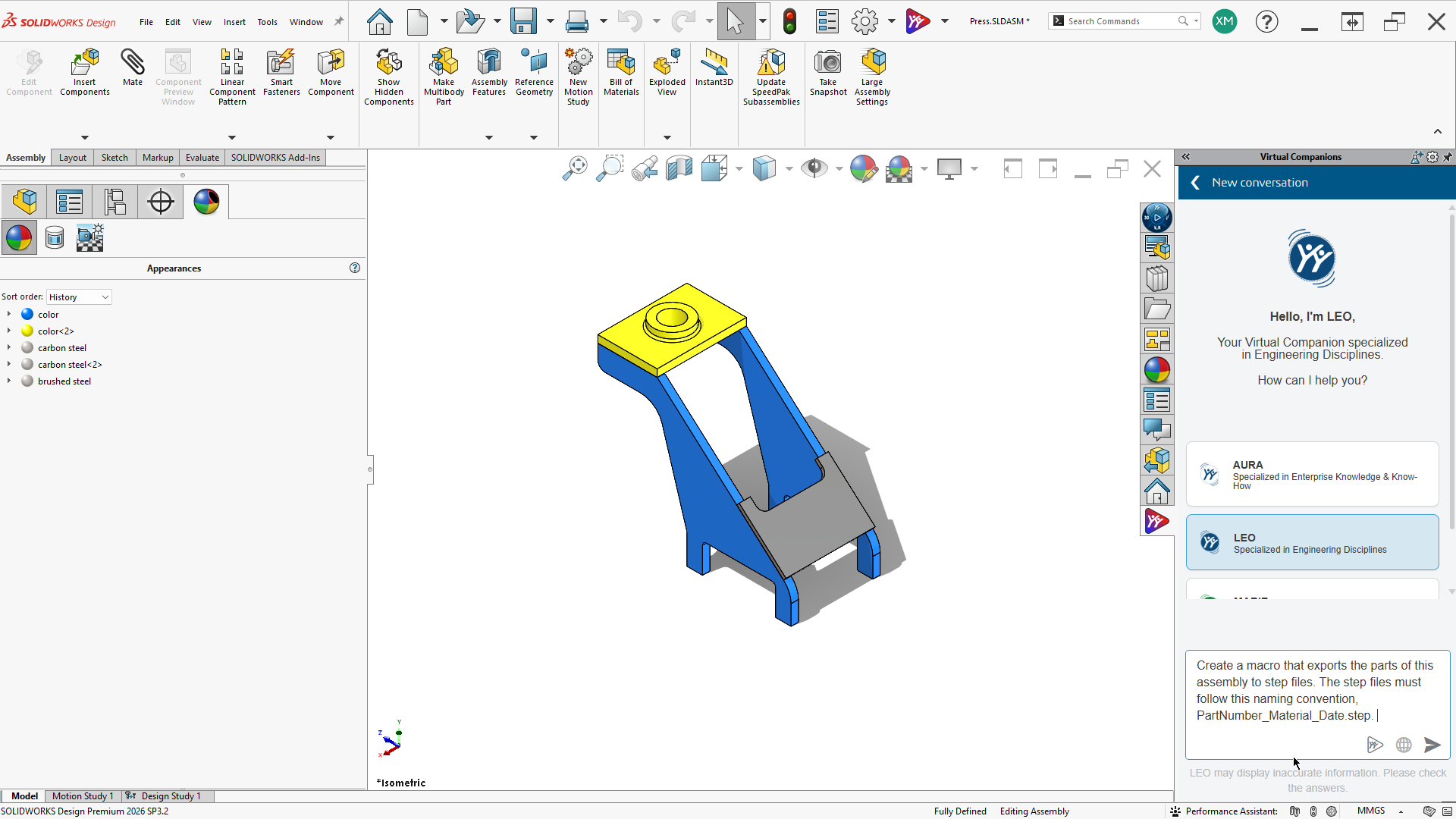
In fact, the newest evolution of drawing automation comes from the Drawing Creation tool available with Cloud Services and powered by LEO. While connected to your Cloud Services tenant, you can access the AI drawing tool directly in SOLIDWORKS through the My Session tab in the Task Pane.
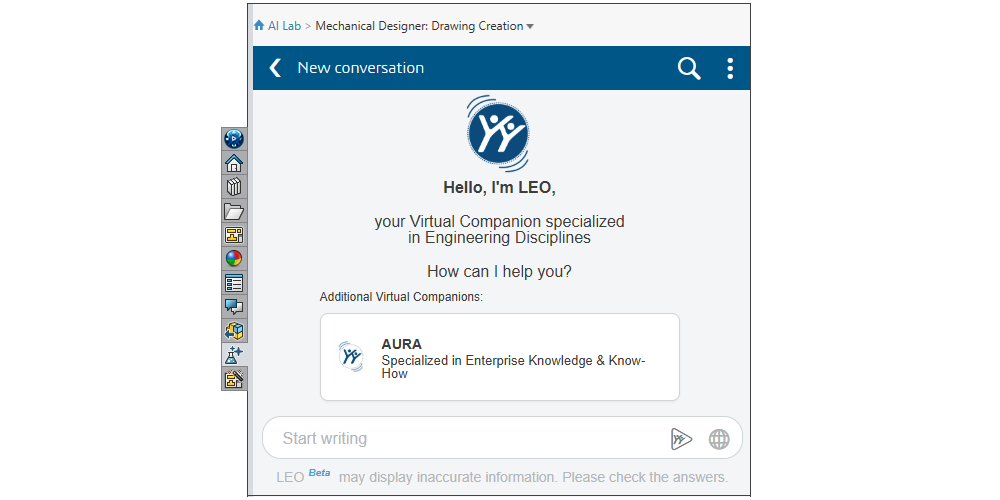
Using natural language prompts, you can instruct LEO to generate drawings with minimal input. LEO is an engineering and SOLIDWORKS focused AI agent, as opposed to a general-use LLM. As such, it’s uniquely able to generate and annotate many different types of drawing views to properly detail your drawings.
LEO accelerates the transition from CAD model to production-ready drawing while keeping you, the user, in full control of the final drawing. Combined with a well-defined drawing template and standard drawing tools, AI-assisted drawing creation has the potential to significantly reduce the time needed to create drawings and fully document your designs.
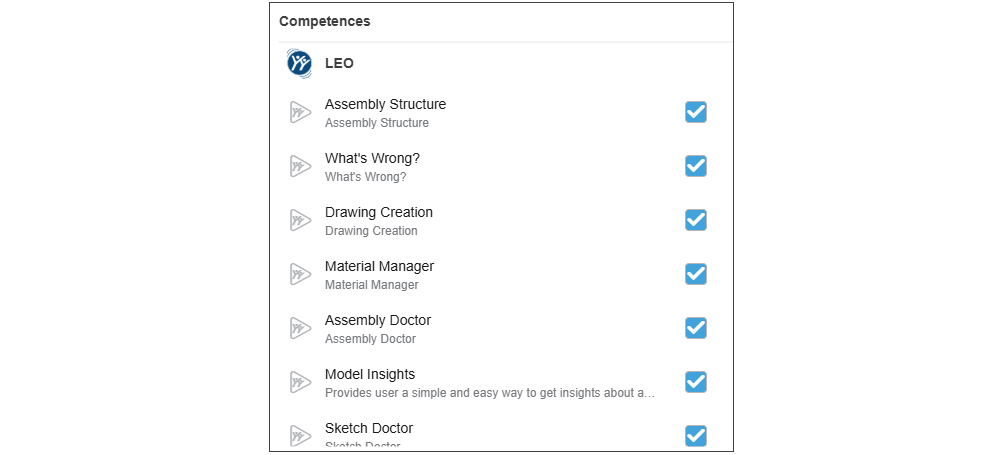
Using LEO to automatically generate your drawings, your prompts might look something like this:
“Create a manufacturing drawing for the active part using standard front, top, right, and isometric views. Use the standard ISO A4 Metric drawing template and default settings. Import annotations from the model directly.”
OR:
“Generate a drawing using the default template with the front view as the primary view. Create left and right projected views from the primary view. Add a horizontal section view using the right view as the parent view. Insert a revision table and BOM using the default templates.”
Functionally, this represents a significant shift in how you can interact with SOLIDWORKS to accomplish meaningful tasks, such as creating your drawings.
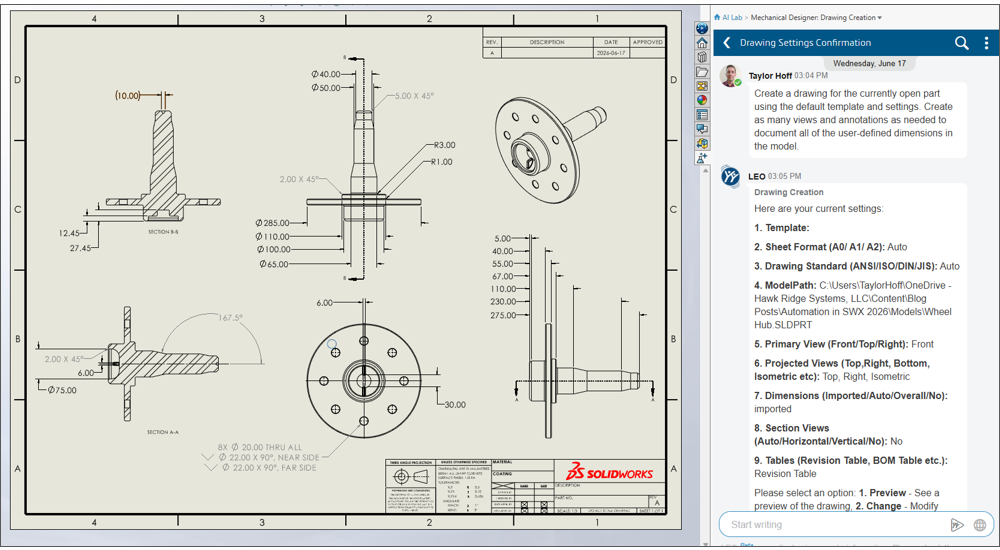
With good prompting, LEO creates drawings that often capture the majority of the design detail you need for a given model. Additionally, you can use LEO to add to existing drawings using these prompts as well. If you forgot to include something in your initial prompt (or in a drawing created via traditional means), you can continue prompting LEO to add additional views, annotations, tables, etc.
Keep an eye on this tool, as it will only get better and better over time. To learn more about the AI tools coming from SOLIDWORKS and how you might leverage them to be a more efficient engineer, be sure to check our article on How Engineers Are Actually Using AI in 2026: 5 High-Value Use Cases (With Prompts).
Note: At the time of writing this blog, the LEO AI drawing generation tool is in Beta.
Additional Automation Tools
While drawing templates, Predefined View, Auto-Generate Drawing, and AI drawing creation with LEO are some of the best ways to automate drawing generation, there are many other tools in SOLIDWORKS that can help speed up and automate various parts of the drawing process. Here is a brief list of those tools and how they can help make your drawing workflows more efficient.
Model Items
One of the quickest ways to populate a drawing with dimensions and annotations is through the Model Items tool. This tool automatically brings in any annotations that exist in the model itself directly into your drawing. Use this tool to bring in dimensions, hole wizard locations and profiles, pattern information, notes, tolerances, hole and weld callouts, reference geometry, and more. Nearly any annotation that’s defined in the model, from a dimension in a sketch to a GD&T callout, can be automatically inserted into a drawing using the Model Items tool.
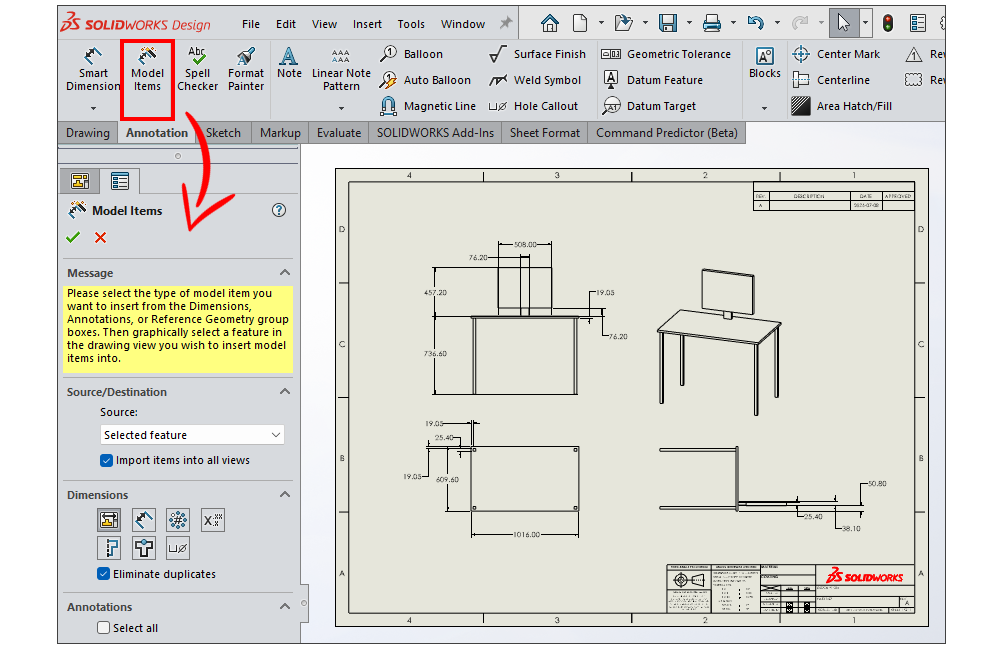
Annotation Views
Similar to the Model Items tool, Annotation Views are another way to automatically bring model annotations into a drawing. While the two tools are similar, they operate in slightly different ways. With Annotation Views, you determine which view you want a certain annotation/dimension to be associated with (e.g., Front, Top, or Right).
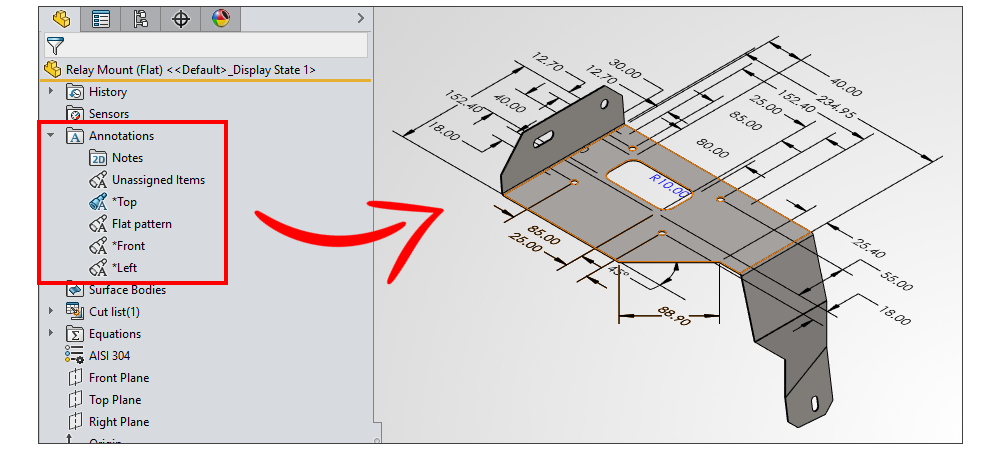
Then you can use the “Import Annotations” option to automatically populate those views with your annotations in a drawing. This often requires a little more “upfront” work than the Model Items tool as you must organize your annotations in the model first, but it also gives you far more control over where they’re shown when you eventually create the drawing.
DimXpert and MBD
If model dimensions and annotations are defined using the Model-Based Definition (MBD)/DimXpert tools, you can leverage them for use in your drawings as well. While MBD dimensions are most often used to document designs directly with the 3D model, these annotations can then be reused when 2D documentation is required. This helps reduce duplicate work while helping maintain consistency between the 3D model and 2D documentation.
Read more about using DimXpert and MBD here:
- SOLIDWORKS Model-Based Definition (MBD)
- MBD, DimXpert, and MBD Dimensions: What’s the Difference?
- What’s New in SOLIDWORKS 2016 – DimXpert – YouTube
The Task Scheduler
As we discussed in our 7 Best Ways to Help Automate Your SOLIDWORKS Designs, the Task Scheduler can be a powerful automation tool — and that includes automated drawing generation.
With the Task Scheduler you can set up tasks that run during down time (such as during lunch or after hours) to create drawings automatically. All you need to do is set up a well-defined template with predefined views, select the files you want to create drawings for, set when you want the task to run, and SOLIDWORKS does the rest!
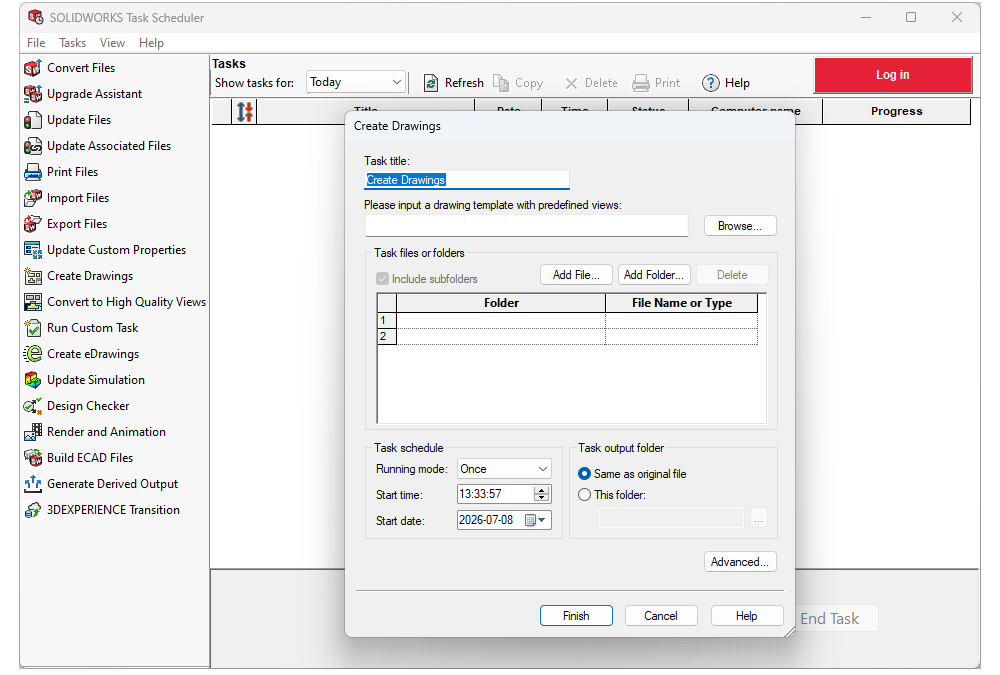
The Task Scheduler can create drawings for individual files or select entire folders to create many drawings with a single automated task — making this a huge potential time saver.
Macros and the SOLIDWORKS API
The SOLIDWORKS API and macros give you a wide range of automation possibilities when it comes to generating documentation.
Macros can be recorded directly in SOLIDWORKS to track keyboard strokes, mouse movements/clicks, and the selection of various commands and tools — which can be used to help automate the drawing process. With the “Record Macro” tool you could easily record your inputs to create standard drawings with specific views and annotations. You can then “play” that macro back to repeat that same exact process for any number of future files you need to create drawings for.
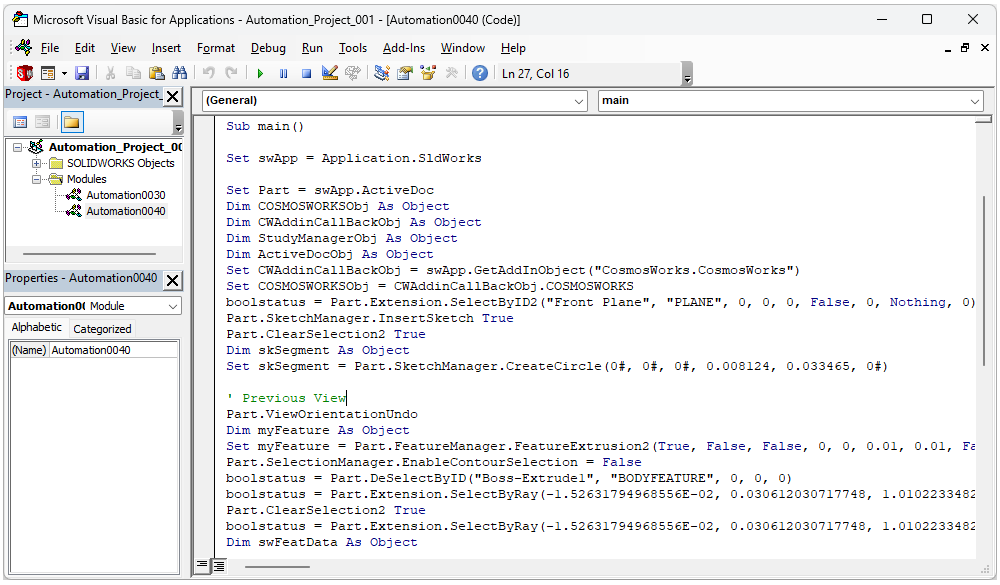
The API on the other hand gives you full access to automate any number of processes in SOLIDWORKS using script/code using programming languages such as VBA, VB.NET, or C#. While it does take some work upfront to generate the appropriate code, the level of automation you can achieve with the API is nearly endless — which means that automation of nearly any aspect of drawing creation is possible via the API. And with the advent of the SOLIDWORKS AI assistants, you can even use LEO to help you generate that code to create and customize your drawings.
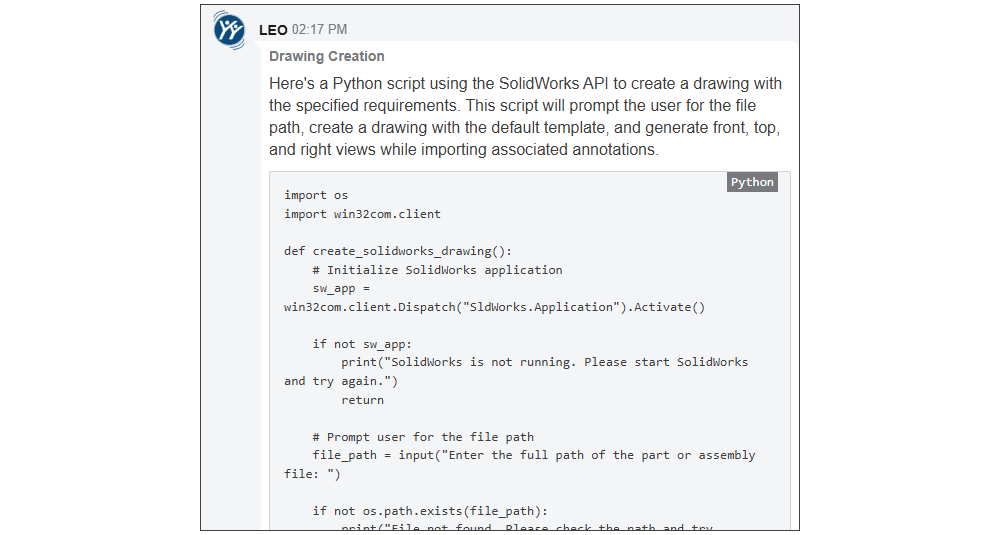
*Note: LEO is still in Beta, so some trial-and-error with prompting may be required to generate the code correctly; and as with all “vibe” coding, be sure to review the code to ensure it’s accurate and secure!
For both Macros and the SOLIDWORKS API, a little bit of upfront work can potentially save many hours across many different projects when it comes to documenting your designs with drawings in SOLIDWORKS.
Choosing the Right Level of Drawing Automation
Not every situation warrants the same level of automation when it comes to drawings. While automation can be extremely powerful, you need to balance it with the time it takes to set up and implement vs. the potential time/effort savings and how applicable it will be for your given applications.
If you’re just starting on the path of drawing automation, simply implementing standardized drawing templates and predefined views can eliminate much of the repetitive work associated with starting your drawings. When higher volumes of drawings are required the Auto-Generate Drawings command or Task Scheduler can significantly speed up the drawing process. And if you want to go all-out, taking advantage of custom-developed API tools and well-designed prompts with LEO can help you produce near production-ready drawings with minimal effort.
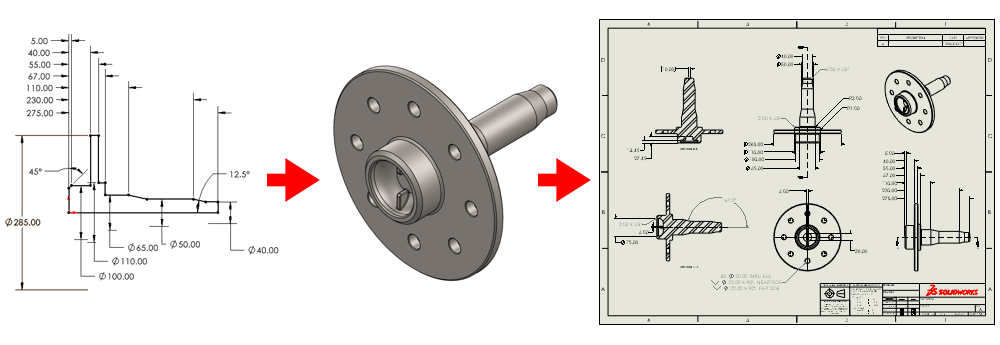
As we’ve discussed thus far, it’s important to remember that these drawing automation methods are not mutually exclusive. In fact, they often work best when used together.
A typical workflow for automating your SOLIDWORKS drawings might look like this:
- Generate a well-defined drawing template that captures all necessary “standard” information
- Populate the template with the necessary Predefined Views
- Use the Auto-Generate Drawing tool or AI-driven LEO Drawing Generation to build an intelligent first draft with imported annotations.
- Use LEO prompts to further customize the drawing by adding additional views, annotations, dimensions, etc.
- Use Model Items, Annotation Views, and/or other standard drawing tools to review, finalize, and fine-tune the drawing
Each layer of automation removes another set of repetitive tasks while keeping you firmly in control of the final documentation.
Use Automation to Save Time, Reduce Effort, and Make Creating Drawings All That Much Easier
While engineering drawings will always require human judgment, SOLIDWORKS provides automation tools to address nearly every stage of drawing creation — from standardized templates and predefined views to AI-powered prompting through LEO and custom drawing generation through API scripting. By embracing these capabilities, you can spend less time placing views, adjusting layouts, and repeating the same documentation steps over and over again. Automation isn’t about replacing you as an engineer/designer/etc. — it’s about empowering you to do more, with less effort, and getting the job done while ultimately making your life easier.
Be sure to check out our article and YouTube video on General SOLIDWORKS Automation as well:
- Automate your Designs with SOLIDWORKS
- How Engineers Are Actually Using AI in 2026: 5 High-Value Use Cases (With Prompts)
- 7 Best Ways to Help Automate Your SOLIDWORKS Designs

As always, if you have any questions or want to know more about how automation and the other tools in SOLIDWORKS feel free to reach out! We are always happy to discuss how the suite of SOLIDWORKS software can address your engineering and design challenges to help improve your workflows and bring efficiency to your development process.