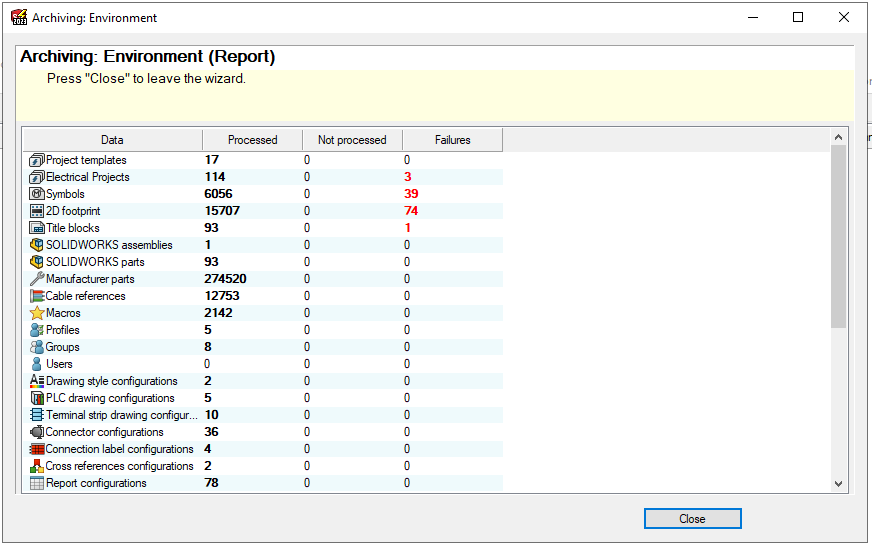
It can be frustrating when a SOLIDWORKS Electrical Environment Archive completes with reported failures but never tells you which symbols, footprints, or projects are responsible. In a large environment, tracking them down by hand can take hours.
Why the Archive Fails
One of the most common causes is a mismatch between the SQL database and the SOLIDWORKS Electrical Data folder: a symbol or footprint still has a valid database entry, but its DWG file no longer exists in the shared Electrical Data folder. This can happen when the file is accidentally deleted, or when a user connects to the shared SQL database while pointing to a local Electrical Data folder — the database record lands in SQL, but the DWG is saved only on that user’s machine.
Two Free Templates That Find the Culprits
To simplify the hunt, we’ve created two Excel templates that compare the SOLIDWORKS Electrical SQL database against the contents of the shared Electrical Data directory.
Symbols & Footprints Template — compares SQL records against the Block folder to find symbols and footprints whose DWG files are missing.
Project Template — compares SQL records against the Projects folder to find projects whose folders are missing.
What You’ll Need
SQL Server Management Studio (SSMS) with login rights to your Electrical SQL instance, access to the shared Electrical Data folder, and a current version of Excel (the templates use the XMATCH and FILTER functions, available in Microsoft 365 and Excel 2021 or later).
How It Works
Both templates follow the same three-step pattern: pull the master list from the SQL database, pull the actual file list from the Electrical Data folder, and let the spreadsheet flag every database entry with no matching file. The SQL query and full instructions are built into each workbook, so the whole check takes about five minutes.
Checking Symbols and Footprints
- In SSMS, connect to your Electrical SQL instance and run the query included in the template. It pulls the expected DWG filename for every symbol and footprint (the blo_filename field from the tew_block table in the tew_app_data database).
- Copy the results and paste them into Column A.
- In File Explorer, open the Block subfolder of your Electrical Data folder (the location set in Tools > Application Settings).
- Type CMD in the folder’s address bar to open a command prompt there, then paste the command below — this copies every filename in the folder, minus the extension, to your clipboard.Command
(for %i in (*) do @echo %~ni) | clip
- Paste into Column B.
- Done. Column C flags “Missing” next to every database entry with no matching DWG file, and the top of the sheet shows the missing count plus a filtered list of the flagged items.
Checking Projects
The Project template works the same way. The included query pulls each project’s ID and name (from the tew_project table in the tew_app_project database) into Columns A and B. Then, from the Projects subfolder of your Electrical Data folder, run the folder version of the one-liner:
(for /d %i in (*) do @echo %~ni) | clip
Paste the result into Column C. Because project folder names match their Project IDs, Column D flags “Missing” for every project in the database with no corresponding folder.
What to Do With the Results
Instead of manually checking thousands of files, you now have a targeted list of library objects or projects to investigate.
If the missing DWGs or project folders are available in an older Environment Archive, you can unarchive it to restore them. If the root cause was the missing objects being saved to a user machine instead of the shared folder, and you still have access to that machine, copying the files or folders into the shared electrical folder will fix the issue.
Once the flagged items are resolved, re-run the Environment Archive to confirm the failure count drops to zero.
Note that these templates identify failures caused by missing files or folders. If an archive still reports failures after everything checks out, another issue is at play and further investigation is required.
For more information, check out our YouTube channel or contact us at Hawk Ridge Systems today. Thanks for reading!