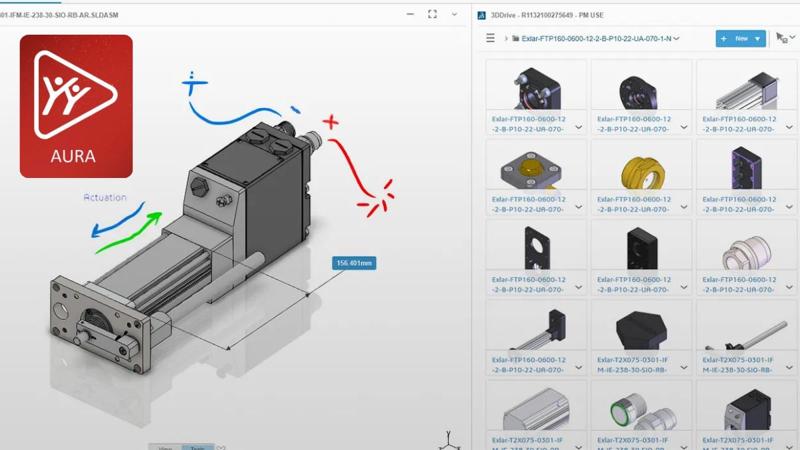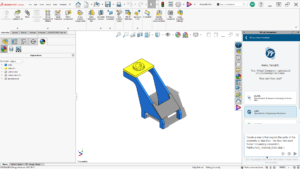
You may have felt the pain of systematically creating each view in your drawing or consulting SOLIDWORKS API help documentation to write your new macro. SOLIDWORKS AI can now automate tasks just like these, but how do you know if you have access to SOLIDWORKS Virtual Companions? Where can you access this tool? This article walks through installing the necessary software based on how you license SOLIDWORKS, accessing SOLIDWORKS AI, and automating these tedious parts of your design with LEO, the SOLIDWORKS AI assistant.
Prerequisites: SOLIDWORKS Design 2026, Cloud Services, and 3DEXPERIENCE Access
Before we begin, you will need SOLIDWORKS Design 2026 or later with Cloud Services. Cloud Services includes additional roles that we will talk about shortly. Alternatively, you can have a SOLIDWORKS single-user license that connects directly to the 3DEXPERIENCE platform without any additional add-ins required. If you do not have access to the 3DEXPERIENCE platform, you will not be able to access SOLIDWORKS AI. Contact your SOLIDWORKS admin to ensure you have the correct roles to access your Cloud Services and Virtual Companions.
If you are licensing SOLIDWORKS Design with standalone or network licensing, the add-in for SOLIDWORKS Design will need to be installed. This will be installed through the 3DEXPERIENCE platform. It is available under the Design with SOLIDWORKS role and is called Collaborative Designer for SOLIDWORKS. If you are running SOLIDWORKS Design with single-user licensing, no additional add-in is required to connect SOLIDWORKS to the platform. If you have already installed at least SOLIDWORKS Design 2026 and Collaborative Designer for SOLIDWORKS, or a SOLIDWORKS Design single-user license, jump to How to Access SOLIDWORKS Virtual Companions below.
How to Install SOLIDWORKS AI from the 3DEXPERIENCE Platform
You will need SOLIDWORKS Design 2026 to access SOLIDWORKS AI. If you do not have SOLIDWORKS Design installed, or you have an older version, refer to the help articles How to Install SOLIDWORKS or How to Install the SolidNetWork License Manager Client. If you are using SOLIDWORKS Design with single-user licensing, all necessary products will be installed from the 3DEXPERIENCE platform automatically when SOLIDWORKS Design is installed. No prior or subsequent installations are required.
Regardless of whether you need to install Collaborative Designer for SOLIDWORKS or the full SOLIDWORKS Design with single-user licensing, both are installed directly from the 3DEXPERIENCE platform, and installation methods are nearly identical.
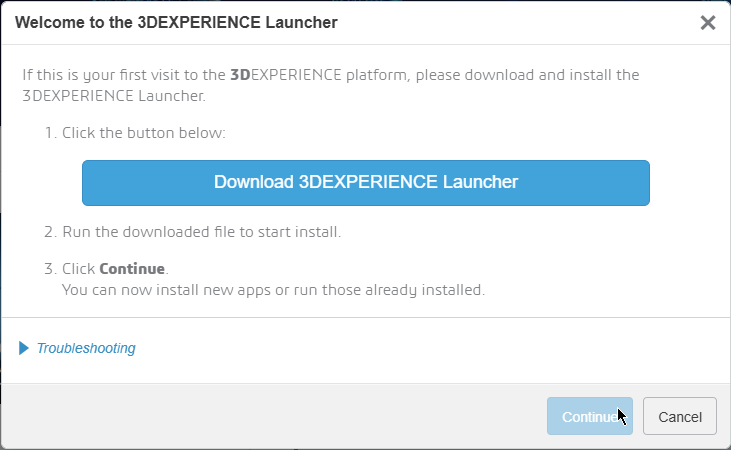
First, click the compass in the upper right-hand corner to access your roles and apps. For Collaborative Designer for SOLIDWORKS, find Design with SOLIDWORKS. For SOLIDWORKS single-user licenses, find the SOLIDWORKS version you are installing: SOLIDWORKS Design Premium or Professional. For this article, I will be using SOLIDWORKS Design Premium. Clicking the dropdown will prompt you to install the 3DEXPERIENCE Launcher if this is your first application installed from the platform.
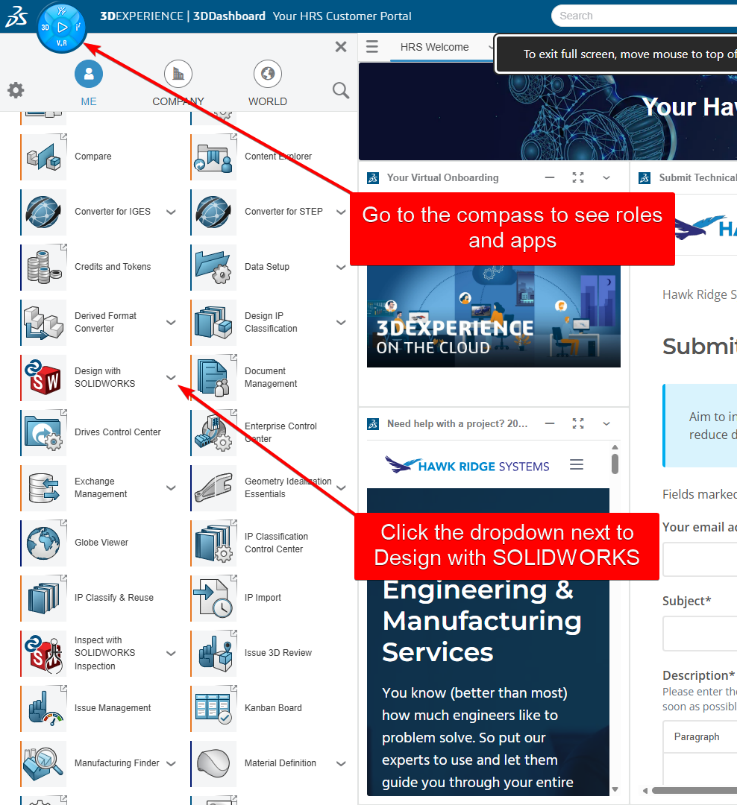
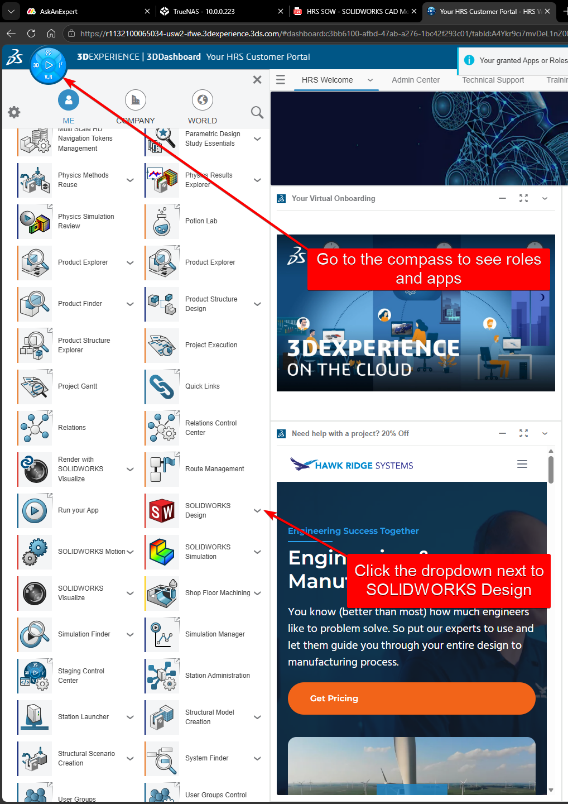
The prompt to install the 3DEXPERIENCE Launcher allows you to download it. Begin the download.
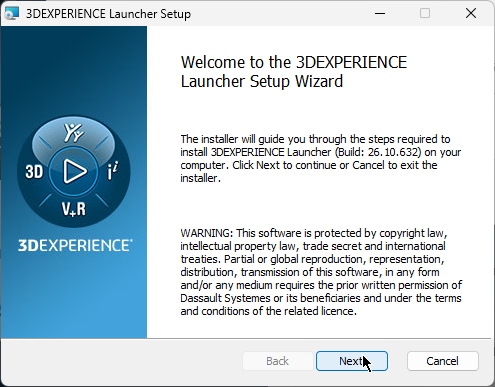
When the download is complete, proceed with the installation.
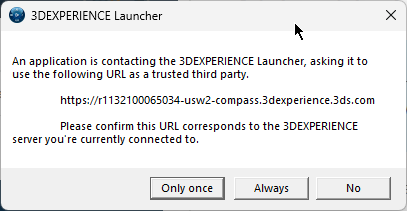
Then, you can click Continue on the “Welcome to the 3DEXPERIENCE Launcher” dialog box in your browser. You may need to click the dropdown on the app again to begin installing the software. You will likely get a notification that the web browser is trying to contact the 3DEXPERIENCE Launcher. Review this dialog box and allow the connection to install and use these applications.
Select Install All Roles Containing Design with SOLIDWORKS or Install All Roles Containing SOLIDWORKS Design, depending on whether you are installing the add-in or a single-user license.
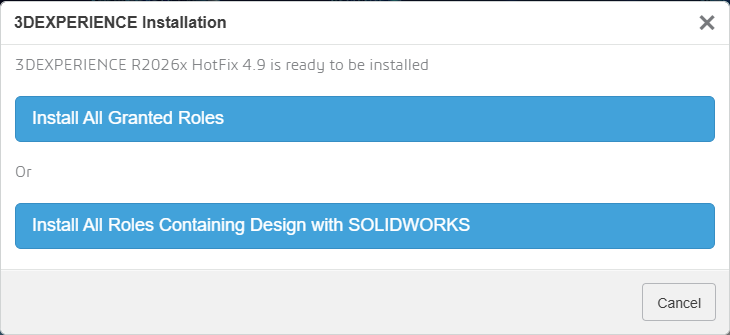
This will open a new installation window. Complete the installation.
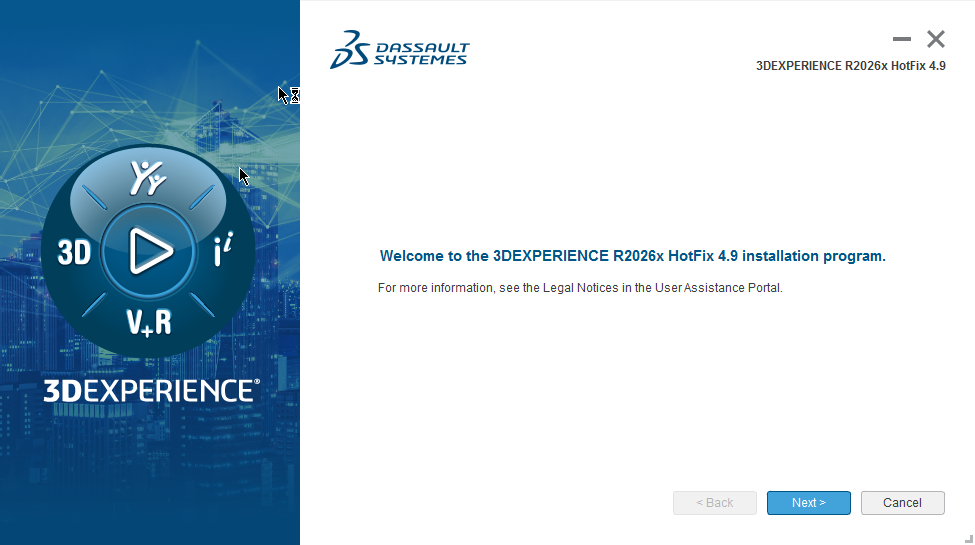
Once the installation is complete, click Design with SOLIDWORKS/Collaborative Designer, or SOLIDWORKS Design Premium/SOLIDWORKS Design once more on the 3DEXPERIENCE platform to launch the software. Launching from the platform is the best way to ensure you are connected to the platform.
How to Access SOLIDWORKS Virtual Companions (AURA and LEO)
Now that the software is installed and launched from the 3DEXPERIENCE platform, you may notice 3DEXPERIENCE features in the task pane on the right-hand side. The red play button opens the Virtual Companions. Click this play button to begin a conversation with one of the Virtual Companions. The two companions you can access in SOLIDWORKS Design are AURA and LEO. AURA helps connect you to knowledge, operating much like the LLM chatbots you are already familiar with. Ask AURA questions, and it will provide answers from SOLIDWORKS help articles and 3DSwym communities. LEO takes action in your model, providing context on your current documents and making changes. Let’s access these Virtual Companions and see what they can do.
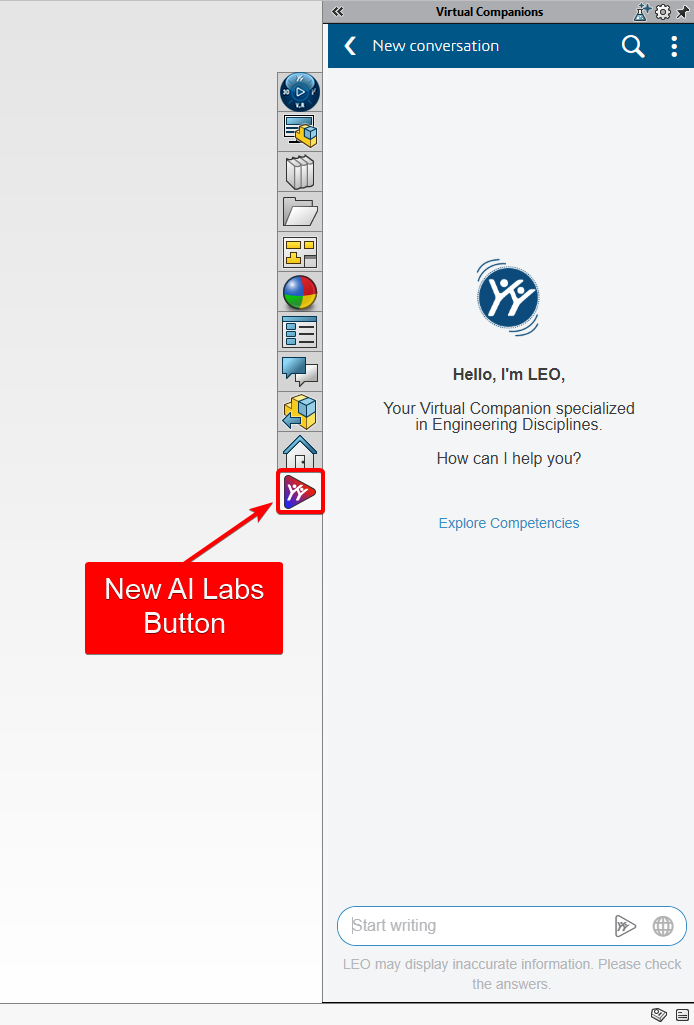
At the top of the Virtual Companions tab is the Explore AI Capabilities button. Note that the SOLIDWORKS Labs tab looks different in older service packs and does not include this button in SP2 and earlier.
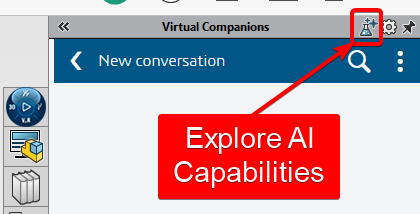
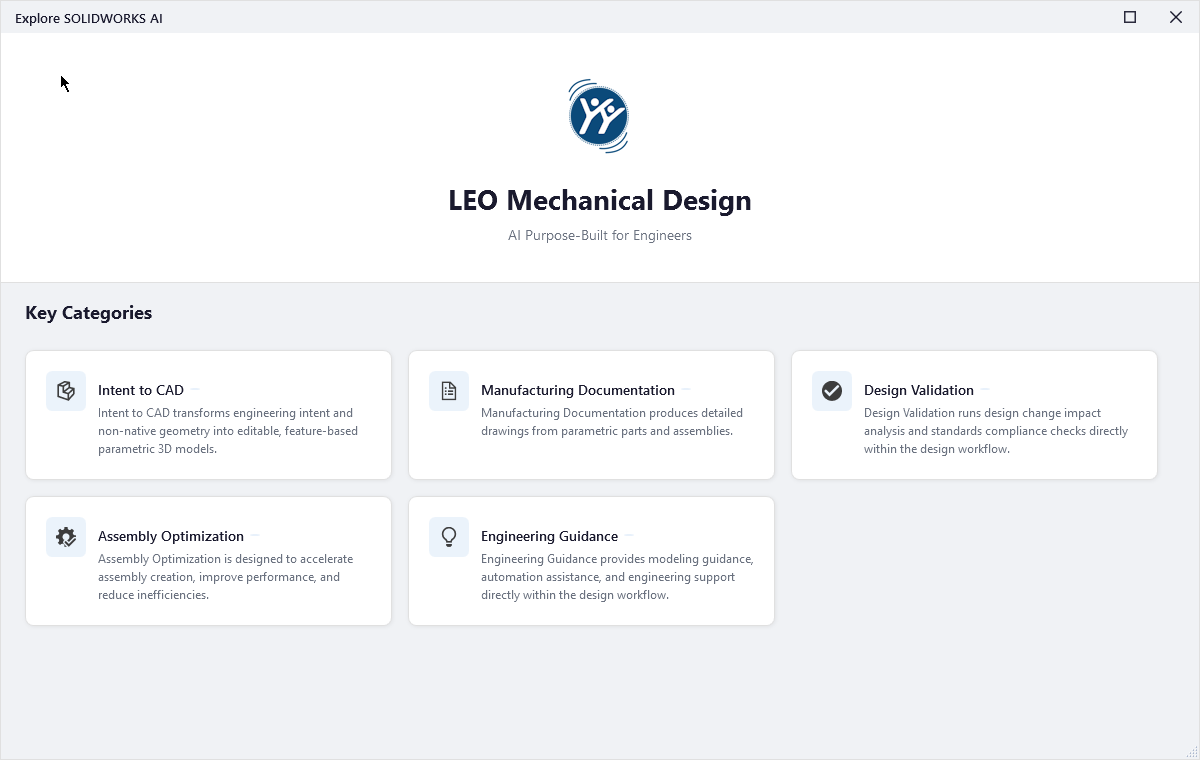
Clicking it shows examples of what the SOLIDWORKS Virtual Companions can do. Explore the different demonstration prompts. In SOLIDWORKS Design 2026 SP3.2, you can use the Customize dialog box to add a Virtual Assistant button to your CommandManager or Quick Access Toolbar. I keep mine on the Quick Access Toolbar.
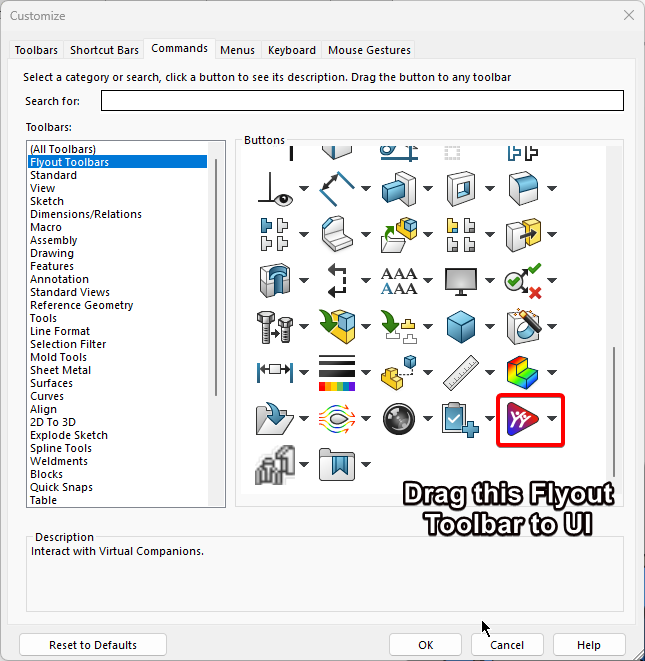

This also allows you to explore AI capabilities using the flyout menu. Clicking any of these prompts starts a chat with that prompt.
How to Generate SOLIDWORKS Drawings Automatically with LEO
Clicking the drawing generation prompt starts the process.
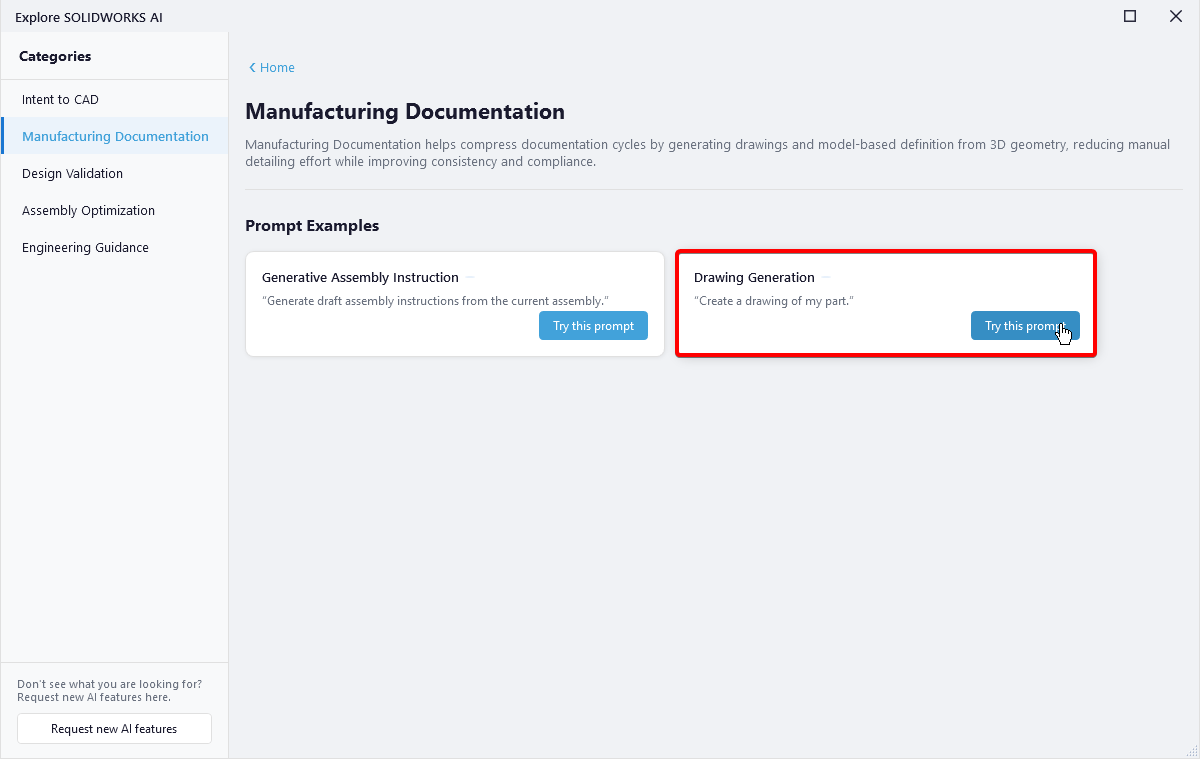
Take note that even though the prompt is “Create a drawing of my part,” LEO understands that I actually have an assembly open. This mismatch between the prompt and the document does not faze the AI. LEO offers many options when creating the drawing, including template, sheet format, drawing standard, model path, primary view, projected views, dimensions, section views, and tables (revision and/or BOM).
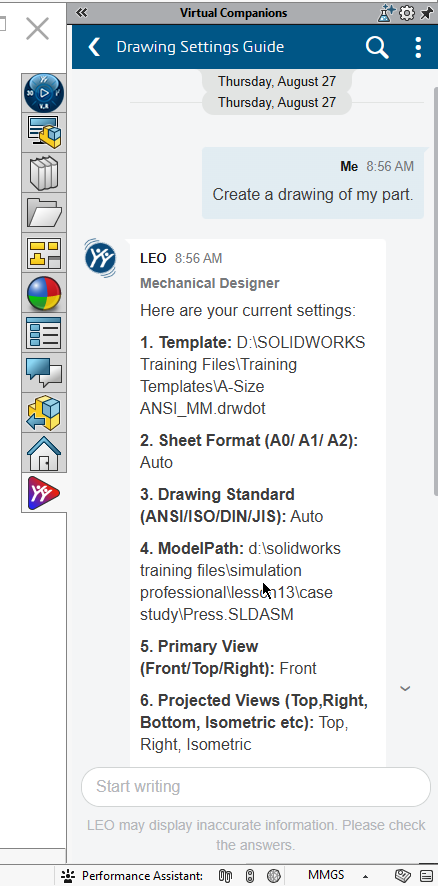
In this example, I used the default values for all options. LEO also offers to show a preview of the drawing. I instructed LEO to proceed and open the drawing once created.
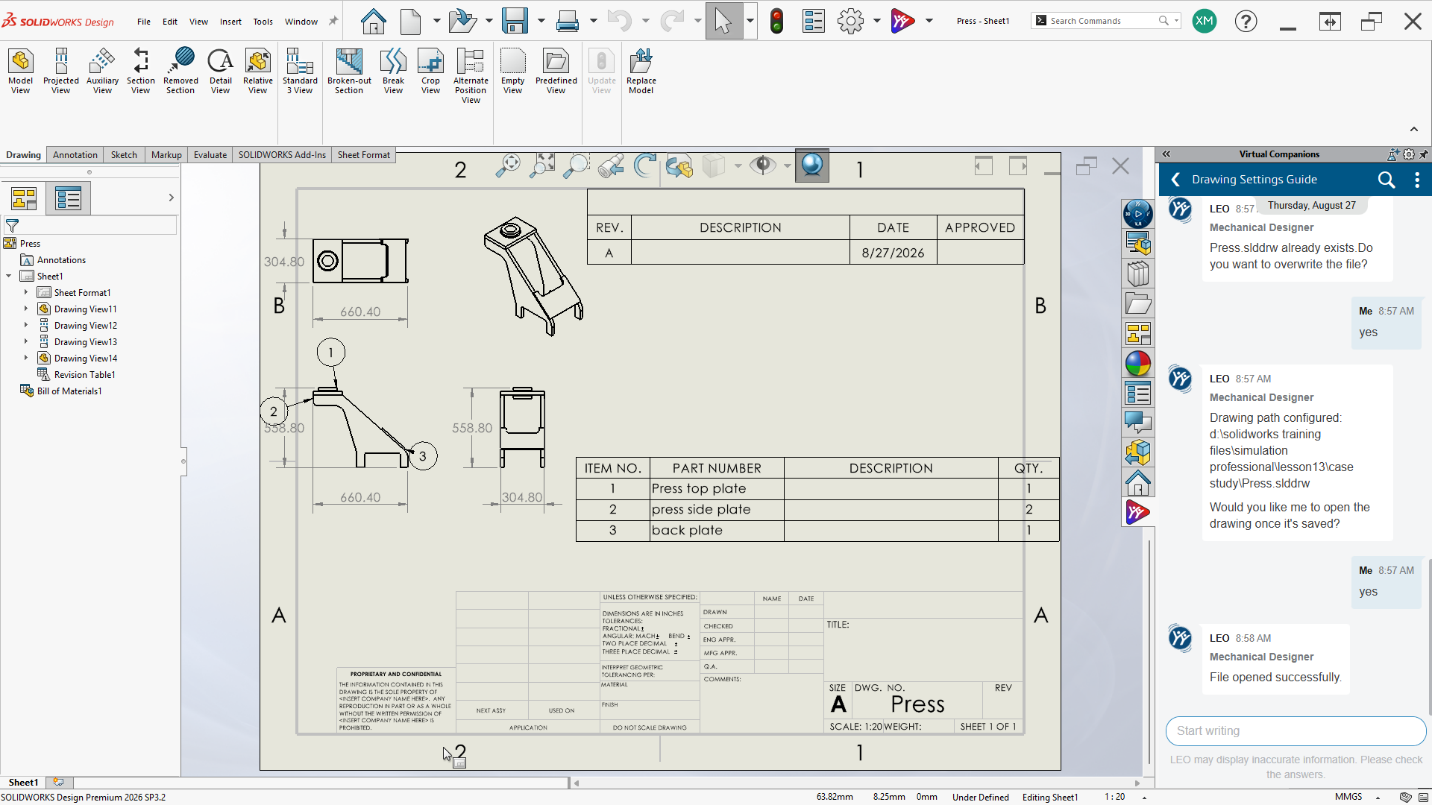
Using LEO to generate drawings eliminated the tedious initial step of creating each view in my drawing. It created the views and automatically scaled them to fit the sheet. The drawing still needs editing, so I will move the tables and views and add annotations as needed.
How to Create SOLIDWORKS Macros with LEO
Every SOLIDWORKS user will run into a scenario in which they have a repetitive task that can be automated with a macro, but creating and troubleshooting macros can be a difficult and research-intensive process. Another great example of LEO’s capabilities is macro generation. For example, if I need to export all of my components to STEP files while maintaining a specific naming convention, PartNo_Material_Date.STEP, I will need to manually export each file in my assembly or use export options to create the STEP files and manually change each name. This would be much faster with a macro. I will prompt LEO to generate a macro that exports all components in my assembly as STEP files and specify the naming format.
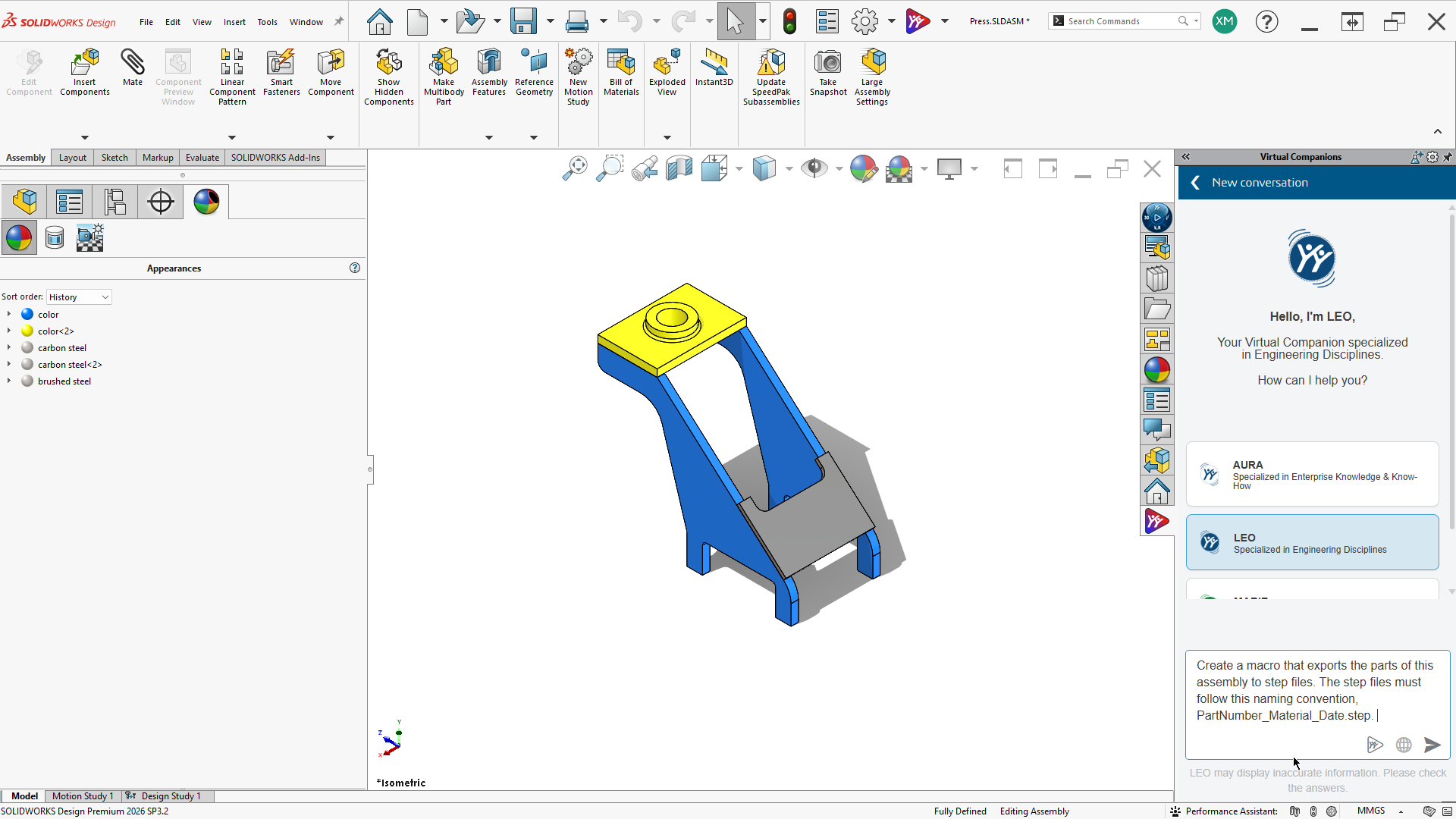
LEO generated a macro that accomplishes this goal.
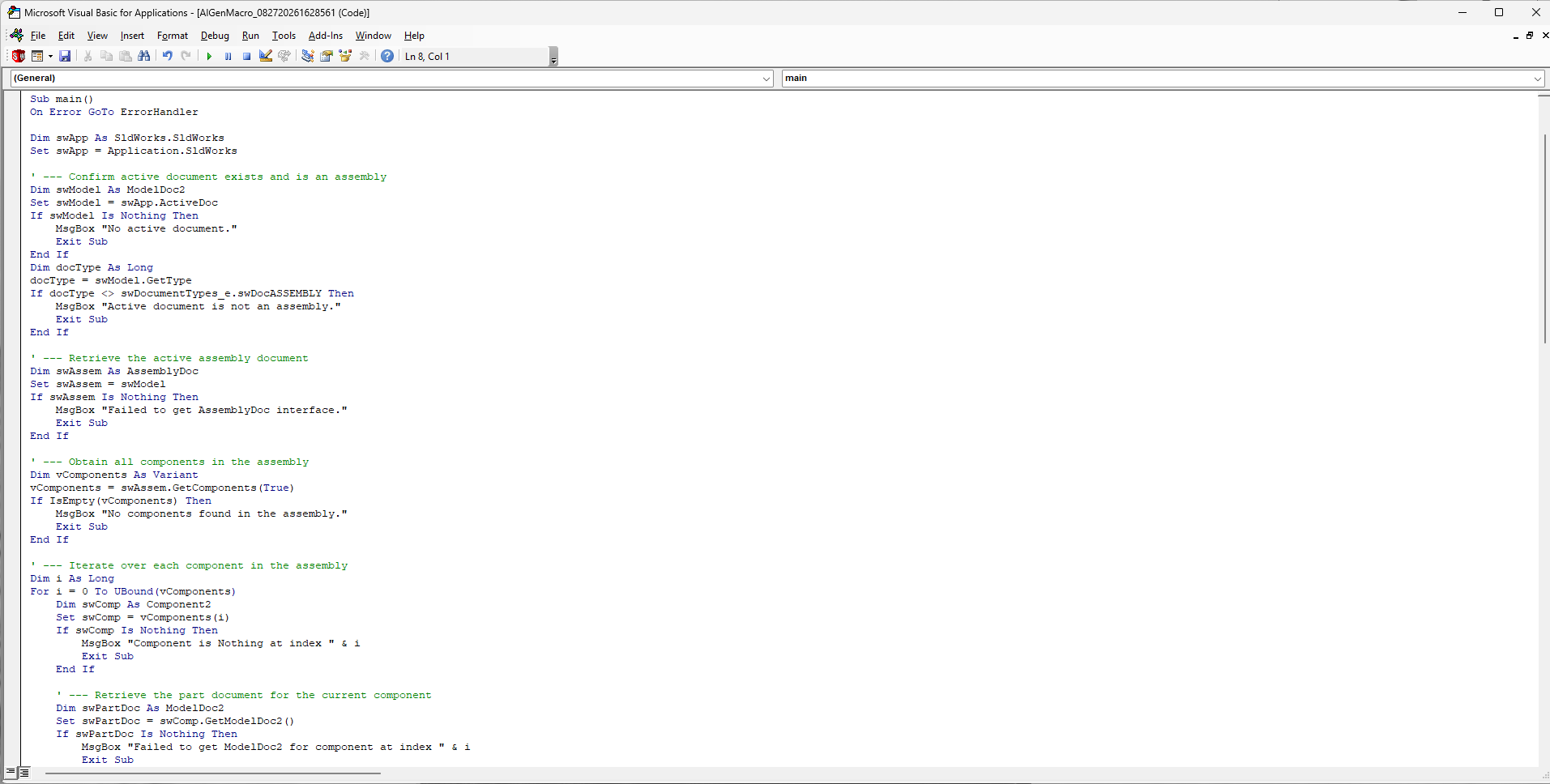
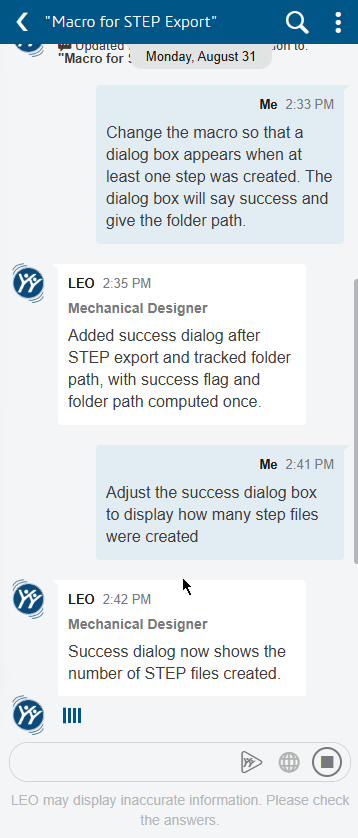
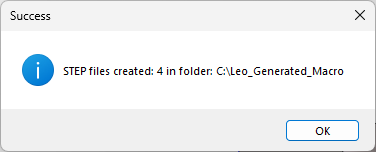
Running this macro works as expected: it creates STEP files in the assembly directory and even includes failure messages. However, it gives no confirmation when it finishes successfully. I can continue to chat with LEO to adjust the macro, so I prompted it to add a dialog box showing that the STEP files were created, where they were created, and how many.
And now the macro creates the STEP files and generates the requested report:
LEO creates an easier entry point for creating and editing macros. Now even novice users can build robust macros and automate their designs.
Wrap-Up: Start Automating SOLIDWORKS with SOLIDWORKS AI
Now that you have installed SOLIDWORKS Design 2026 and Collaborative Designer for SOLIDWORKS, or a SOLIDWORKS Design single-user license, SOLIDWORKS AI is available directly from the user interface. You can automate previously tedious tasks such as systematically creating all your necessary drawing views or drafting research-intensive macros. These assistants gain new capabilities with every release and will be able to accomplish even more soon. If you are ready to test LEO and the latest AI features, but you do not have access to the 3DEXPERIENCE platform or the 3DEXPERIENCE add-in, reach out to us. If you would like to learn more about token usage with SOLIDWORKS, check out our blog article: SOLIDWORKS AI Blue Tokens: An Engineer’s Usage Guide.