SOLIDWORKS Electrical is a powerful tool for designing electrical schematics and integrating them with 3D mechanical models. When combined with SOLIDWORKS PDM (Product Data Management), it allows for better collaboration, version control, and data synchronization in multi-user environments. This guide explains the data structure, integration options, setup, and best practices for effective integration.
Rather listen? Watch the video presentation at D2M, “Spells for Uniting Electrical and PDM.”
SOLIDWORKS Electrical Information to Better Understand the Integration
SOLIDWORKS Electrical consists of two main products:
- 2D Schematic Tool: Used for creating multi-line schematics, single-line drawings, and generating reports like bills of materials (BOMs), cable lists, and wire lists. It is a standalone application separate from SOLIDWORKS CAD.
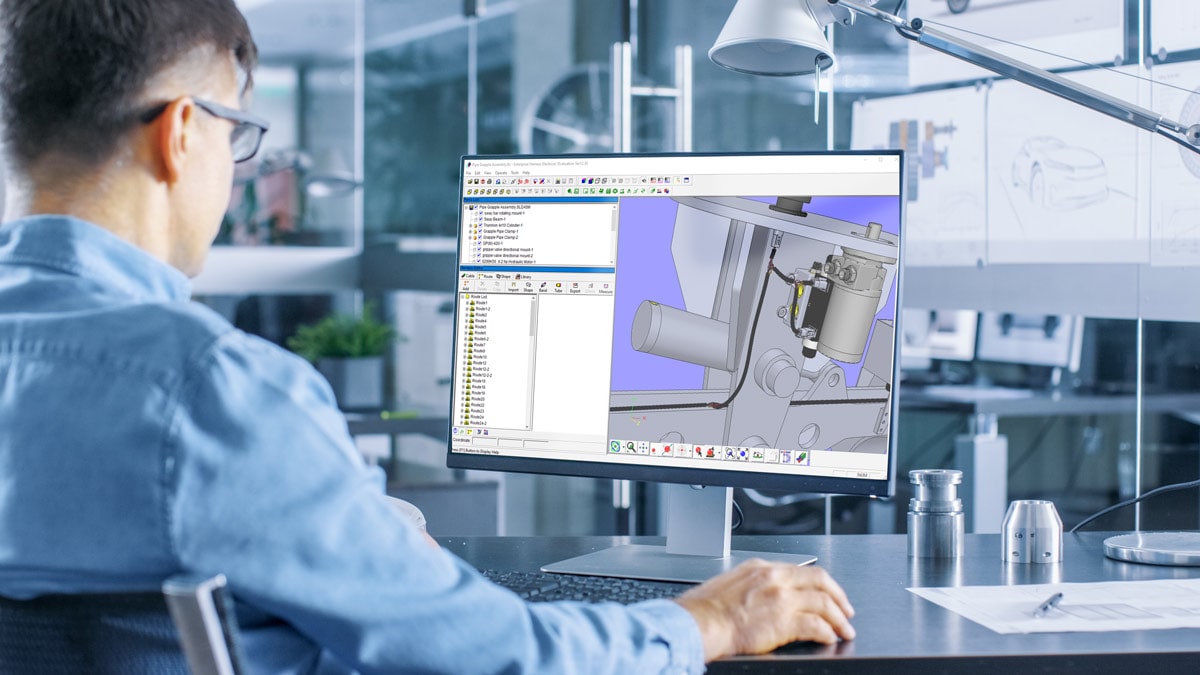
- Electrical 3D: An add-in for SOLIDWORKS CAD that links to schematics. It associates 3D models with electrical components, reads wire FROM-TO lists and wire properties from schematics, and routes wires and cables.
The software is database-driven, using a shared Microsoft SQL database and Windows folder to store libraries and projects. In a multi-user setup, the SQL instance and the folder are installed on a server, ensuring all users access synchronized data. This enables real-time collaboration, where multiple users can edit different drawings in the same project simultaneously.
Understanding the Data Structure: PDM Integration is NOT Super Straightforward Without the PDM Connector
An electrical project has two key datasets:
- Project Database: Created as a unique SQL database (named TEW_project_data_[ID]) for each project. It contains relational SQL tables for objects like parts, components, cables, wires, locations, functions, drawings, and revisions.
- Project Folder: Located in the application data folder/Projects under a subfolder matching the project ID. It stores physical files such as:
- Drawing files
- Documents (e.g., PDFs, Excel, Word)
- SOLIDWORKS assemblies and parts (If the “Copy 3D parts to folder” setting is enabled)
- Title blocks and customized configuration files (e.g., reports, design rule checks)
At the application level, there are five core databases (macro, project, catalog, classification, app_data) and an application data folder holding symbols, title blocks, macros, and configuration files.
This dual structure (database + files) means PDM integration is not straightforward, as PDM cannot directly manage another SQL database.
SOLIDWORKS Electrical Integration Options
SOLIDWORKS Electrical supports project archiving, creating a .TEWZIP file that bundles the project database, folder, and any other elements necessary for the project.
Traditional integration methods:
- Update Files in PDM: Archives the project and exports to PDM along with optional exports such as PDF, DWG, Excel
- Check-in/Check-out: Similar, with Check-in/Check out from PDM
Since 2018, an enhanced PDM connector (add-in for SOLIDWORKS Electrical Schematics) offers:
- All features of previous methods
- Creation of PDM BOMs for projects
- Variable mapping between PDM and electrical properties
- Synchronization of parts and cable libraries to PDM
- “Where Used” data for parts and cables in PDM explorer
This is the recommended and most capable option for integration.
Best Practices and Requirements for PDM & SOLIDWORKS Electrical Integration
- Keep Electrical Application Data Folder and SQL instance on the same server.
- Do not place the application data folder in the PDM vault.
- Direct SQL database editing is unsupported.
- Requires SOLIDWORKS Electrical Schematic Professional and PDM Professional licenses.
- Contributor license sufficient for schematics only; Editor needed for 3D models.
- As of 2025, the connector is included in the PDM installation.
How to Set Up the Electrical PDM Connector
The Electrical PDM connector provides the strongest integration with PDM BOM creation, library sync, and bidirectional data mapping. Proper setup ensures controlled collaboration and avoids common issues like incomplete Bill of Materials or unsynchronized parts. For tailored implementation, consult with PDM and SOLIDWORKS Electrical experts.
Configure via PDM Administration tool under the SOLIDWORKS Electrical node:
- Enable removing projects from electrical environment after check-in to avoid editing of the project without checking out from PDM
- Sync library to a dedicated PDM folder; limit initial sync to <10,000 items, use sub-libraries, or remove unnecessary library elements.
- Configure BOM generation (per project or per location).
- Set mapping rules between PDM variables and Electrical object properties for the Export folder archives (.TEWZIP), drawings, PDFs, BOMs parts (.swe.CVD) and cables (.swe.CVD), etc. Mapping can be bidirectional where allowed.
- Create PDM Data cards and variables for any file type created by Electrical
Involve the PDM administrator to create data cards, variables, and templates.
Understanding the Data Workflow with the Connector
- Synchronize the library first (PDM tab in Electrical). This creates a virtual document (.swe.CVD) for each part and cable.
- To open a project: Use “Open” button to browse and check out the .TEWZIP from PDM (applies mappings, creates new project ID).
- Edit the project (multi-user collaboration allowed while checked out).
- Check in: Sync new library parts if needed, then check in all related files. Project is removed from electrical environment. Note: The user checking out the project must be the one to check it back in.
- PDM handles versioning and workflows.
Considerations for Electrical 3D
- Point default 3D part folder to PDM if desired.
- Disable “Copy 3D Parts to Project” to prevent project duplicates.
- Remove temporary routing files.
- Save routing sub-assemblies externally or as needed.
- Create and link SOLIDWORKS assemblies in PDM before associating them with your electrical project (or specific locations) in SOLIDWORKS Electrical 3D
The integration between SOLIDWORKS Electrical and PDM Professional offers significant benefits for companies looking to better coordinate electrical and mechanical design processes. However, successful implementation requires careful planning and collaboration between electrical power users and PDM administrators.
By understanding the unique data structure of electrical projects and configuring the integration properly, organizations can enjoy smoother workflows, better version control, and improved collaboration between electrical and mechanical teams.
If you’d like to learn more about implementing this integration in your organization, please contact our team for personalized guidance or check out our full list of integration services.
FAQ for SOLIDWORKS Electrical and PDM Integration
Based on common inquiries from users, here are some key questions about integrating SOLIDWORKS Electrical with SOLIDWORKS PDM.
Q: What licenses and system requirements are needed for SOLIDWORKS Electrical and PDM integration?
A: To integrate, you need at least SOLIDWORKS Electrical Schematic Professional and SOLIDWORKS PDM Professional licenses. Electrical Schematic Standard and PDM Standard do not support integration. For checking in schematic documents only, a PDM Contributor license is sufficient; for Electrical 3D involving SOLIDWORKS assemblies and parts, an Editor license is required. The electrical data folder and SQL instance should be on the same server, and direct editing of SQL databases is not supported. Starting in 2025, the electrical PDM connector is part of the PDM installation package.
Q: How does the data structure in SOLIDWORKS Electrical affect PDM integration?
A: SOLIDWORKS Electrical uses a shared Microsoft SQL database for libraries and projects, with each project having its own unique database (e.g., TEW_project_data_[ID]) containing tables for parts, components, cables, wires, locations, functions, drawings, and more. There’s also a project folder storing physical files like .EWG drawings, documents, title blocks, and configurations. This dual structure means PDM can’t directly manage the SQL database, so integration relies on archiving projects into .TEWZIP files that include the database backup, project folder, symbols, title blocks, etc.
Q: What is the enhanced PDM connector, and what are its key features?
A: The enhanced connector, released in 2018, is an add-in for SOLIDWORKS Electrical Schematics that appears as a tab in the command manager. It archives projects to PDM, exports formats like PDFs, DWGs, DXFs, and Excel reports, creates PDM BOMs for projects or locations, maps variables between PDM variables and electrical object properties, and provides “Where Used”data for parts and cables directly in the PDM file explorer. It builds on traditional methods like “Update Files in PDM” and check-in/out by adding these advanced capabilities.
Q: How do I synchronize the electrical library with PDM?
A: Synchronize from the PDM tab in SOLIDWORKS Electrical, targeting a dedicated folder like SWE_library. It creates virtual .CVD documents for each part and cable, mapping properties such as manufacturer and part number. For libraries over 10,000 items, sync in batches or by sub-libraries. Organize subfolders by classification or manufacturer. The initial sync takes the longest due to the large quantity of document creation and property mapping. Subsequent library sync operations are incremental, updating only modified items and creating new ones as needed, without rewriting unchanged data.
Q: What is the recommended workflow for checking in and out electrical projects in PDM?
A: Synchronize libraries first. To check out, use the “Open” button in the PDM tab to browse and select the .TEWZIP archive, which adds the project back to the electrical project manager with a new ID, database, and folder while applying variable mappings. Edit collaboratively (multi-user allowed), but ensure no unsynced parts before check-in. Check in exports files and BOMs, and remove the project from the electrical environment to prevent further edits. The user who checks out must perform the check-in.
Q: How are BOMs generated and managed in the integration?
A: The connector generates PDM BOMs in .swebom.CVD format, either for the entire project or per location (useful for aligning with Electrical 3D sub-assemblies).
Q: What are best practices for setup and usage, including for Electrical 3D?
A: Involve the PDM admin to create data cards, variables, and PDM templates for electrical file types like .TEWZIP archives, .CVD BOMs, and virtual parts/cables. Remove projects from electrical after check-in for control. For Electrical 3D: Set the default 3D part folder to PDM if preferred, uncheck “Copy 3D Parts to Project” to avoid duplicates, remove temporary XML files after routing, save routing sub-assemblies externally, and create SOLIDWORKS assemblies in PDM first to keep them vaulted.