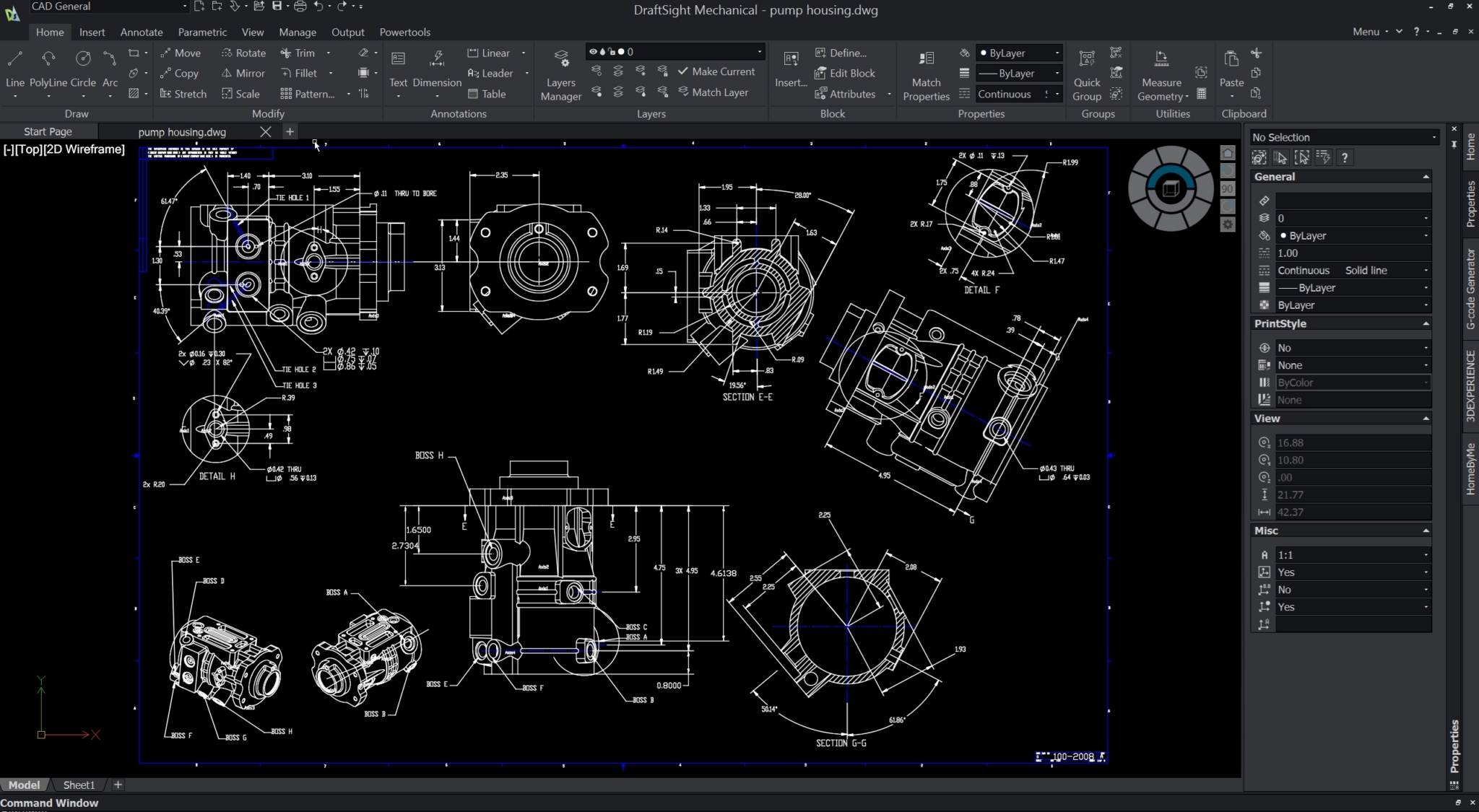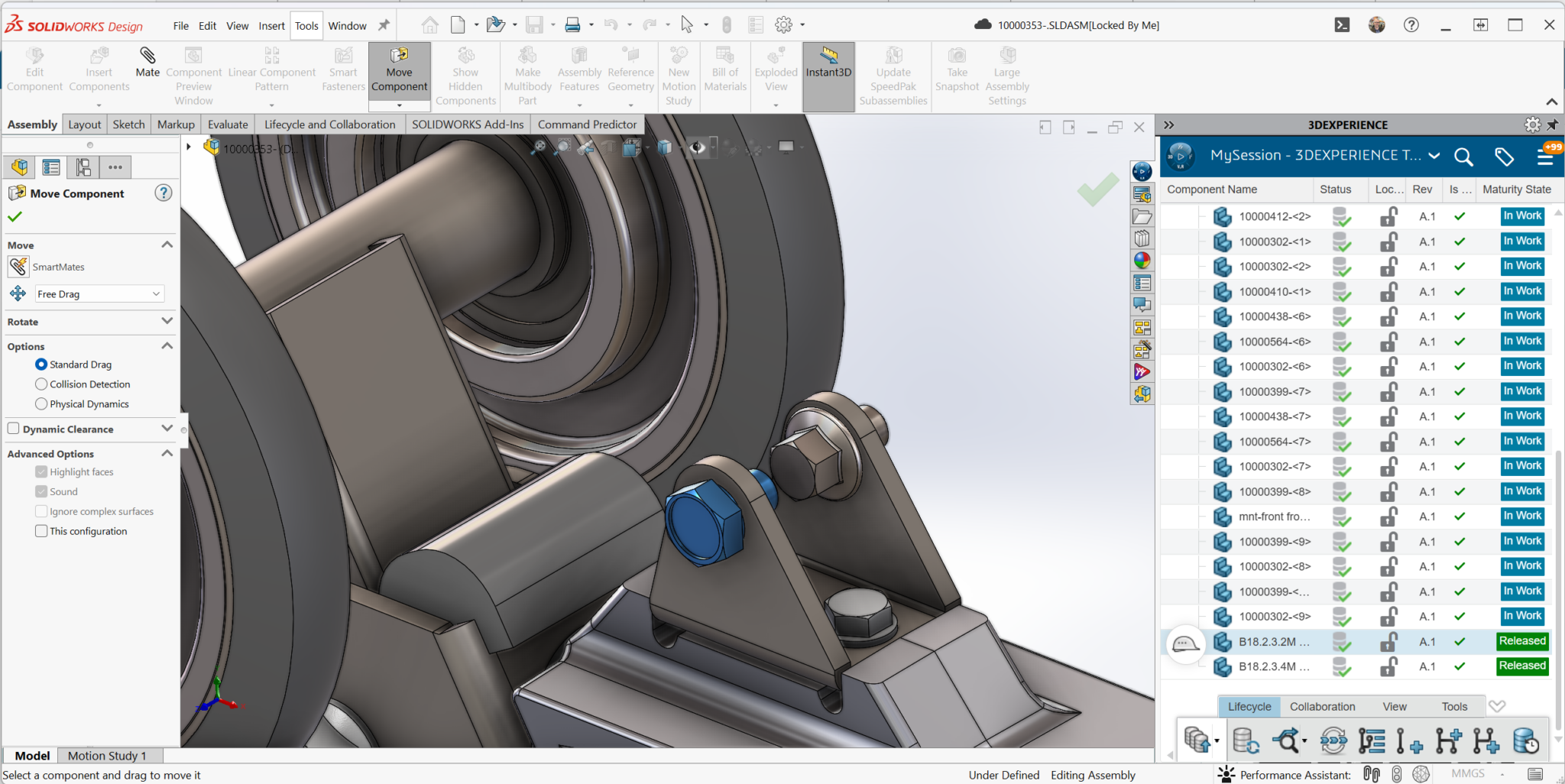
I have spent more than 20 years working alongside engineering teams using a wide range of CAD tools, including SOLIDWORKS and Autodesk Fusion 360. More importantly, I have spent that time observing how teams actually work around these tools: design intent, revisions, collaboration, manufacturing handoff, and the many decisions that happen between first concept and production-ready design.
My intent with this article is simple. I am not trying to convince you that one solution is universally better than the other. I am laying out how each tool approaches the same engineering problems, where each tends to work well, where limitations show up, and how their underlying frameworks differ. I am doing my best to be accurate and fair, but I may not see things the same way you do. That is intentional. Engineers should make up their own minds.
Establishing Common Ground
Before getting into where SOLIDWORKS and Fusion 360 diverge, it is worth acknowledging how much they share at a fundamental level.
- Both follow the same core engineering workflow most mechanical engineers expect: sketch to part, part to assembly, and assembly to drawing.
- Both rely on feature-based modeling and maintain a structured feature and assembly tree to capture design intent.
- From a usability standpoint, both present a familiar Windows-style desktop experience with toolbars, panels, context menus, and a central graphics viewport.
On the surface, the two systems can look and feel very similar. For many engineers evaluating them side by side, it can be genuinely difficult to answer basic questions, such as which is easier to learn, which fits best long term, or which is more future-proof when considering areas like PLM and AI. Those answers typically do not reveal themselves in a short trial.
Saving Data by Default
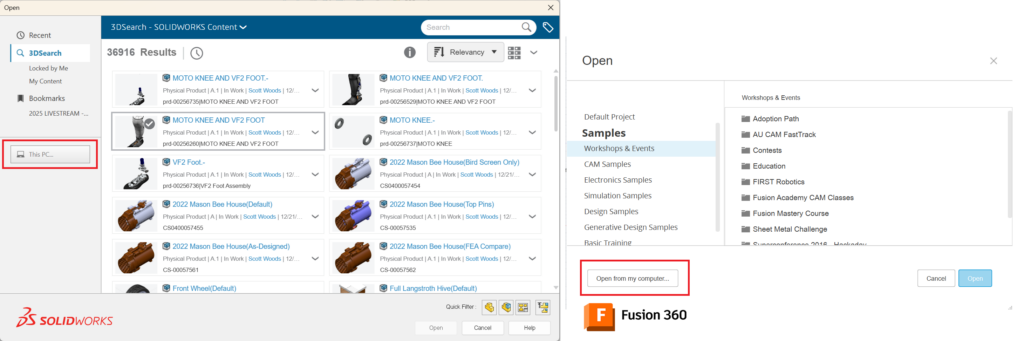
Both tools can open and save CAD data locally and support cloud-based data workflows, but they default differently.
- SOLIDWORKS can work universally in either direction, meaning it can save locally as a traditional desktop workflow or save to the cloud when a team chooses to use cloud data management. In other words, cloud data management is optional in SOLIDWORKS, and many teams adopt it selectively.
- Fusion 360 defaults to cloud-based data management. Local data can be exported or archived, but Fusion is fundamentally designed to treat cloud storage and cloud data management as the standard workflow rather than an optional layer.
In both cases, CAD computation happens on the local machine, taking advantage of installed hardware such as CPUs, system memory, and graphics card drivers. Neither operates as a purely remote compute solution.
Working Offline
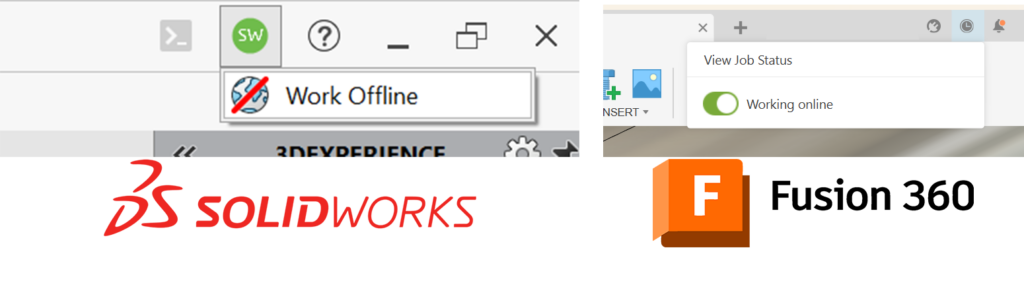
Offline work is supported by both, but the details matter.
- Fusion 360 can work offline for up to two weeks, then requires an online sign-in to refresh access.
- SOLIDWORKS offline capability depends on the license model. Traditional perpetual licenses can work offline indefinitely. Cloud licensing can also run offline, but only for up to 30 days before it requires an online check-in.
From a day-to-day perspective, engineers experienced with one system will recognize many familiar patterns in the other. The meaningful differences tend to appear not in these basics, but in how each system is architected and scaled across broader workflows.
So, let’s get into it.
Two Different Frameworks for Solving the Same Problems
At a high level, both tools aim to solve the same engineering challenges:
- Creating manufacturable designs
- Managing change
- Supporting collaboration
Where they differ is in how those challenges are structured and delivered.
Fusion 360’s Integrated Experience
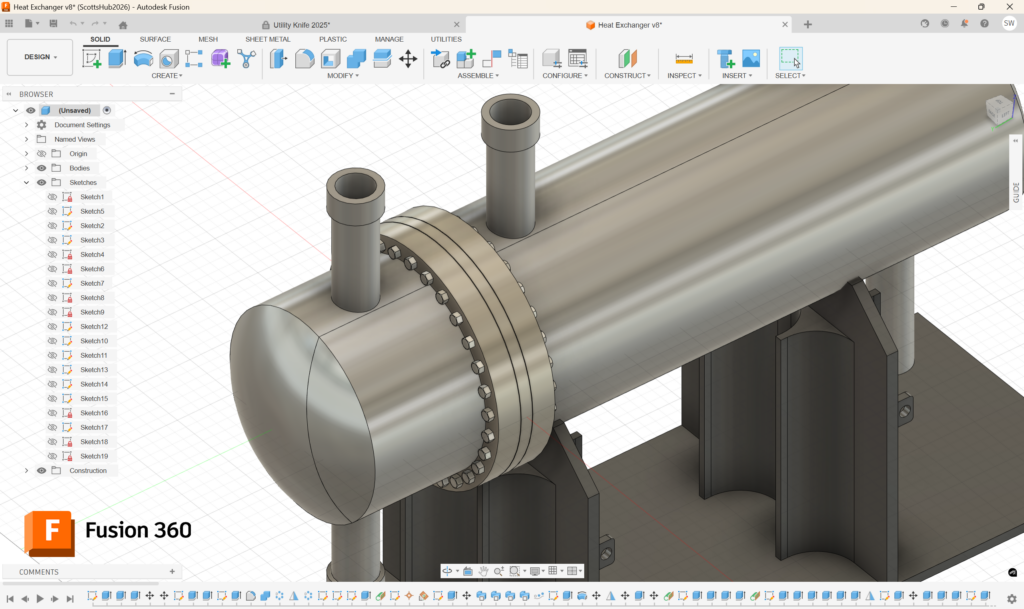
Fusion 360 is built around a unified, cloud-first framework. Modeling, manufacturing, simulation, and data management are designed to live inside a single environment from the start. This creates a tightly integrated experience where workflows move fluidly between disciplines without switching tools or contexts.
SOLIDWORKS Modular Framework
SOLIDWORKS follows a more modular framework built around a familiar and deeply mature desktop CAD core. Cloud services are layered on top to support collaboration, data management, and extended workflows, rather than replacing the desktop experience outright. This reflects a belief that different engineering needs benefit from purpose-built tools rather than a universal interface.
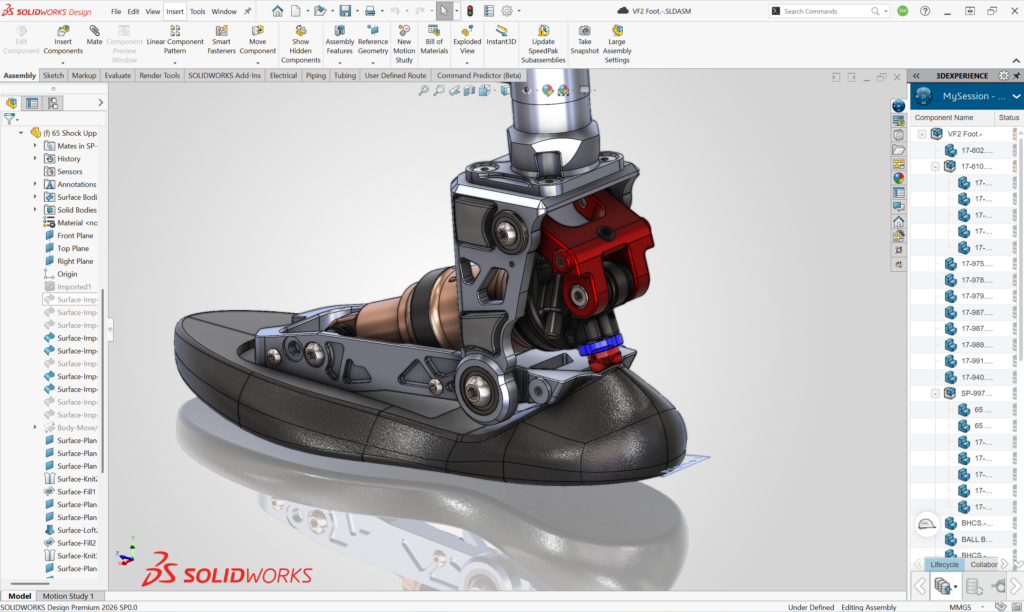
Within the SOLIDWORKS ecosystem, Dassault Systèmes treats desktop and browser-based CAD as distinct use cases.
SOLIDWORKS Desktop remains the primary tool for traditional parametric modeling, large assemblies, and drawing-driven workflows, while cloud-native tools like xDesign are positioned for teams that want browser-based CAD without sacrificing connection to the broader SOLIDWORKS and 3DEXPERIENCE ecosystem.
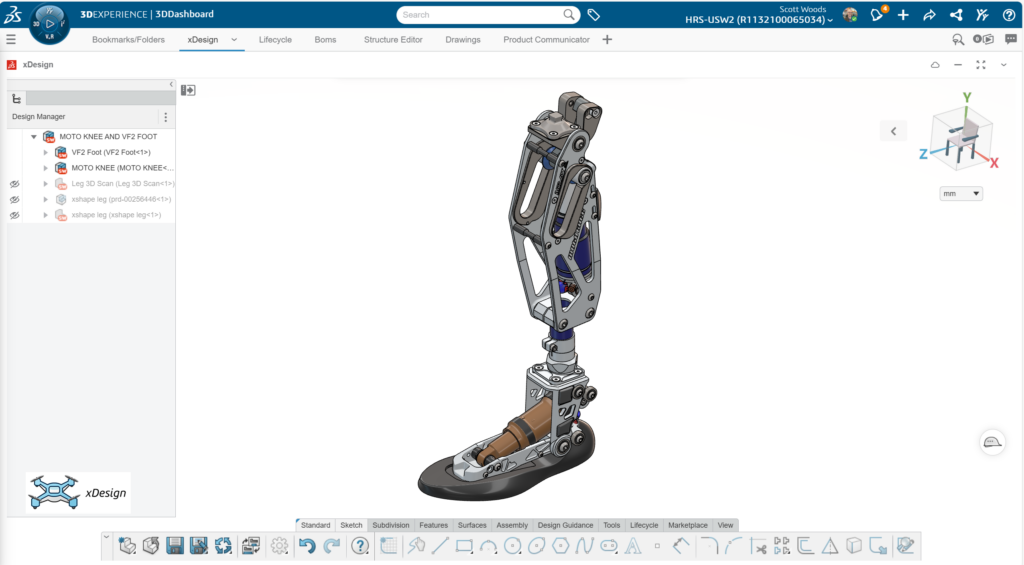
For teams that prefer running traditional SOLIDWORKS through a browser, virtualized CAD and remote workstation solutions continue to be supported, as they have been for many years.
Neither framework is inherently right or wrong, but they lead to different day-to-day experiences, especially as designs grow in complexity, teams expand, and long-term workflow requirements become clearer.
Core Modeling & Design Workflow
Modeling is where the day-to-day differences between the two tools start to show. Both cover the fundamentals, but they take different approaches to combining parametric, direct, and freeform modeling.
Fusion 360’s Blended Environment
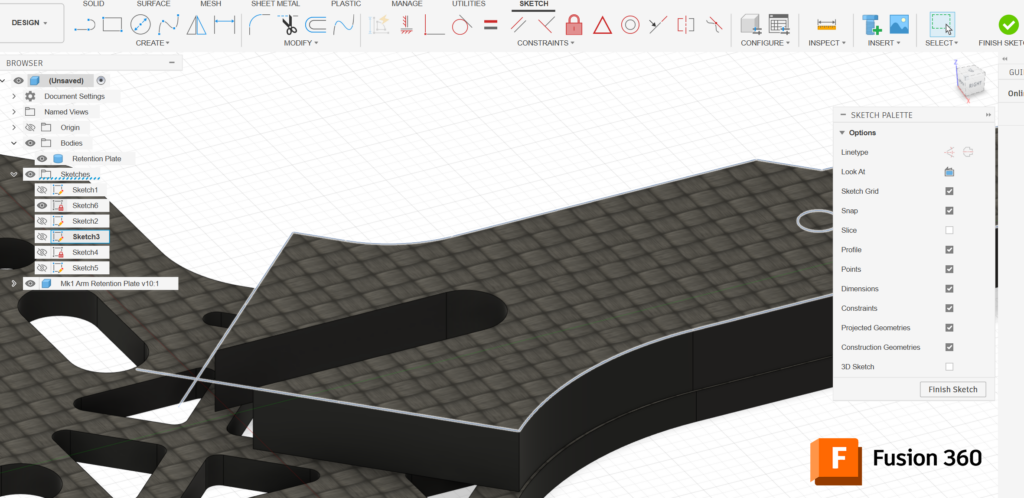
Fusion 360 combines parametric, direct, and surface modeling in one workspace, shown here with a sketch for a flat plate with cutouts.
Fusion’s modeling environment blends parametric, direct, and surface modeling into a single workspace. This flexibility is particularly useful early in the design process, where concept exploration and rapid iteration are priorities.
Fusion’s Strengths & Limitations
| Strengths | Limitations |
|---|---|
|
|
SOLIDWORKS’s Parametric Modeling Engine
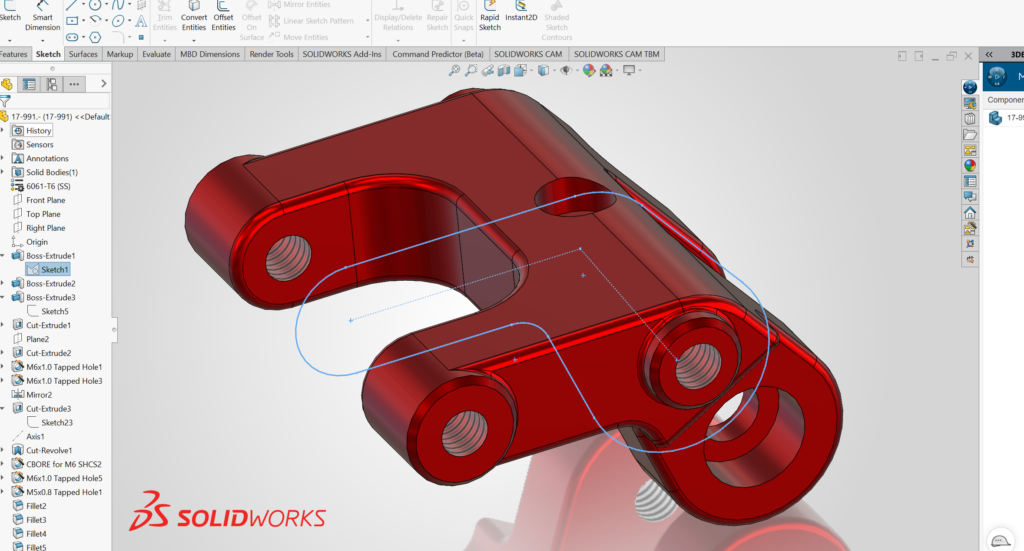
The SOLIDWORKS feature tree records every design step, making changes predictable and parts easier to maintain over time.
SOLIDWORKS is built around a deeply mature parametric modeling engine that emphasizes design intent, predictability, and long-term maintainability.
SOLIDWORKS’s Strengths & Limitations
| Strengths | Limitations |
|---|---|
|
|
Where xDesign and xShape Fit
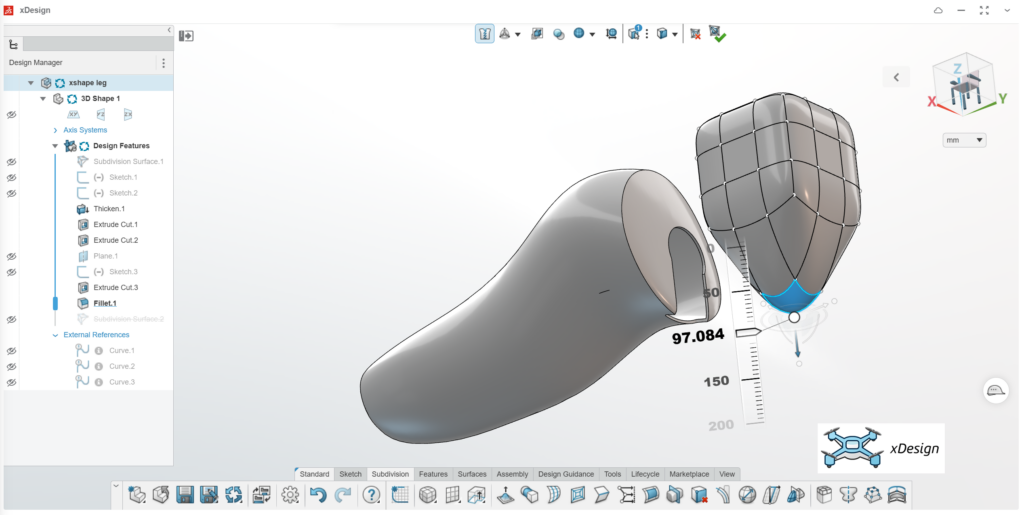
Within the SOLIDWORKS ecosystem, conceptual exploration is addressed through xDesign and xShape.
xShape uses subdivision modeling to support organic and ergonomic design, complementing the more traditional parametric workflows in desktop SOLIDWORKS. For teams that want faster concept development without abandoning SOLIDWORKS entirely, this fills an important gap.
Assemblies & Performance at Scale
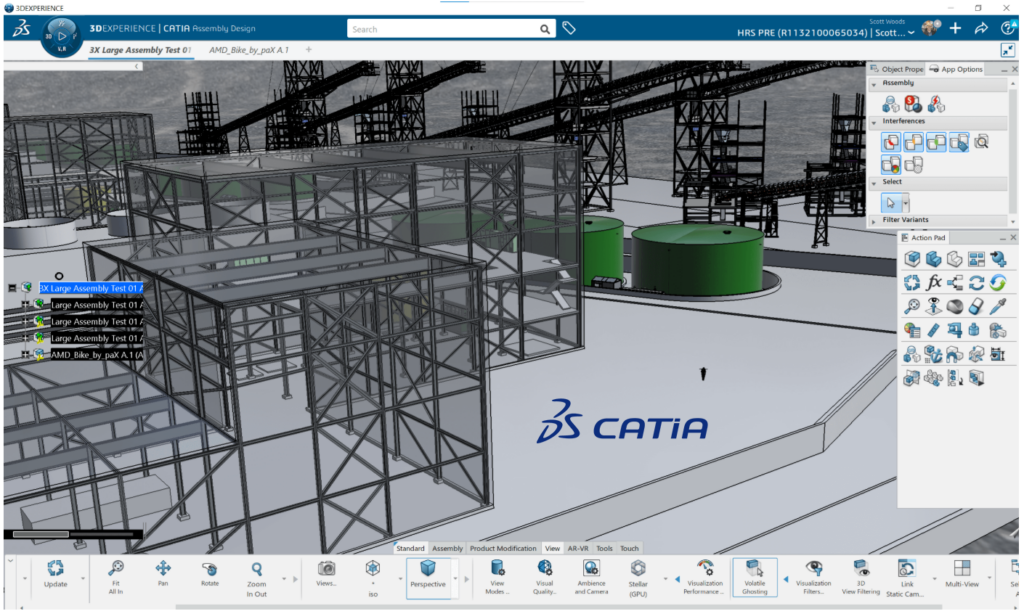
This section focuses on what most engineers would consider large assemblies: examples like ebikes, industrial machinery, or a two-person submersible.
Fusion 360’s Workflow
Fusion 360 can handle assemblies of this scale, but performance and workflow structure can feel limiting as part counts increase and configurations become more complex.
SOLIDWORKS’s Support for Longer Lifecycles
SOLIDWORKS has long been optimized for these scenarios, with tools and performance characteristics designed to support large, detailed assemblies over long product lifecycles.
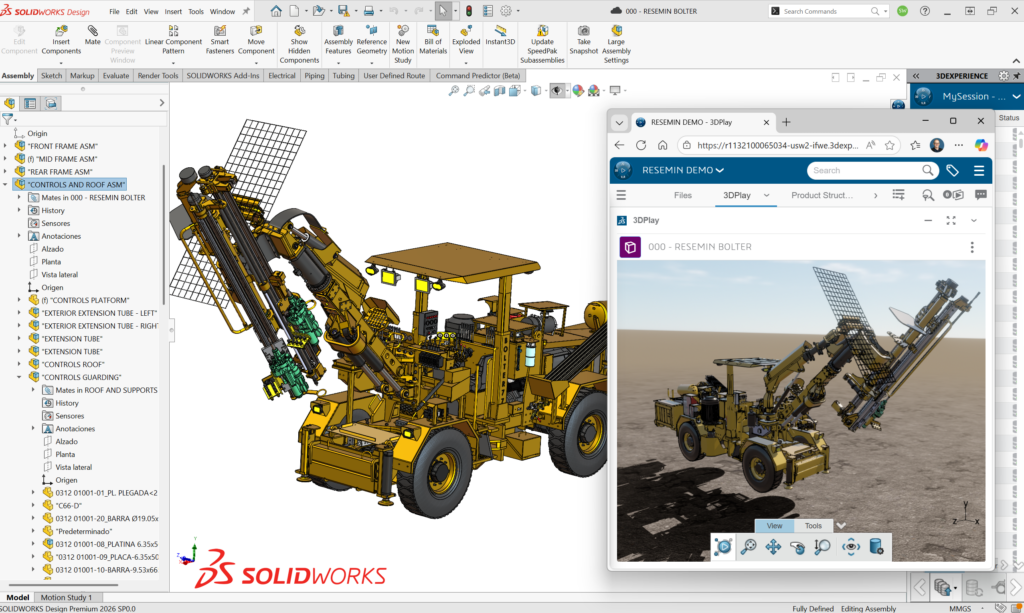
Once you move into truly massive product definitions, such as full aircraft, EVs, or yachts, the conversation shifts toward tools like CATIA, which are purpose-built for super large assemblies. That is a different discussion for a future article.
Drawings, Documentation, & Model-Based Definition (MBD)
In many organizations, drawings are still contractual deliverables, so it is worth looking at how each tool approaches documentation. Fusion 360, SOLIDWORKS, and xDesign each handle it a little differently.
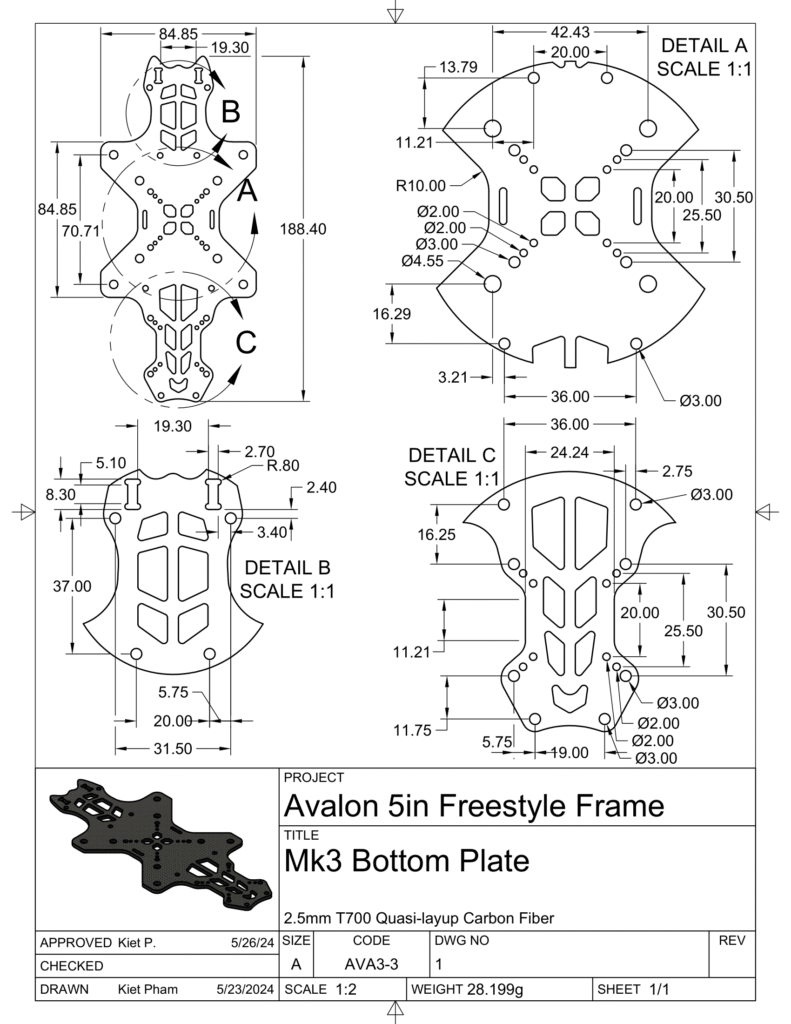
Fusion 360’s Drawing Environment
Fusion 360 provides traditional 2D drawings tightly integrated with its modeling environment. For many workflows, this is both sufficient and efficient.
SOLIDWORKS’s Drawings
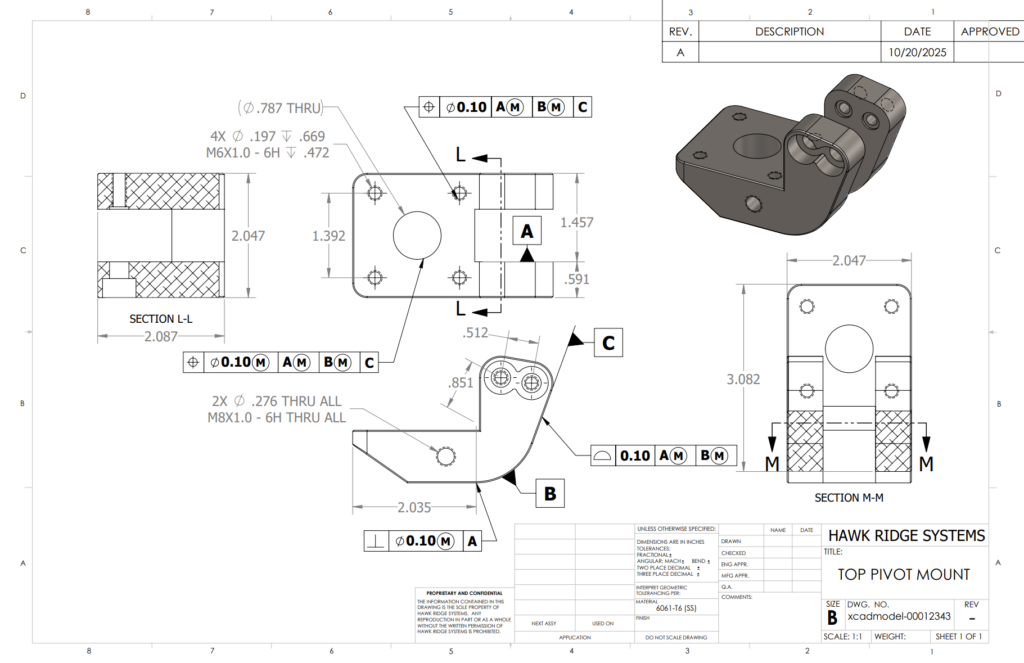
SOLIDWORKS offers a mature 2D drawing environment that remains a key reason many organizations standardize it, especially when drawings are contractual deliverables.
xDesign’s MBD
xDesign approaches documentation differently through a stronger emphasis on model-based definition (MBD). This can be a benefit for keeping 3D and 2D perfectly aligned, but it can also limit the flexibility of what dimensions and annotations can be placed.
For better or worse, it removes the ability to “fake” dimensions, which some teams see as a safeguard and others see as a constraint.
APIs, Automation, & Custom Workflows
Automation and customization matter more than ever as teams look to reduce repetitive work, standardize internal processes, and connect CAD to downstream systems. Both SOLIDWORKS and Fusion 360 provide strong API capabilities, but they come from different starting points.
Fusion 360’s API
Fusion 360’s API leans into modern development practices and cloud-connected workflows.
It supports Python and C++ for desktop automation and TypeScript for cloud-based automation through Autodesk Platform Services. In practice, Fusion’s API is often used to build add-ins, create custom commands, extract geometry and metadata, and integrate CAD into broader cloud workflows.
Python also lowers the barrier for engineers who want to automate without becoming full-time developers.
SOLIDWORKS’s API
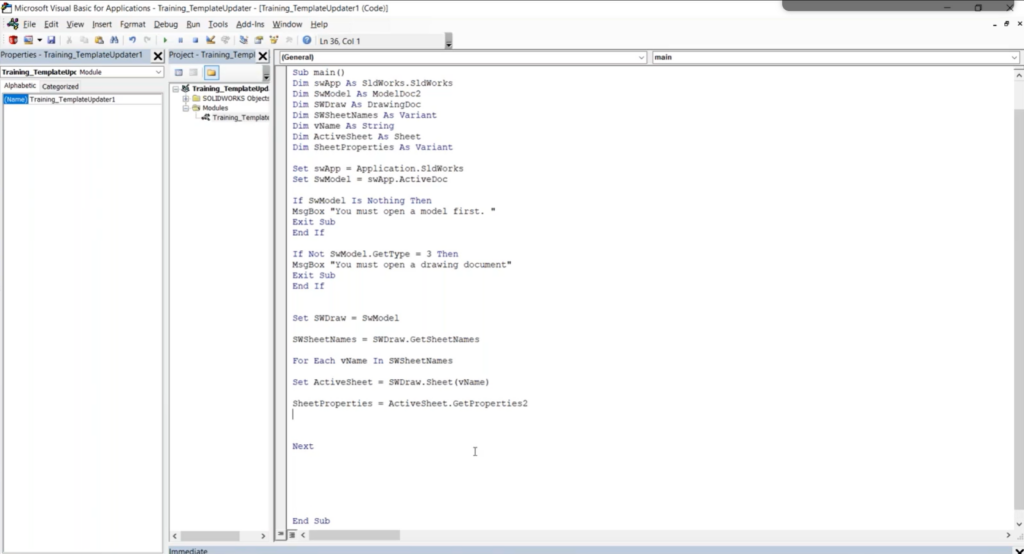
The SOLIDWORKS API is one of the most mature and comprehensive CAD automation interfaces available.
It supports VBA, VB.NET, C++, and C#, and it exposes an enormous amount of SOLIDWORKS functionality across modeling, assemblies, drawings, simulation, and PDM-related workflows.
VBA remains a practical advantage for many teams because it is also used across Microsoft Office, making it easier to connect spreadsheet-driven processes directly into CAD. The tradeoff is that the API reflects its long history, which can feel more macro-style and parameter-heavy compared to newer platforms.
How the Difference Shows Up in Practice
| Fusion 360 | SOLIDWORKS |
|---|---|
Fusion tends to be a strong fit when teams prioritize:
| SOLIDWORKS tends to be a strong fit when teams need:
|
Choosing What Fits Your Team
Both SOLIDWORKS and Fusion 360 are capable, professional tools. On the surface, they share many similarities, which can make evaluation difficult.
The differences that matter tend to emerge over time: how designs scale, how teams collaborate, how change is managed, and how future capabilities like lifecycle management and AI are integrated. This article reflects how I see those tradeoffs today, based on real-world usage and observation. You may see them differently, based on your unique application.
If you have any questions about SOLIDWORKS or 3DEXPERIENCE, contact us at Hawk Ridge Systems.