I have spent more than 20 years working alongside engineering teams using a wide range of CAD tools, including SOLIDWORKS and PTC Creo. Over that time, I have seen how much the software affects more than just modeling. It influences how engineers approach a design, make changes, troubleshoot problems, and get a product ready for manufacturing.
Both SOLIDWORKS and Creo are capable CAD systems, and each has strengths worth understanding. Rather than compare feature lists alone, we will look at how they approach everyday engineering work and what that means for you, the people using them.
Many factors affect how productive a team can be, such as ease of use, the number of people familiar with the software, how widely it is used by companies, available training, hiring demand, and cost. Those are all worth considering alongside the modeling tools.
Establishing Common Ground
Before getting into the differences, I want to acknowledge how much these two tools share in capabilities.
SOLIDWORKS and Creo Parametric are established, feature-based mechanical CAD systems. Both support sketches, parametric parts, assemblies, drawings, surface modeling, and changes driven by design intent.
Creo traces its roots to Pro/ENGINEER, introduced in 1988, and SOLIDWORKS followed in the 1990s with a Windows-based approach to parametric CAD. An engineer familiar with either system will recognize many of the same concepts in the other. The differences become more noticeable when designs get complicated, or something does not go according to plan.
Two Approaches to Solving the Same Problems
Both tools solve the same core problems: building parametric models, managing relationships, and carrying changes through a design. The difference is in the method each one favors, and that method shapes how engineers spend their day.
At a Glance
| Topic | SOLIDWORKS | Creo |
|---|---|---|
| Foundation | Mature, feature-based parametric CAD introduced in the 1990s for Windows | Mature, feature-based parametric CAD with roots in Pro/ENGINEER (1988) |
| Design approach | Flexible workflow that makes it easier to try another approach when the first one does not work | Structured top-down tools such as skeleton models, which can feel more prescriptive |
| Product variations | Configurations and design tables | Family Tables |
| Data management | SOLIDWORKS PDM or the 3DEXPERIENCE platform in the cloud | PTC Windchill or Windchill+ in the cloud |
| AI assistance | AURA, LEO, and MARIE virtual companions through the 3DEXPERIENCE platform | Creo AI Assistant: Advise, Assist, and Automate |
| Community and hiring | More than 8 million users worldwide, with a large network of tutorials, user groups, and experienced engineers | Established community with PTC training, forums, and support |
| Starting price | About $3,000 per year for SOLIDWORKS Design Standard | About $3,500 per year for Creo Design Essentials |
| Licensing | Perpetual and subscription | Subscription only |
Creo’s Structured Design Relationships
Creo provides tools for managing parametric relationships and top-down design, including skeleton models that establish shared geometry and references between components. These tools help engineering teams coordinate design changes while maintaining control over important relationships.
SOLIDWORKS supports similar workflows through layout sketches, in-context modeling, external references, and other assembly design tools. Creo’s approach is not necessarily more capable, but it does provide a different method for organizing and managing those relationships.
In my experience, Creo can feel more prescriptive in how certain tasks are performed. That structure may work well for teams with established modeling practices, but it can take time to become comfortable with the workflow, particularly when you need to change your approach.
SOLIDWORKS’s Flexible Parametric Modeling
SOLIDWORKS provides extensive parametric modeling capabilities, including equations, configurations, design tables, assembly relationships, and top-down design tools. Like Creo, changes to a model can propagate through related features and components.
Where I find SOLIDWORKS particularly effective is how accessible these capabilities are. The FeatureManager design tree, contextual commands, and modeling tools make it relatively straightforward to understand how a model was constructed and explore different approaches when needed.
My Expert Take
Both systems require good modeling practices. Poorly managed external references or design relationships can create problems regardless of which CAD system you’re using. The difference, at least from my experience, is how easily you can work through those problems and make changes without disrupting the rest of the design.
Core Modeling & Design Workflow
Both SOLIDWORKS and Creo provide mature modeling workflows with the tools mechanical engineers expect, including extrudes, revolves, sweeps, lofts, patterns, fillets, shells, and surface features. Both are capable of creating complex geometry and maintaining the parametric relationships needed to make design changes.
- Creo, in my experience, can require more time troubleshooting references or working through a specific modeling approach before moving forward.
- SOLIDWORKS tends to give me more flexibility to explore alternative methods of achieving the same result. When one approach doesn’t work, I can often find another way to create or modify the geometry without spending as much time troubleshooting the original feature.
Both systems have the tools to get the job done. Again, for me, the difference is how easily I can adapt when the design process doesn’t go as planned.
Assemblies, Top-Down Design, & Scale
Assemblies often test a CAD tool’s approach to design relationships. Below, I look at how each tool handles bottom-up and top-down design, how it shares key geometry between components, and what it offers for keeping large assemblies manageable.
Creo’s Assemblies
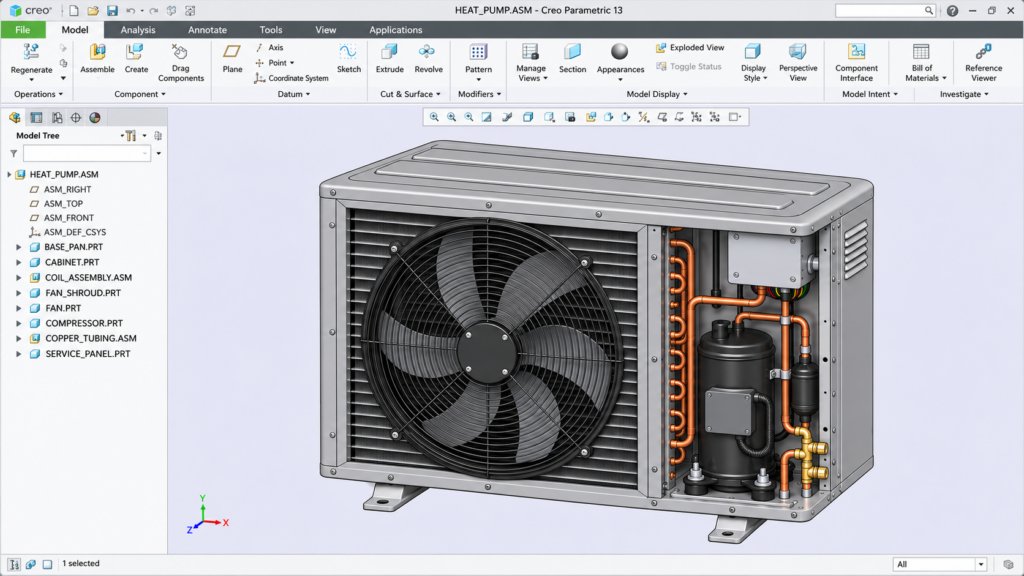
Creo supports bottom-up and top-down assembly design. Skeleton models help teams share important geometry and design requirements, while simplified representations help control what is loaded and displayed in an assembly. These are useful tools when many components depend on the same design information.
SOLIDWORKS’s Assemblies
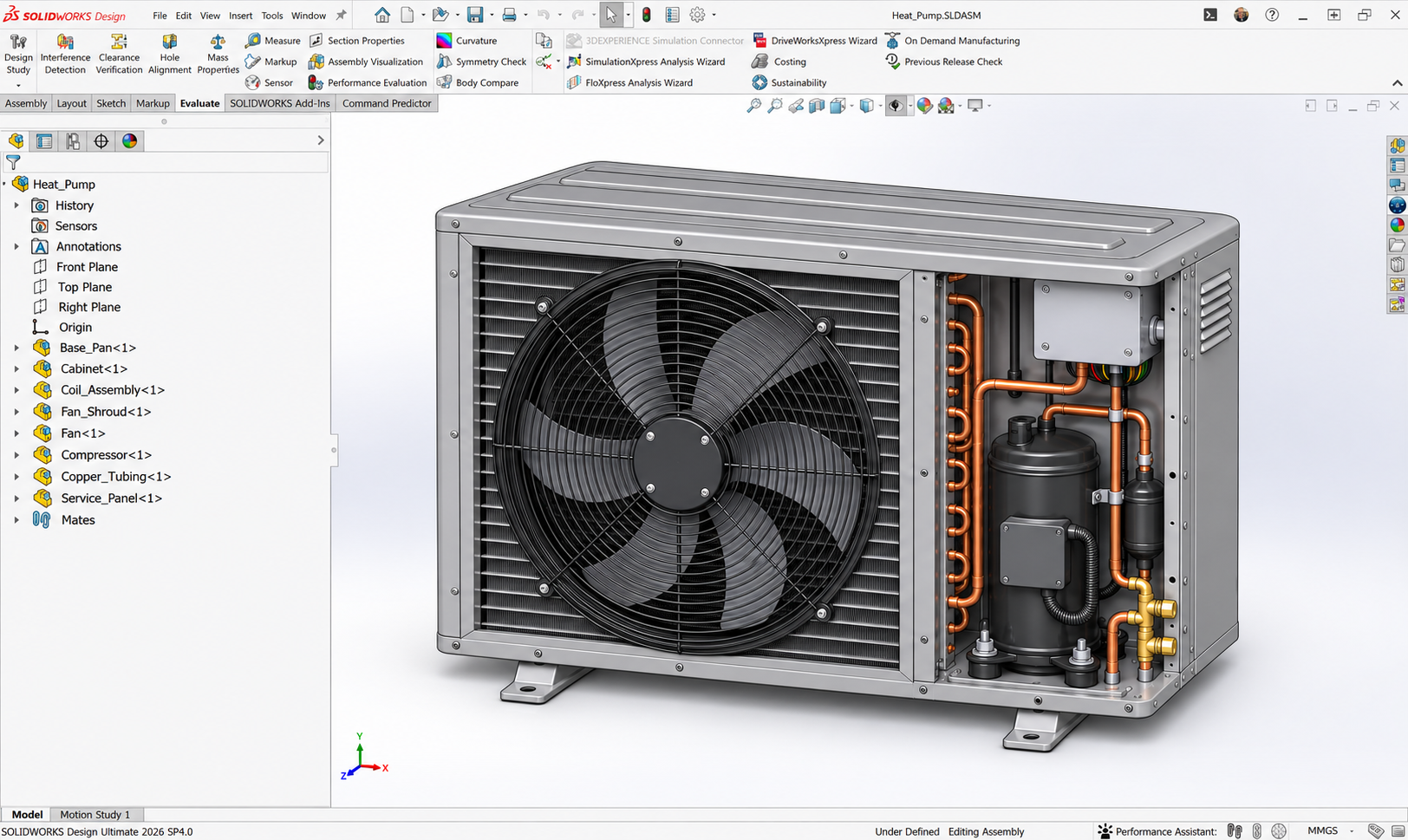
SOLIDWORKS also supports bottom-up and top-down design, including mates, in-context modeling, and assembly-driven relationships. For larger projects, Large Design Review, lightweight components, and SpeedPak help manage how assembly data is loaded and displayed.
My Expert Take
Both systems have tools for large assemblies. I would not claim that one is faster based on part count alone. Model structure, references, hardware, and the work being performed all matter. A fair comparison should use the same project and the same tasks.
Configurations & Product Families
Product variations are common in mechanical design. A machine may come in several sizes, or the same part may need different mounting patterns. Both systems can manage those variations without starting over each time.
- SOLIDWORKS uses configurations to vary dimensions, features, components, and properties within a model. Design tables provide a spreadsheet-based way to manage those variations.
- Creo uses Family Tables, where a generic model defines related part or assembly instances.
SOLIDWORKS configurations and design tables are familiar tools for managing part and assembly variations, while Creo Family Tables provide a structured alternative. The better fit depends on how your team organizes its product families and drawings.
Surfacing & Complex Geometry
Both SOLIDWORKS and Creo offer surface modeling tools.
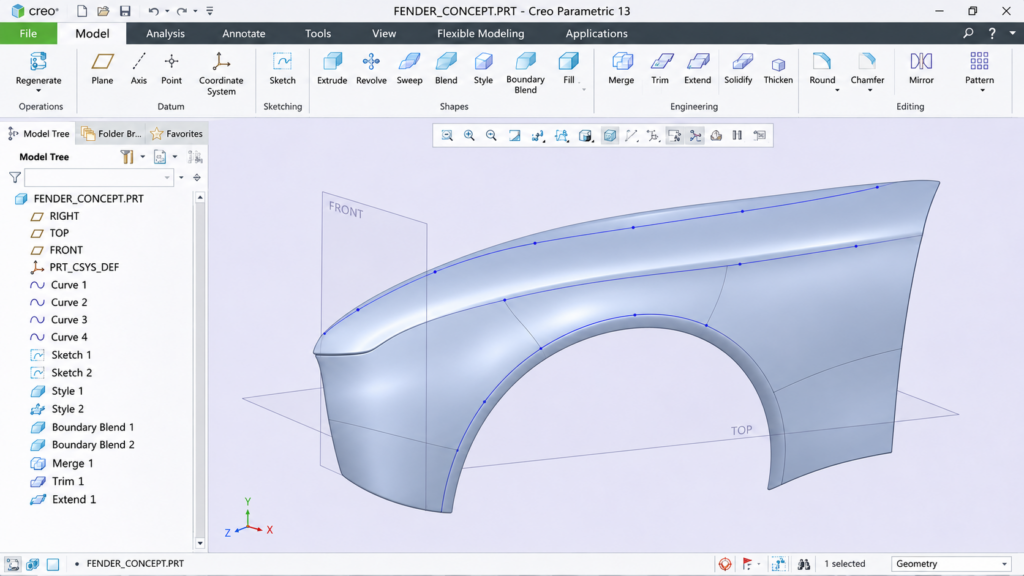
Creo also provides Freestyle subdivision modeling and specialized surfacing capabilities within its product portfolio.
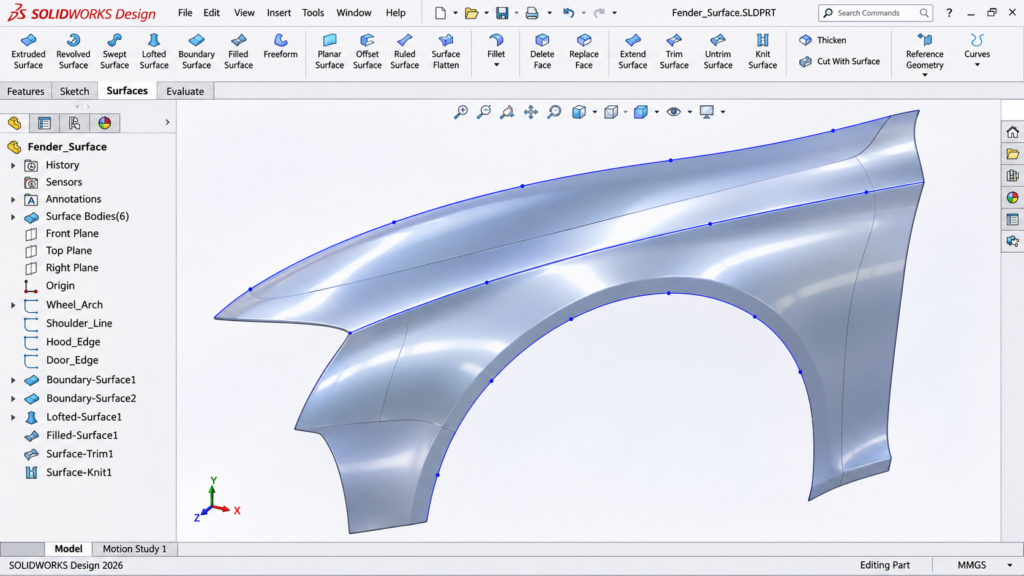
SOLIDWORKS includes surface features for mechanical and consumer product design, with xDesign available for subdivision modeling on the 3DEXPERIENCE platform.
I think it is important to separate curved geometry from specialized surface development. A molded cover, an ergonomic grip, and an automotive exterior do not have the same requirements. The right tool depends on the geometry you need to create and how it will be used.
Where CATIA Fits
This is where I would also bring CATIA into the conversation. For specialized surfacing, extensive composites work, very large product structures, or engineering that spans multiple disciplines, CATIA may be worth evaluating.
CATIA offers specialized tools for Class-A surfacing, including advanced control over surface continuity and curvature. These capabilities can be particularly valuable in industries such as aerospace, automotive, and marine, where complex exterior geometry, surface quality, and manufacturing requirements are important.
That does not mean every aerospace or automotive company needs CATIA. Both SOLIDWORKS and Creo are used in demanding engineering applications.
I would make the decision based on the actual geometry, design requirements, and workflows rather than simply the industry a company operates in.
Drawings & Model-Based Definition
Drawings are still an important manufacturing deliverable for many companies. Both SOLIDWORKS and Creo provide comprehensive drawing and model-based definition (MBD) capabilities. When it comes to MBD, I find the two systems very comparable and don’t have a strong preference for one over the other.
For traditional 2D drawings, however, I personally find SOLIDWORKS MBD more intuitive. Having worked with both systems, I can generally create and modify drawings faster in SOLIDWORKS because the tools and workflows feel more natural to me.
That said, a friend of mine who works extensively with Creo loves its drawing tools and has no complaints about the workflow. Interestingly, while I’ve used both systems, he has never used SOLIDWORKS. That highlights how much familiarity and experience can influence our preferences.
Both systems are capable of producing professional engineering documentation. For me, SOLIDWORKS has the edge in ease of use, but I wouldn’t suggest that makes it the better drawing solution for everyone.
Simulation & Engineering Validation
Both SOLIDWORKS and Creo offer simulation tools integrated with their CAD environments, although the available capabilities depend on the products and packages purchased.
Rather than comparing feature lists alone, I would start with the types of analyses your team needs and how those tools fit into your existing design workflow.
Creo’s Simulation Options
Creo Simulation Live, powered by Ansys, provides real-time structural, thermal, and modal feedback as the design changes. The Advanced version adds real-time fluid flow, including internal and external flow studies. Because the results update while you edit features, it works well for quick design checks early in the process. It does require a dedicated NVIDIA CUDA-capable graphics card, which is a consideration when planning hardware.
For more detailed studies, PTC offers Creo Ansys Simulation, with an Advanced version that supports combined structural and thermal studies. Creo Simulate covers traditional structural and thermal analysis, and the Creo Advanced Simulation Extension adds nonlinear effects. Creo Flow Analysis handles computational fluid dynamics.
All of these work inside Creo as add-on extensions, so engineers can analyze and update the model without moving to a separate application.
SOLIDWORKS’s Simulation Options
SOLIDWORKS Design Premium includes linear static analysis for parts and assemblies, with additional SOLIDWORKS Simulation products available for more advanced studies.
SOLIDWORKS users also have access to simulation tools through the 3DEXPERIENCE platform. Powered by SIMULIA technology, including the Abaqus solver, these tools extend beyond traditional structural analysis to support more advanced simulations, including nonlinear structural analysis, fluid dynamics, and other specialized studies.
What makes this particularly interesting is the connection to SOLIDWORKS. Engineers can continue designing in SOLIDWORKS while using the 3DEXPERIENCE platform for simulation. The connection maintains associativity between the CAD geometry and simulation model, allowing design changes to be incorporated into subsequent analyses. The platform also provides cloud computing resources and tools for sharing simulation results with other team members.
APIs, Automation, & Custom Workflows
Both SOLIDWORKS and Creo provide tools for automating repetitive tasks and creating custom workflows. They also offer built-in methods for controlling design variations without requiring programming.
Creo uses tools such as relations and Family Tables, while SOLIDWORKS offers equations, configurations, and design tables.
And for more advanced automation, Creo provides developer interfaces such as Creo TOOLKIT and Object TOOLKIT, while SOLIDWORKS has an established API that supports macros, custom applications, and add-ins using programming languages such as VBA, C#, and VB.NET.
One useful feature in SOLIDWORKS is the ability to record macros, making it possible to capture certain actions and use them as a starting point for automation.
Before developing a solution, I would consider the tasks being automated, the programming experience available on the team, and any additional licensing requirements.
Data Management & Product Lifecycle Management
Both SOLIDWORKS and Creo offer options for managing CAD data, revisions, and engineering changes, whether your company prefers local infrastructure or a cloud-based solution.
Creo’s Data Management

Creo integrates with PTC Windchill for product data management and product lifecycle management (PLM). Windchill can be deployed on-premises, while Windchill+ provides a cloud-based SaaS alternative for managing product data, revisions, engineering changes, and collaboration.
SOLIDWORKS’s Data Management
SOLIDWORKS offers two primary approaches. SOLIDWORKS PDM is an on-premises solution that stores and manages CAD data using company-managed server infrastructure. Alternatively, the 3DEXPERIENCE platform provides cloud-based data management and collaboration, allowing SOLIDWORKS users to manage revisions, share designs, and access additional PLM capabilities.
My Expert Take
I would focus on where your company wants its data stored, who needs access, and how your team manages revisions, approvals, and collaboration. These decisions can have just as much impact on your engineering workflow as the CAD software itself.
Learning Curve & Everyday Productivity
One of the biggest differences I’ve experienced between SOLIDWORKS and Creo is how quickly I can become comfortable with a new workflow. Both systems have extensive modeling capabilities, but I generally find SOLIDWORKS easier to navigate, particularly when I’m trying something unfamiliar.
Search Commands
Both tools help users find their way around.
- SOLIDWORKS Search Commands lets users locate and launch commands without knowing where they sit in the interface. It even recognizes terminology from other CAD systems, which can help engineers transitioning from Creo.
- Creo offers its own command search, which lists matching commands as you type and highlights where each one lives in the ribbon.
AI Assistance
Both companies are also building AI assistance directly into the design environment. For someone learning the software, this could change how quickly they get comfortable, because they can ask a question in plain language and get an answer without leaving their model.
I see two kinds of help emerging. Some assistants answer questions about commands and best practices, while others analyze the model you are working on. These tools are new on both sides, so I would treat them as helpful guides rather than a replacement for training and experience.
Creo’s Advise, Assist, & Automate
PTC introduced the Creo AI Assistant with Creo 13 in June 2026, organized into three tiers: Advise, Assist, and Automate.
- Advise is a chat-based guide for engineering questions, best practices, and troubleshooting, and doubles as a learning companion for new Creo users.
- Assist goes a step further by analyzing the active model, the user’s selections, and the design environment to give context-aware guidance.
- Automate is designed to carry out recommended changes for the engineer to review and approve.
Assist and Automate were still in early release at the time of writing, with access limited to licensed and approved users.
Creo also provides extensive documentation, training resources, and tools for learning the software. An experienced Creo user may be just as productive as someone working in SOLIDWORKS.
SOLIDWORKS’s AURA, LEO, & MARIE
For SOLIDWORKS, Dassault Systèmes introduced LEO and MARIE to join AURA as AI virtual companions on the 3DEXPERIENCE platform:
- AURA draws on documentation, training resources, and company know-how. A new user could ask how to create a particular feature or which modeling approach suits a specific task, and AURA answers with references to the original sources.
- LEO is the engineering companion. It can help check designs against parameters and constraints, assess whether parts meet performance and manufacturing requirements, and suggest ways to improve a sluggish assembly.
- MARIE focuses on science, supporting work in areas like materials and chemistry. It runs on the broader 3DEXPERIENCE platform and is aimed more at research teams than everyday CAD users.
AURA and LEO are available inside SOLIDWORKS when it’s connected to the 3DEXPERIENCE platform with Cloud Services.
Working with Data from Other CAD Systems
Most engineering teams receive files from customers or suppliers using different CAD systems. Both SOLIDWORKS and Creo support exchanging data through neutral formats and other interoperability tools.
What I would not assume is that opening a model means you also get its original feature history and design intent. Before moving a library from one system to another, test representative parts, assemblies, drawings, and the downstream workflows that depend on them.
User Community, Training, & Support
Something else worth considering is the community behind the software. No matter how experienced you are, there will be times when you need help with a feature, an unexpected error, or a modeling approach you haven’t tried before.
Creo Community
For Creo, I’ve seen estimates of approximately 1.5 million users for both Pro/ENGINEER and Creo, but I couldn’t establish whether those figures represent separate populations or overlap. Since Creo evolved from Pro/ENGINEER, combining the numbers could be misleading.
Creo has an established community, along with PTC training, documentation, forums, and professional technical support.
SOLIDWORKS Community
SOLIDWORKS reports a community of more than 8 million users worldwide, including more than 3 million product designers and engineers across over 240,000 organizations. These figures include students, educators, and other users, but they demonstrate the reach of the SOLIDWORKS ecosystem.
SOLIDWORKS has an extensive network of tutorials, user groups, forums, certified professionals, and training providers. When you’re trying to figure out an unfamiliar command or troubleshoot a modeling problem, there’s a good chance someone has encountered something similar and documented a solution.
The Job Market: Engineers Who Know the Software
Another consideration is the job market. How easily can your company find engineers who already know the software? And for engineers, how many potential employers are looking for those skills?
Both SOLIDWORKS and Creo appear in engineering job postings across a range of industries. SOLIDWORKS-related openings can be found at companies such as Intralox and Jetaire Flight Systems, while Creo-related positions have appeared at Trane Technologies, Carrier, and American Bureau of Shipping.
Job-board searches return thousands of positions for both products, although the results depend heavily on the search terms. I wouldn’t use those figures to establish market share, but they are worth investigating when evaluating the availability of experienced engineers in your industry or region.
My Expert Take
Ultimately, choosing a CAD system also means choosing the community, training resources, and available talent that support it. Those factors can have a significant impact on how quickly a team gets up to speed and how easily it can grow.
Pricing & Licensing: Understanding the Starting Point
The cost of CAD depends on the package, licensing model, and additional tools required. Still, it’s useful to compare approximate starting prices.
For a general U.S. starting point, SOLIDWORKS Design Standard costs approximately $3,000 per year, compared to $3,500 per year for Creo Design Essentials. These are rounded estimates, not feature-for-feature quotes, and actual pricing will depend on the licensing options and capabilities selected.
Licensing
One important difference is licensing. PTC discontinued new perpetual license sales for Creo in 2018, moving to a subscription-only model. SOLIDWORKS continues to offer both perpetual and subscription licensing options, giving customers more flexibility in how they purchase and maintain their software. At Hawk Ridge Systems, we also offer our own SOLIDWORKS subscriptions.
My Expert Take
When comparing costs, I would look beyond the initial purchase price. Consider training, technical support, data management, additional applications, and the total cost over several years. The lowest starting price is not always the lowest long-term cost.
At these approximate entry-level prices, SOLIDWORKS starts slightly lower and offers more licensing flexibility. However, the overall cost will depend on the specific capabilities and services your team requires.
Choosing What Fits Your Team
Both products are capable professional CAD systems. Creo offers structured top-down design tools, Family Tables, and Windchill integration. SOLIDWORKS offers a broad set of mechanical design capabilities with workflows I generally find approachable.
If you are deciding between the two, test a real project. Build a part, create variations, assemble it, and make a difficult late-stage change. Ask how quickly a new engineer can become comfortable and where the team will turn for help. Those exercises can reveal more than a side-by-side feature list.
For me, the value of CAD comes down to how effectively engineers can get their work done. My own preference is for the SOLIDWORKS workflow, but the most useful comparison is the one that reflects your team’s actual design requirements and experience.
Common Questions about SOLIDWORKS & Creo
Engineers comparing these two tools often ask the same questions. Here are quick answers to the ones I hear most often.
Is SOLIDWORKS Better Than Creo?
Neither is better for every team. Creo offers structured top-down design tools and tight Windchill integration, which suit teams with established modeling practices. SOLIDWORKS offers a flexible, approachable workflow, a very large user community, and both perpetual and subscription licensing. The best choice depends on your products, processes, and people.
Is Creo Harder to Learn Than SOLIDWORKS?
Many engineers find SOLIDWORKS easier to navigate, especially when trying an unfamiliar workflow. Creo can feel more prescriptive in how tasks are performed, so it may take longer to get comfortable. An experienced Creo user can be just as productive, and both tools now offer AI assistants to help new users learn.
Can SOLIDWORKS Open Creo Files?
Yes, SOLIDWORKS can work with Creo data through neutral formats and interoperability tools such as 3D Interconnect. However, opening a model usually doesn’t bring over its original feature history or design intent. Before moving a full library between systems, test representative parts, assemblies, and drawings.
Which Is More Widely Used, SOLIDWORKS or Creo?
SOLIDWORKS reports more than 8 million users worldwide, including students and educators. Creo has a well-established community, but reliable user counts are harder to pin down. Both appear in engineering job postings across many industries, so check job boards in your region to see which skills are in demand.
If you have any additional questions about SOLIDWORKS, CATIA, or the 3DEXPERIENCE platform, contact us at Hawk Ridge Systems.
Also explore my article on SOLIDWORKS vs. Fusion 360.