Master These SOLIDWORKS Tricks to Boost Your Productivity
At our Design to Manufacturing Conference, Applications Engineer, Patrick James, shared valuable insights to help both new and experienced SOLIDWORKS users work more efficiently. We’re sharing some of his top recommendations for customizing your interface, mastering Boolean operations, and managing your files effectively. Rather watch? See his full presentation at Hawk Ridge Systems’ Design to Manufacturing Conference.
Top SOLIDWORKS Tricks to Optimize Workflows
- Customize Interface: Use Command Search (top bar) to quickly find commands; Tab hides components, Shift+Tab shows last hidden, Ctrl+Shift+Tab shows all as transparent.
- Boost Performance: Disable unnecessary heads-up display options; use Ctrl+Q (forced rebuild) with Advanced Body Checking enabled for thorough error detection.
- Boolean Operations: Use Combine for simple solid-body Add/Subtract/Common; use Intersect for complex operations involving surfaces, planes, or more control.
- File Management: Use 3D Interconnect for viewing non-native files; convert to native SOLIDWORKS if editing; never rename/move files in Windows Explorer — use right-click SOLIDWORKS > Rename/Move instead.
- Version Compatibility: Save files to previous SOLIDWORKS versions (up to two releases back) for easier collaboration.
Get Our SOLIDWORKS Keyboard Shortcuts Download: Download SOLIDWORKS Keyboard Shortcuts Cheat Sheet
Customize Your Interface for Maximum Efficiency
One of the quickest ways to improve your SOLIDWORKS experience is through keyboard shortcuts. While the software offers extensive customization options, even a few well-chosen shortcuts can significantly boost productivity.
The Command Search function (located in the top menu bar) is invaluable when you need to locate a feature you don’t use often. Simply type the name of the command, and SOLIDWORKS will either execute it immediately or show you exactly where to find it in the menu structure.
“Tab” on your keyboard is another hidden gem — hover over any component and press Tab to hide it instantly. Need to bring it back? Shift+Tab will restore it, while Ctrl+Shift+Tab shows all hidden components as transparent.
For those concerned about performance, we recommend disabling heads-up display options when not needed: As a general tip, I tend to turn all of these off just to make my SOLIDWORKS run a little bit faster, unless I need a nice screenshot.” Another crucial performance setting is Ctrl+Q for forced rebuild. Unlike the standard rebuild (Ctrl+B), forced rebuild checks your entire model tree more thoroughly:
I like to pair that with system options, performance, and enable advanced body checking. This, with Ctrl+Q, does advanced body checking for your entire tree. What I have seen on tech support is when this wasn’t turned on and you didn’t use Ctrl+Q, the tree would actually miss a handful of errors or warnings.
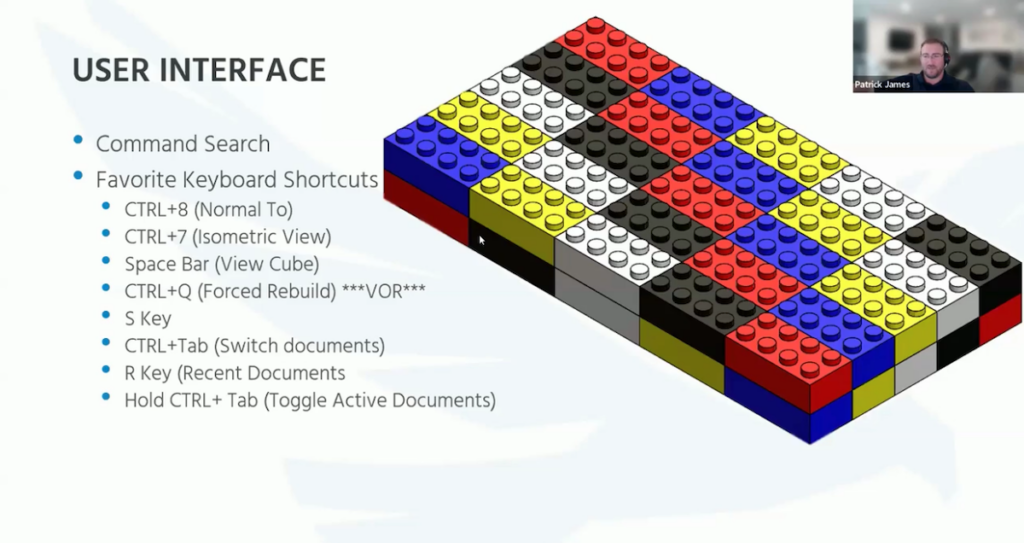 Favorite keyboard shortcuts for customizing the SOLIDWORKS interface are paired with a colorful LEGO brick model.
Master Boolean Operations for Complex Geometry
When working with multiple bodies in SOLIDWORKS, understanding when to use the Combine versus Intersect tools can save significant time.
The Combine tool handles basic Boolean operations between solid bodies:
- Add: Merges multiple bodies together
- Subtract: Removes material from a main body using another body
- Common: Keeps only the overlapping volume where bodies intersect
If you have one of these three situations — solid bodies only, doing one of these three things — use the Combine tool. It’s super simple, not very many options, and it does exactly that.
For more complex operations involving planes, surfaces, or multiple bodies, the Intersect tool offers greater flexibility and control. While it can perform everything the Combine tool can do, it also allows:
- Working with any combination of planes, surfaces, and solids
- Creating both intersecting and internal regions
- Previewing options before committing to changes
What I tend to do, unless I know I’m just combining two bodies — add and combine, super simple — but anything else, I come to Intersect, and I like the control and the extra elements that it adds.
File Management Best Practices
Managing file relationships properly is critical for maintaining project integrity. One key recommendation is understanding when and how to use 3D Interconnect, which allows SOLIDWORKS to open non-native file formats.
With 3D Interconnect, you should be able to open all of these different file types natively. This ends up being the best option if you just want to view that file and you’re not trying to add extra geometry on top, or that file is just used as a reference.
But if you plan to modify imported geometry, it’s usually better to convert it fully to SOLIDWORKS format rather than maintaining the external reference.
When renaming or moving SOLIDWORKS files, don’t do it through standard Windows Explorer, because it breaks file references. Instead, in Windows Explorer, if you right-click, you can go down to SOLIDWORKS and then rename or move.
If you do need to move or rename a file in SOLIDWORKS, if you don’t have PDM, this is a better way to do it. It essentially looks for the references for that file and then remaps them with that new name or with that new file location.
Another cool feature is the ability to save to previous SOLIDWORKS versions — up to two releases back. This functionality allows for better collaboration with colleagues or partners who haven’t upgraded their SOLIDWORKS instances yet.
The Final Note
Implementing these tips will help streamline your SOLIDWORKS workflow, reduce frustration with common issues, and allow you to focus on designing rather than managing software quirks. Whether you’re customizing your interface, leveraging Boolean operations, or properly managing your files, these practices will serve as the foundation for more efficient SOLIDWORKS use.