Understanding Product Levels, Device Licensing, and Single User Licensing
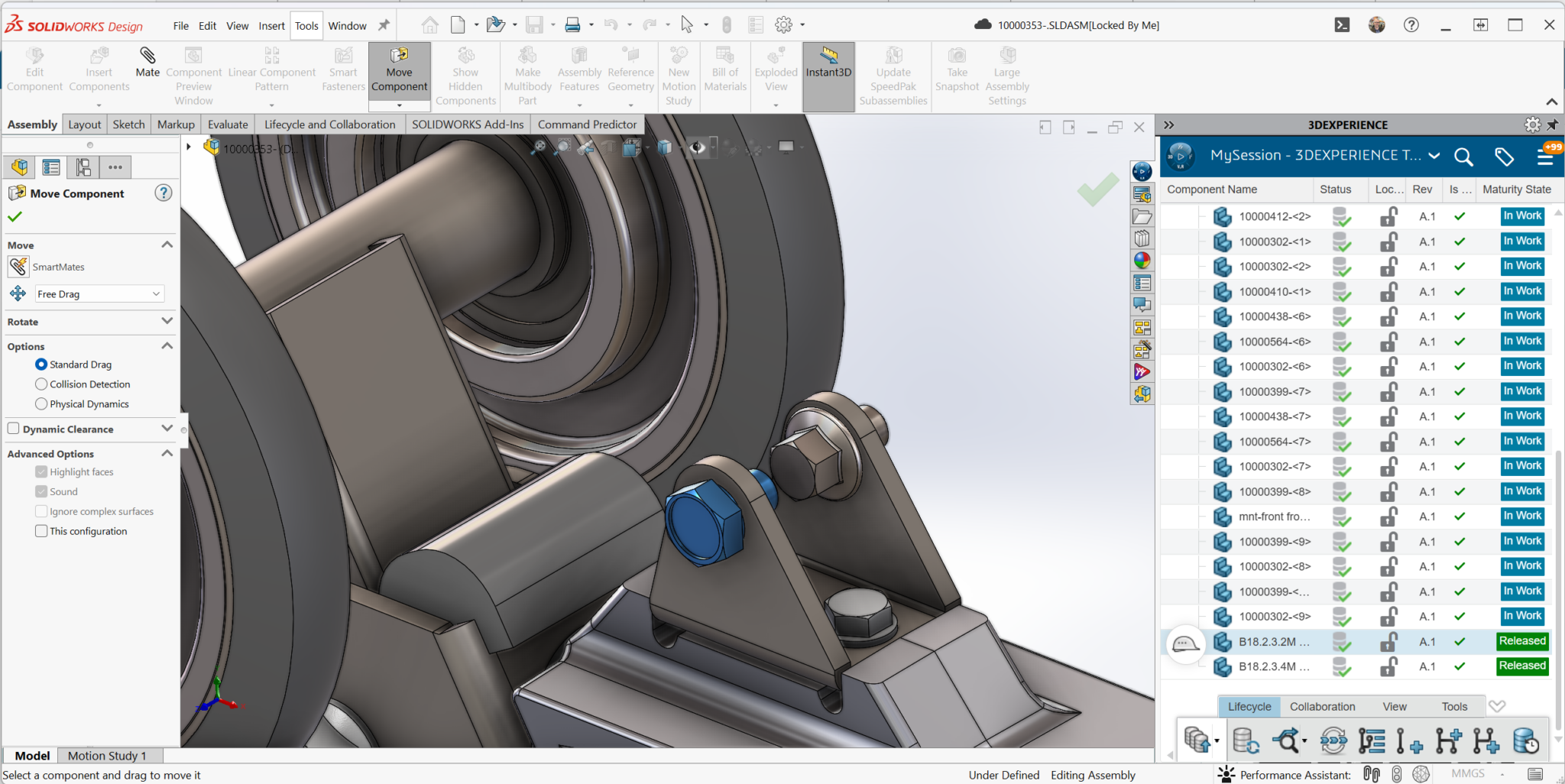
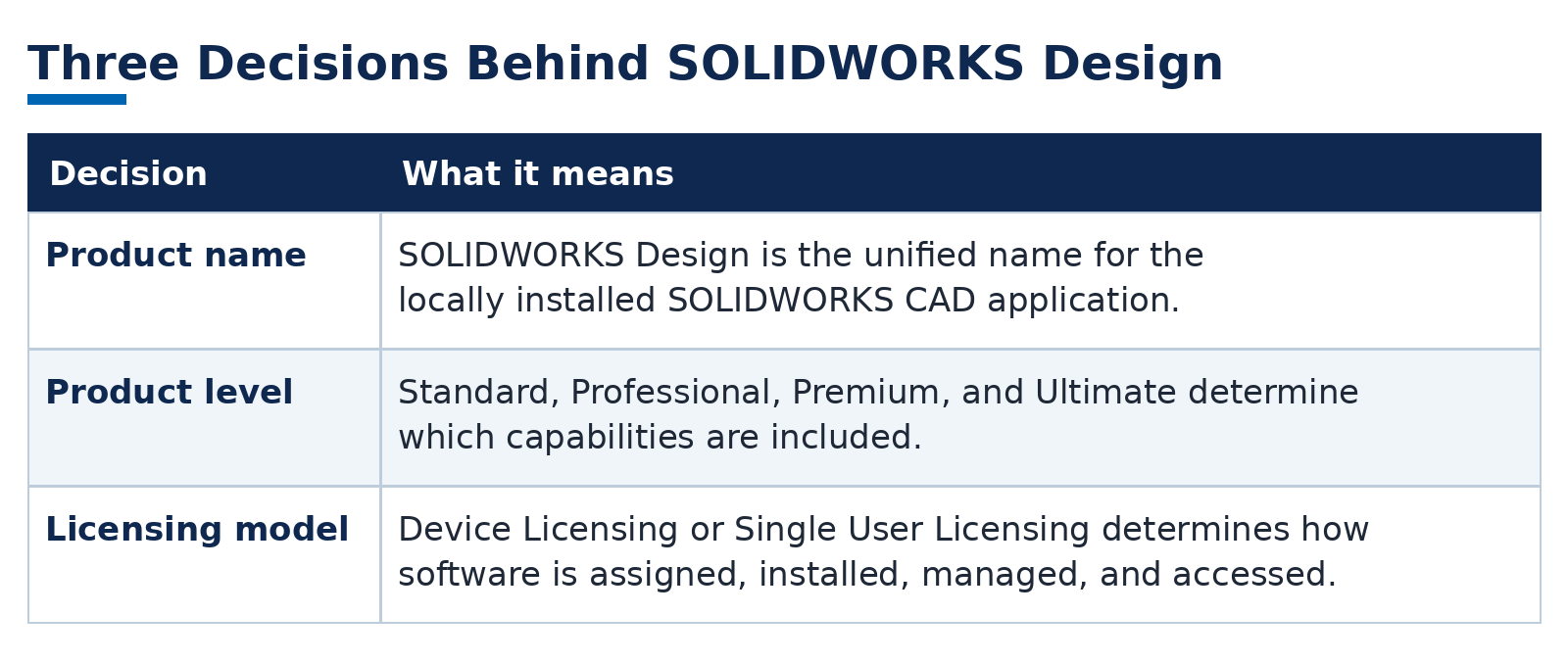
SOLIDWORKS has introduced a new naming structure that brings traditional SOLIDWORKS Desktop and 3DEXPERIENCE SOLIDWORKS together under one name: SOLIDWORKS Design. All versions and product levels of the locally installed CAD application now share this unified name, creating a more consistent identity across the portfolio.
The unified SOLIDWORKS Design name creates a clearer, more consistent product family while preserving flexibility in how the software is licensed and installed. Customers can choose between traditional device licensing and cloud-managed Single User Licensing. The product level defines the included capabilities, while the licensing model defines who or what holds the license and how SOLIDWORKS Design is installed, managed, and accessed.
Why Is Everything Now Called SOLIDWORKS Design?
Previously, the product name helped distinguish between two versions of SOLIDWORKS. Serial-number-based installations were generally called SOLIDWORKS Desktop, while the user-based version launched and managed through the 3DEXPERIENCE platform was called 3DEXPERIENCE SOLIDWORKS. Despite their different licensing and deployment methods, both were installed and ran locally on a Windows computer.
Both delivered the same core SOLIDWORKS design experience, but their different names made them sound like separate CAD systems. The move to SOLIDWORKS Design brings them together under a single name. Regardless of the licensing method, SOLIDWORKS Design remains a locally installed application. What changes is how the license is assigned, how the software is installed and launched, and how it is managed.
Separate the Name, Level, and Licensing Model
The easiest way to understand the new structure is to separate three decisions that were previously blended together:
The SOLIDWORKS Design Product Levels
The familiar Standard, Professional and Premium levels remain, and Ultimate sits above them as the most comprehensive offer. These names describe functionality, not the installation method:
- SOLIDWORKS Design Standard includes the core tools for creating parts, assemblies, and drawings.
- SOLIDWORKS Design Professional adds productivity, visualization and design automation capabilities.
- SOLIDWORKS Design Premium adds advanced simulation, motion, and routing capabilities.
- SOLIDWORKS Design Ultimate combines SOLIDWORKS Design Premium with a broader collection of connected design, simulation, manufacturing, visualization, and product development tools.
Standard, Professional and Premium are available through both Device Licensing and Single User Licensing. SOLIDWORKS Design Ultimate is available only through Single User Licensing.
Two Ways to License, Download, and Install SOLIDWORKS Design
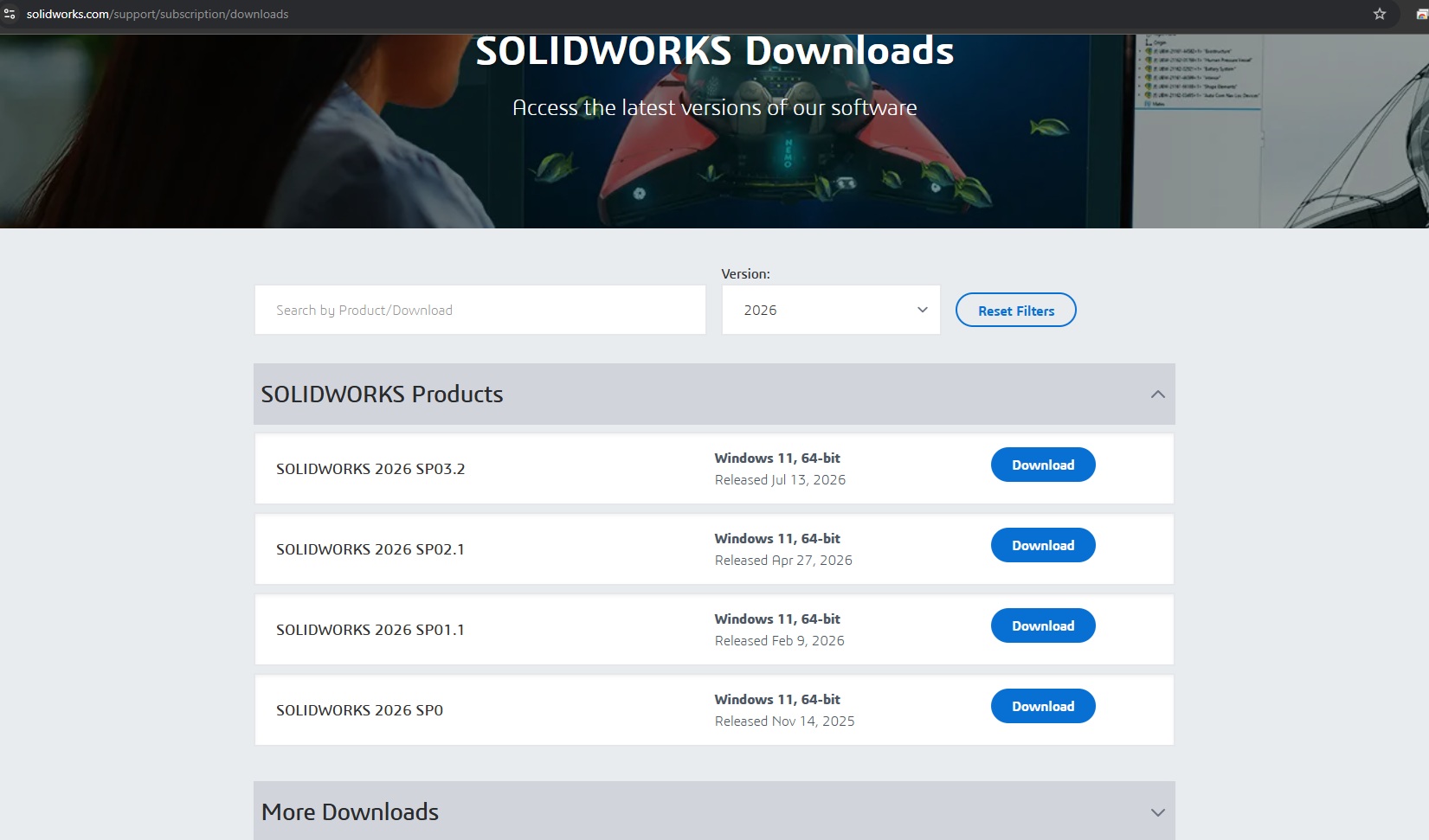
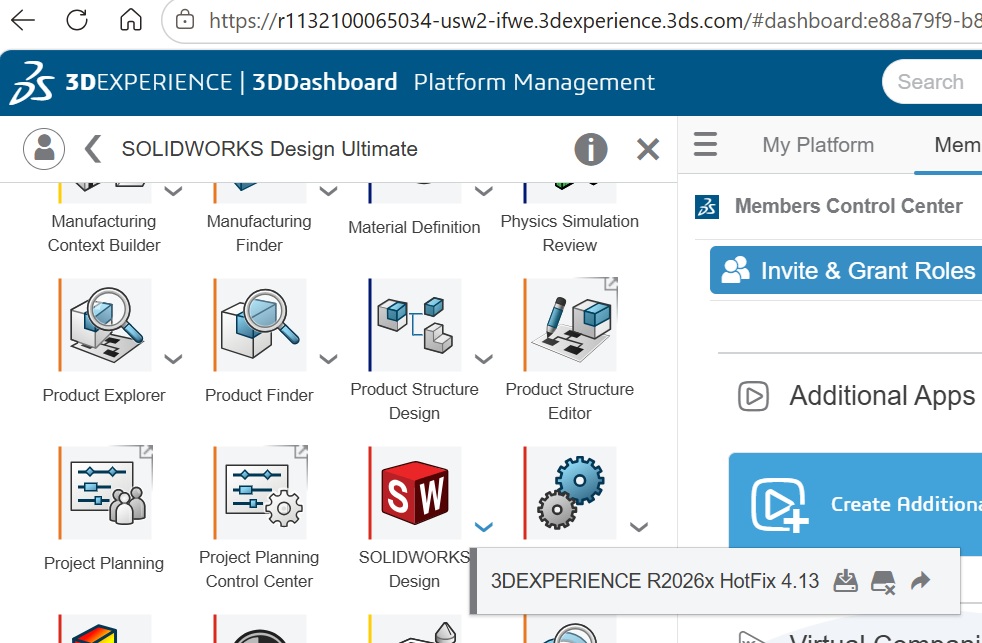
The new naming structure is unified, but the installation experience still depends on the licensing model. At the highest level, customers choose between Device Licensing (left) and Single User Licensing (right).
Device Licensing: The Traditional Serial Number Method
Device Licensing follows the traditional SOLIDWORKS installation process many customers already know. The license is delivered through one or more SOLIDWORKS serial numbers.
Installation files are downloaded locally or prepared as an administrative image; the SOLIDWORKS Installation Manager installs the selected products, and the appropriate serial numbers are entered during setup.
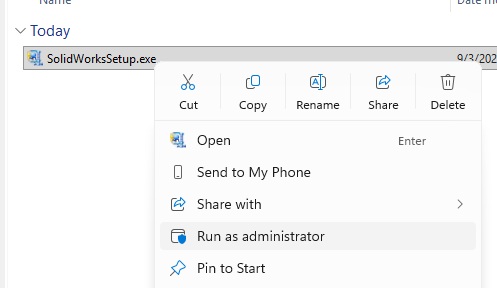
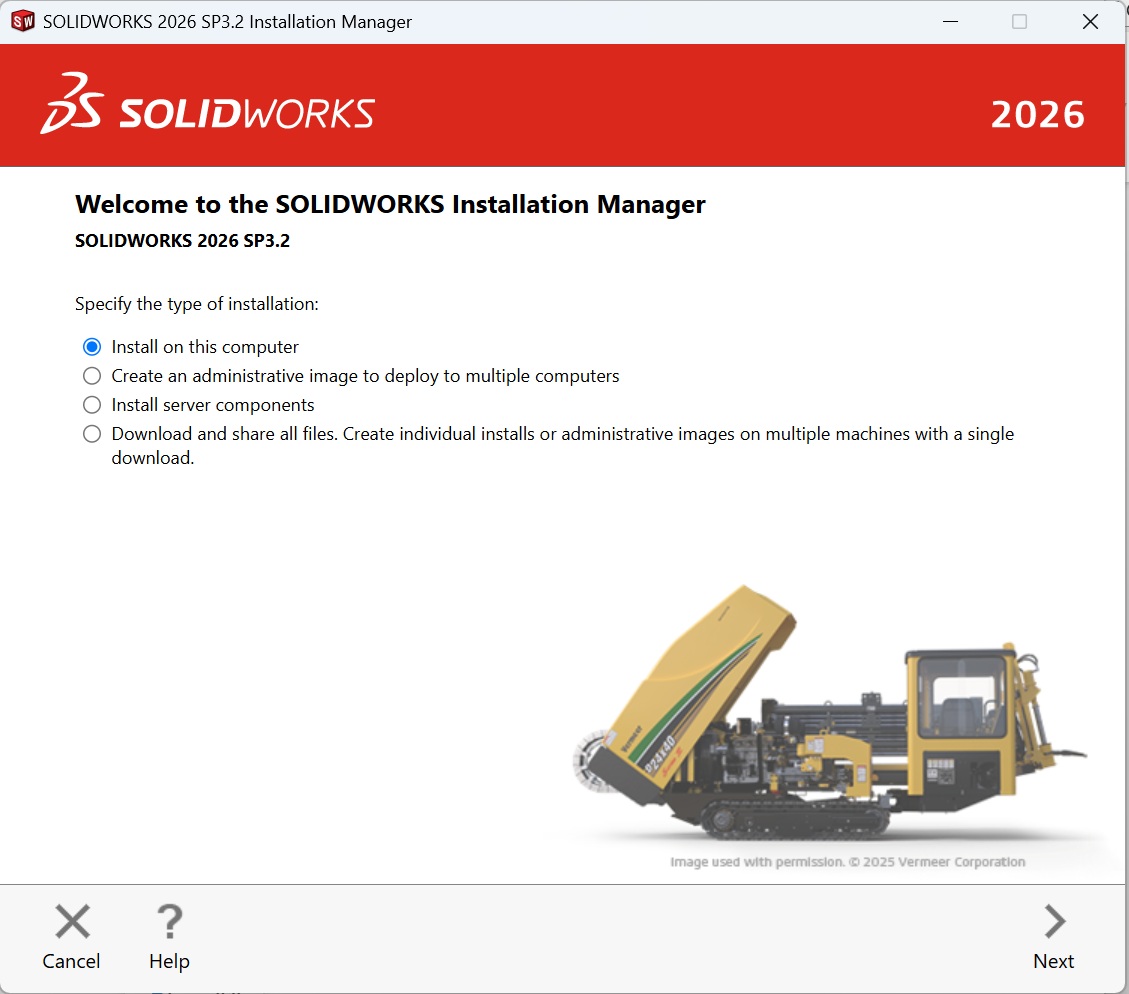
The license is connected to hardware rather than to an individual login. Device Licensing can be configured in two ways: standalone licensing or network licensing.
Standalone Licensing
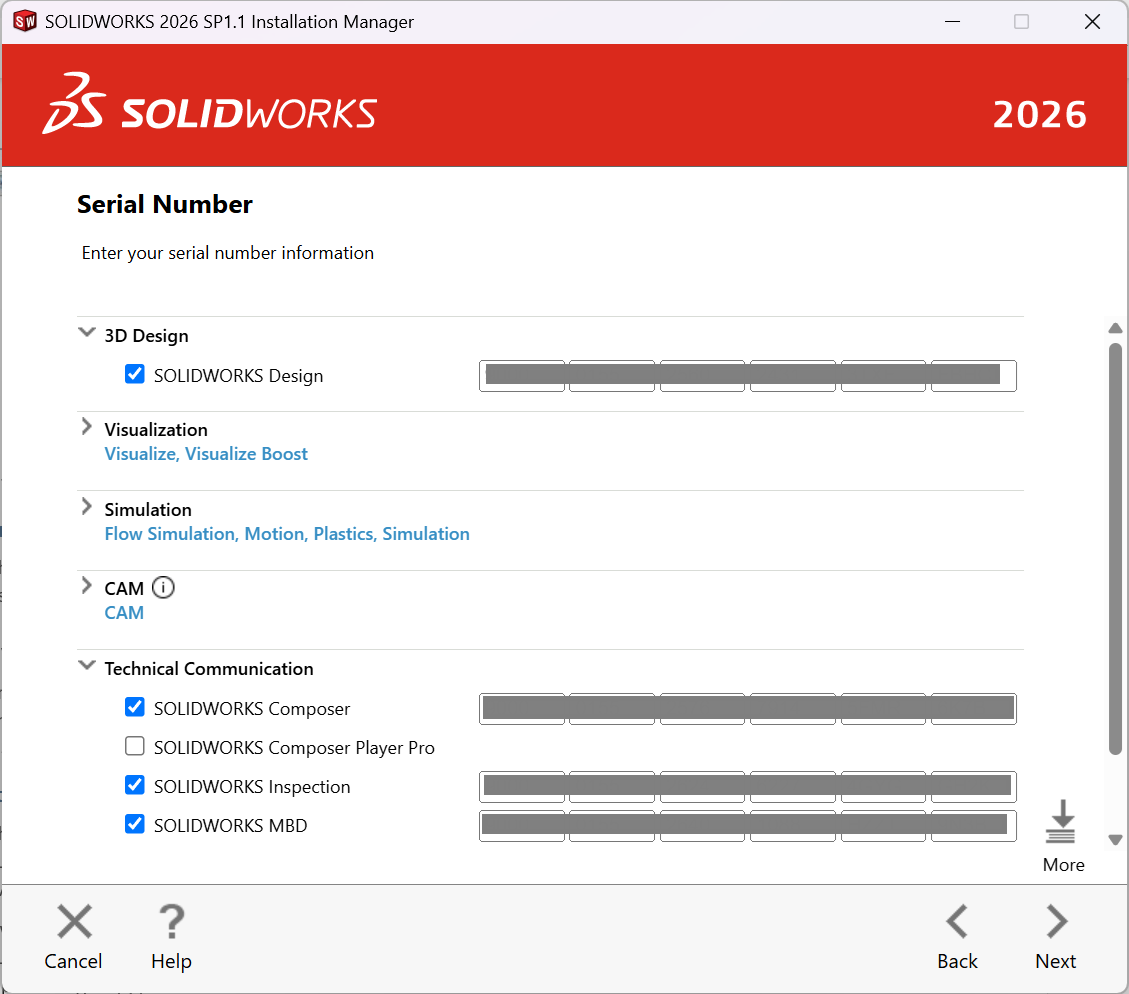
With a standalone license, SOLIDWORKS Design is activated on a specific workstation. Any authorized person using that computer can open the software, but the license remains assigned to that device. If the license needs to move to another computer, it must be deactivated on the current workstation and activated on the new one.
Standalone licensing is a strong fit for dedicated engineering workstations, shared shop-floor computers, and environments where the organization wants direct control over installation timing and installed versions.
Network Licensing
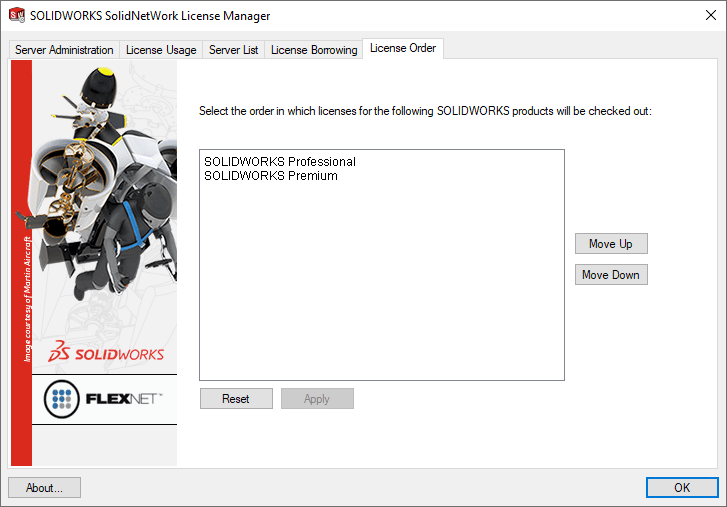
With network licensing, a SolidNetWork License Manager hosts a shared pool of licenses. SOLIDWORKS Design is installed on each client computer, but the license is checked out from the server when the application opens and returned to the pool when it closes.
Network licensing is based on concurrent use. A company may have ten people who occasionally need SOLIDWORKS Design but only five who use it at the same time. In that case, five network licenses may support the group, provided no more than five users need simultaneous access.
This approach can make efficient use of licenses across a team, but it requires a license server and reliable connectivity between each client and that server. Remote users may need a VPN connection, or they may need to borrow a license before disconnecting from the company network.
Both standalone and network licensing are available for SOLIDWORKS Design Standard, Professional and Premium. Device licenses may be offered as term licenses or perpetual licenses with subscription services. SOLIDWORKS Design Ultimate is not available through Device Licensing.
Single User Licensing (SUL): Cloud Managed Licensing
Single User Licensing, commonly abbreviated as SUL and also referred to as Named User Licensing (NUL), assigns SOLIDWORKS Design to a specific person through their 3DEXPERIENCE account. Instead of being tied to a computer or license server, the license follows the individual and is accessed using their login credentials.
The assigned user can install SOLIDWORKS Design on as many compatible computers as needed. This makes it easy to move between an office workstation, home computer, or laptop without deactivating hardware, transferring serial numbers, or purchasing a separate license for each computer. The license is intended for the assigned user and should not be shared through common credentials.
License assignments are also flexible. An administrator can transfer a license from one user to another every 24 hours, allowing organizations to adjust access as staffing and project requirements change.
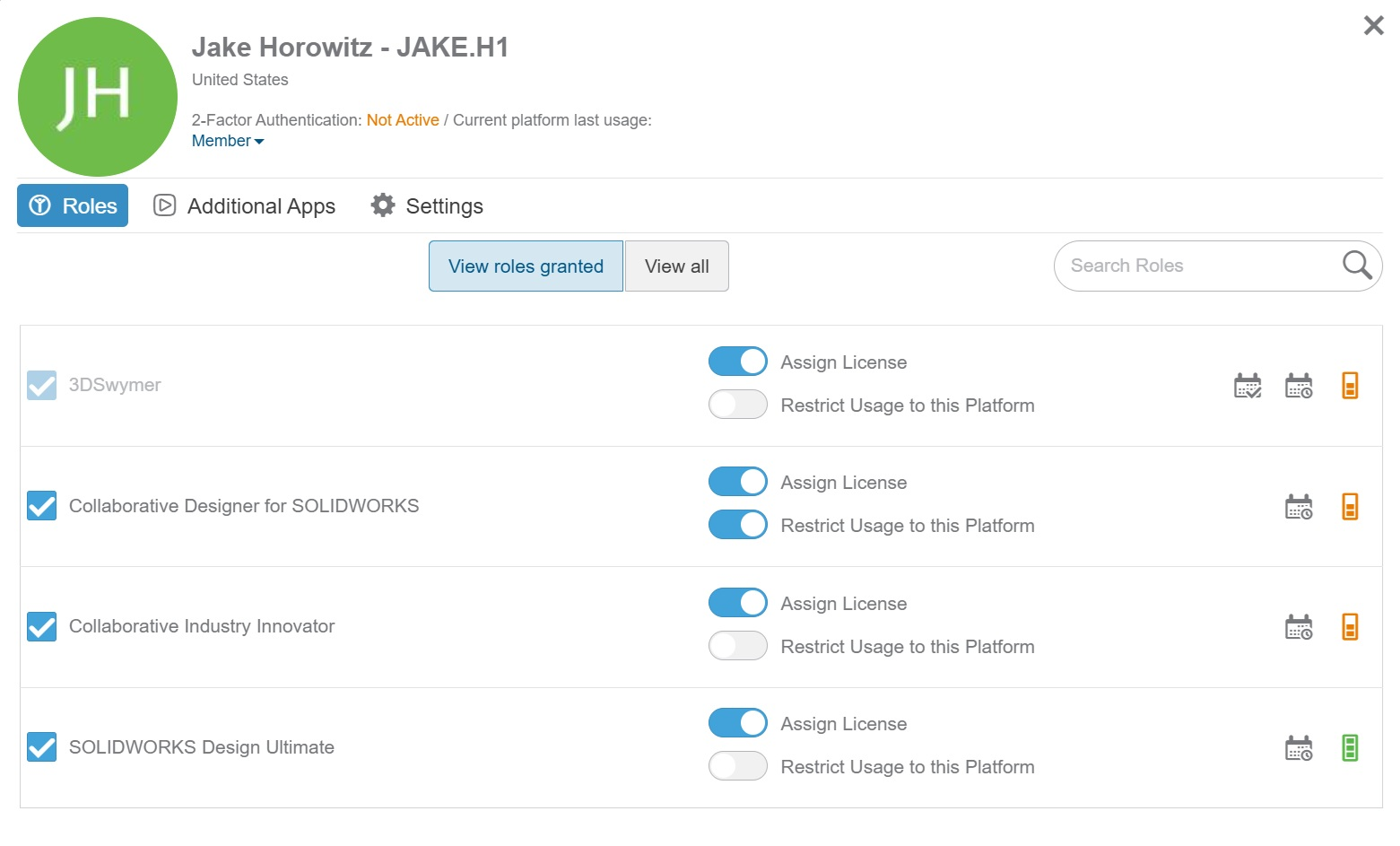
Users can borrow a license for up to 30 days when they need to work without a connection to the 3DEXPERIENCE platform. During that period, the borrowed license functions much like a standalone license on that computer.
Single User Licensing also provides flexibility when choosing a SOLIDWORKS version. Users can install the latest release or supported versions dating back up to two years. They can keep SOLIDWORKS Design updated to the newest available version or remain on a specific release and decline software upgrades when consistency is more important.
A Streamlined Installation and Launch Experience
SUL also changes how SOLIDWORKS Design is installed. The user signs in to the 3DEXPERIENCE platform and selects SOLIDWORKS Design. If the application is not already installed on that computer, the launch process starts the guided local installation. Once it is installed, selecting SOLIDWORKS Design launches the application.
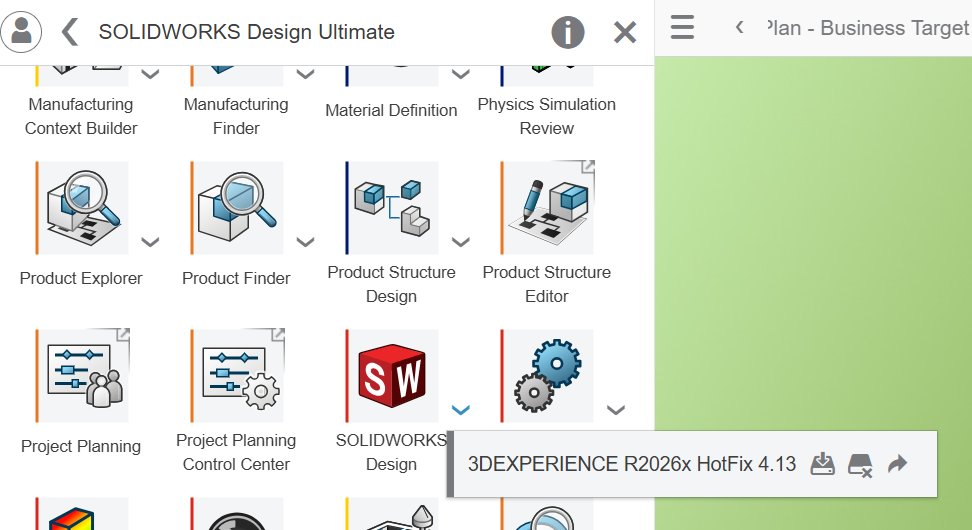
If the user moves to another compatible computer, even one that does not yet have SOLIDWORKS Design installed, the essential item they need is their login. They sign in, select SOLIDWORKS Design, and complete the local installation when prompted. Because the license is managed through the account instead of a hardware activation, there is no serial number to transfer between computers.
Single User Licensing is available as a term license for SOLIDWORKS Design Standard, Professional, Premium, and Ultimate. It also provides an immediate connection to the 3DEXPERIENCE platform and Cloud Services.
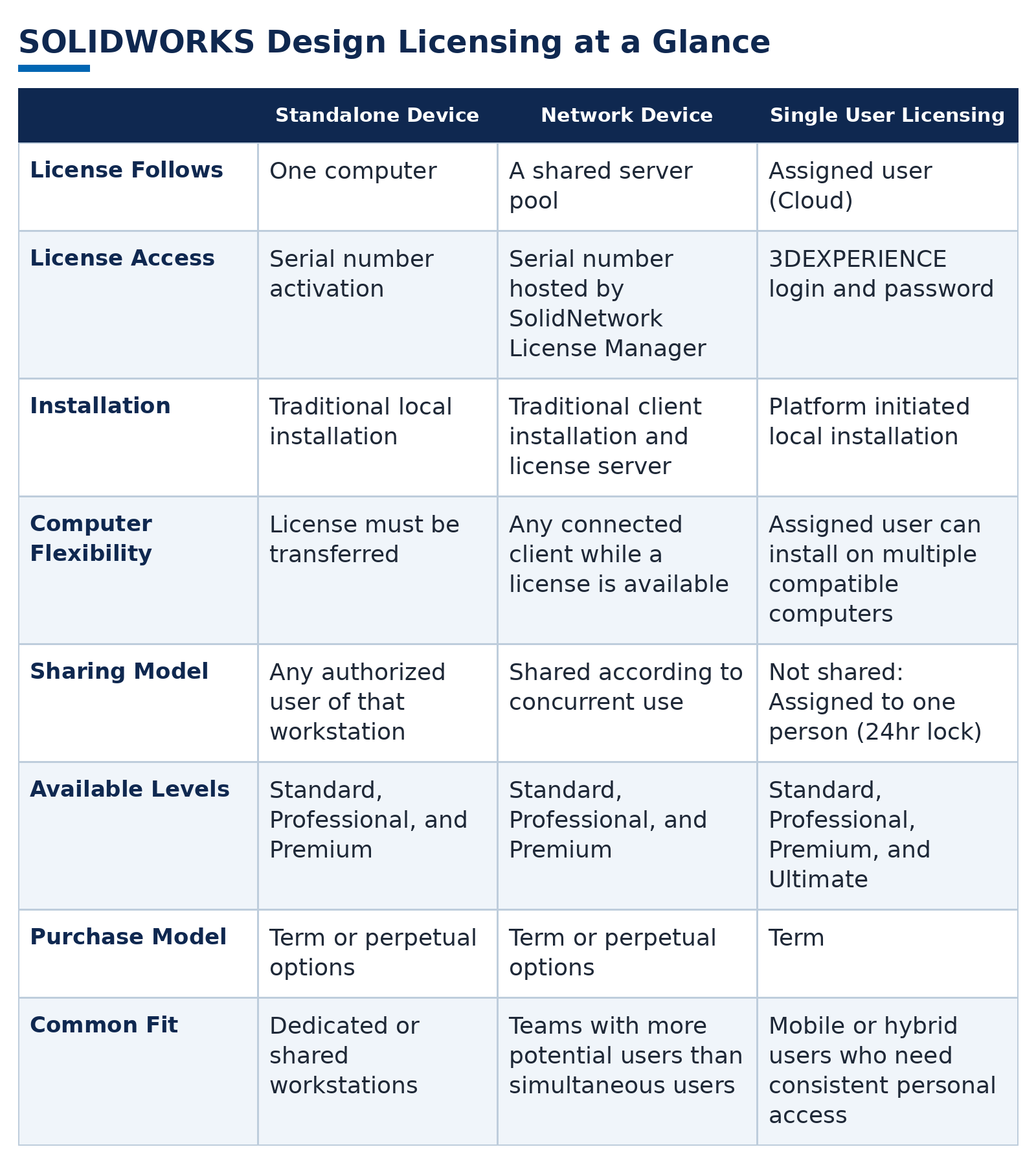
SOLIDWORKS Design Licensing at a Glance
Cloud Managed Licensing Does Not Mean Browser-Based CAD
The term cloud can mean several things within the SOLIDWORKS portfolio. With Single User Licensing, the license and software access are managed through the 3DEXPERIENCE platform. SOLIDWORKS Design remains locally installed on a Windows computer and uses that computer’s hardware.
Cloud Services, often called 3DX PDM, connect SOLIDWORKS Design to the platform for file storage, sharing, markup, revision management, and collaboration. They are included with every new purchase of SOLIDWORKS Design, regardless of the product level or licensing method.
For CAD that runs entirely in the cloud, SOLIDWORKS offers SOLIDWORKS xDesign. It is part of the SOLIDWORKS portfolio, but it is a separate browser-based CAD solution, not SOLIDWORKS Design running in a browser. At the time of writing, geometry can move between the two applications, but the parametric feature history does not transfer. AI-driven BREP-to-parametric tools are beginning to rebuild editable features from imported geometry, helping close this gap.
Which Licensing Model Is Right for You?
The best licensing model depends on how you need to access SOLIDWORKS Design and how your organization prefers to manage software deployment. Each option has advantages and trade-offs.
Choose standalone licensing for a dedicated workstation that may be used by different authorized people. It is simple to manage and does not require a license server, but the license remains tied to that computer and must be transferred before moving to another workstation.
Choose network licensing when a team has more potential users than simultaneous users. A shared license pool can reduce the number of licenses needed, but users must be connected to the company network, either locally or through a VPN, to check out a license. A license can be borrowed in advance for offline use, but users may still be unable to open SOLIDWORKS Design if every available license is already in use.
Choose Single User Licensing when one person needs access from multiple computers or locations. The license follows the user, installation is streamlined, and no serial number transfers are required. However, the license is assigned to one person rather than shared concurrently and must be managed through the 3DEXPERIENCE platform. Single User Licensing is also the only option for SOLIDWORKS Design Ultimate.
Many organizations use a combination of these options. Dedicated workstations may use standalone licenses, groups with variable demand may share network licenses, and mobile or hybrid users may receive Single User Licenses. The objective is to match each license to how SOLIDWORKS Design is actually used.
The Bottom Line
The new SOLIDWORKS Design name is intended to unify the portfolio, not remove customer choice. Traditional SOLIDWORKS and 3DEXPERIENCE SOLIDWORKS no longer have separate product identities. They are now licensing and deployment options for the same SOLIDWORKS Design product.
The product level tells you what capabilities are included. The licensing model determines whether the license is assigned to an individual user, activated on a specific workstation, or shared through a network license pool. It also determines how SOLIDWORKS Design is installed and accessed. Standard, Professional, and Premium are available through both Device Licensing and Single User Licensing, while Ultimate is available exclusively through SUL.
Once those distinctions are clear, the new naming structure becomes much easier to navigate: one SOLIDWORKS Design name, four product levels, and flexible licensing options built around the needs of different users and organizations.
Hawk Ridge Systems can help you compare SOLIDWORKS Design levels; evaluate standalone, network, and Single User Licensing; and choose an installation and licensing strategy that fits your users, IT environment, and purchasing requirements.
For accurate SOLIDWORKS license cost and configuration based on how your team actually uses seats, connect with your Hawk Ridge Systems sales rep — they can map Standard, Professional, Premium, or Ultimate to the right Device or Single User Licensing model.
Learn more: Explore SOLIDWORKS solutions and licensing options from Hawk Ridge Systems