Why Transient Cooling Simulations Take So Long
Transient simulations can take significant time to solve when different physical processes occur at very different rates. If the flow around a part reaches a steady condition long before the part finishes heating or cooling, Flow Freezing can help shorten simulation times by keeping the established flow field fixed while the slower process continues.
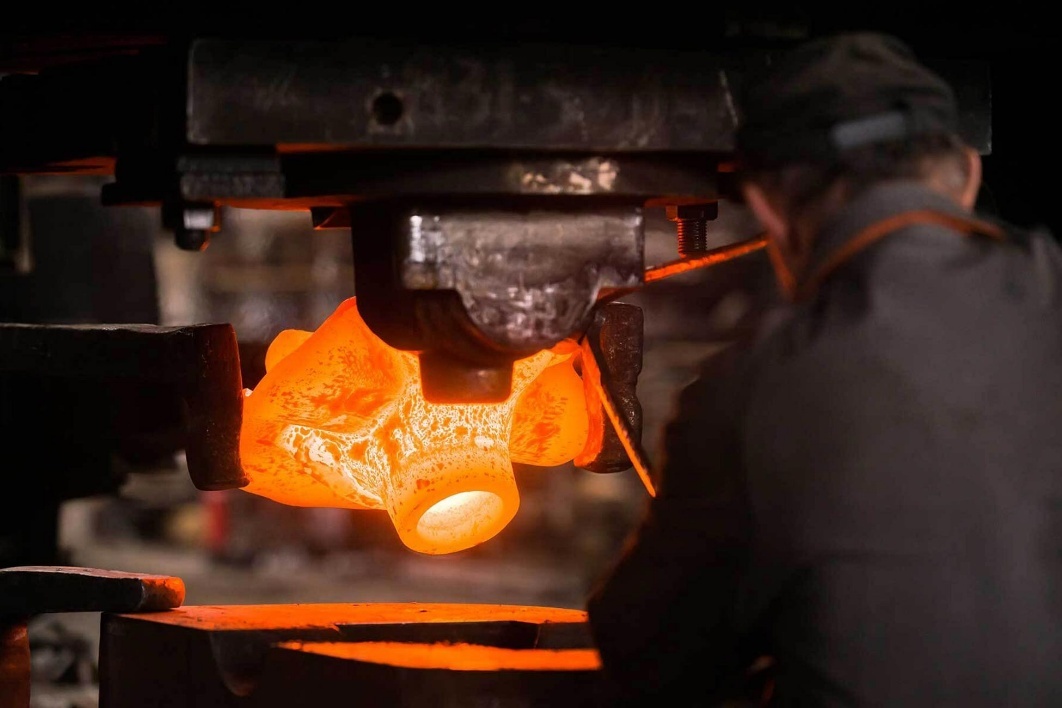
A good example is cooling parts after a forging or heat-treating process. In this case, an arrangement of metal hammers starts at 1000 °C and is exposed to a constant stream of air at 30 °C. The goal is to determine how long it takes for the hammers to cool to 200 °C.
The airflow around the hammers develops relatively quickly, while the metal takes much longer to cool. So, once the airflow has developed, do we really need to keep recalculating it?
This is where Flow Freezing can make a difference.
Simulation Setup
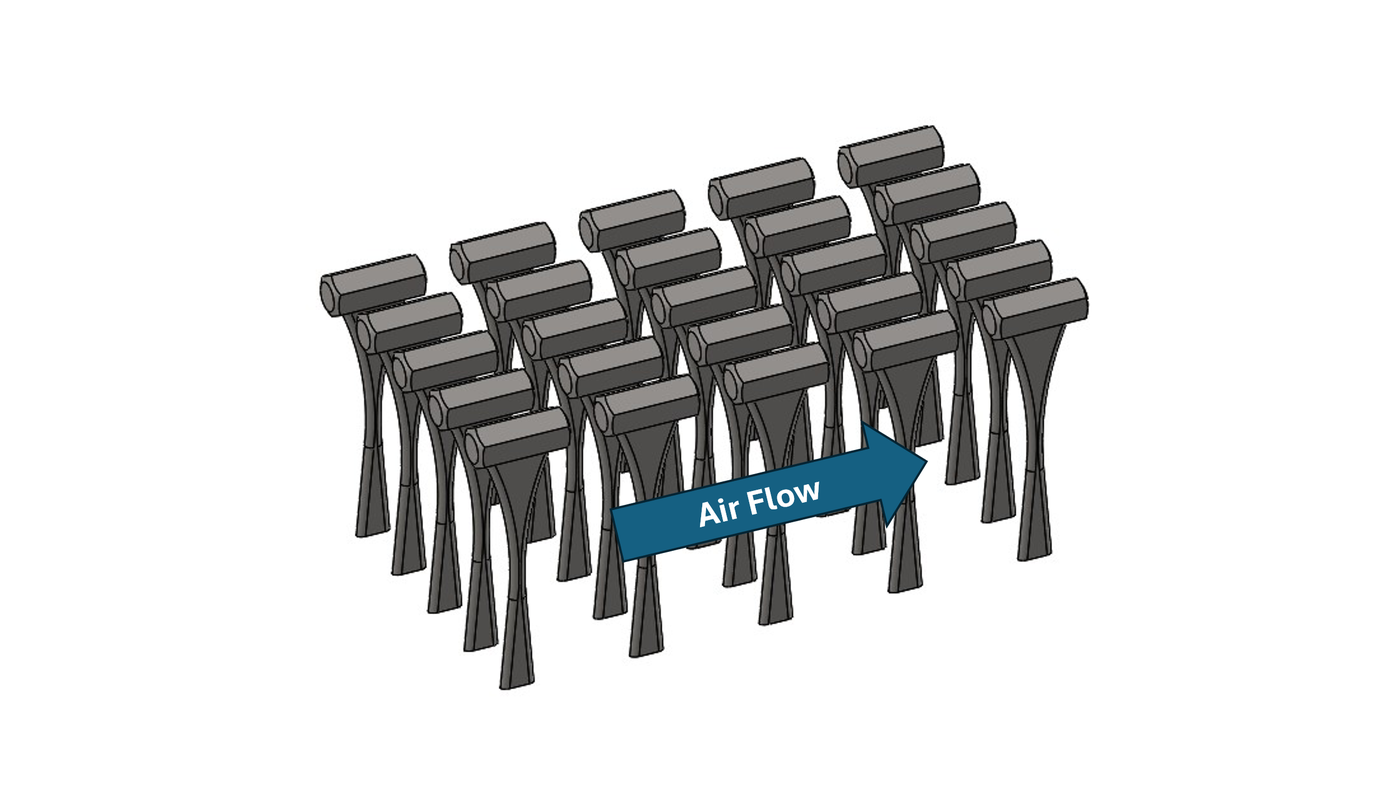
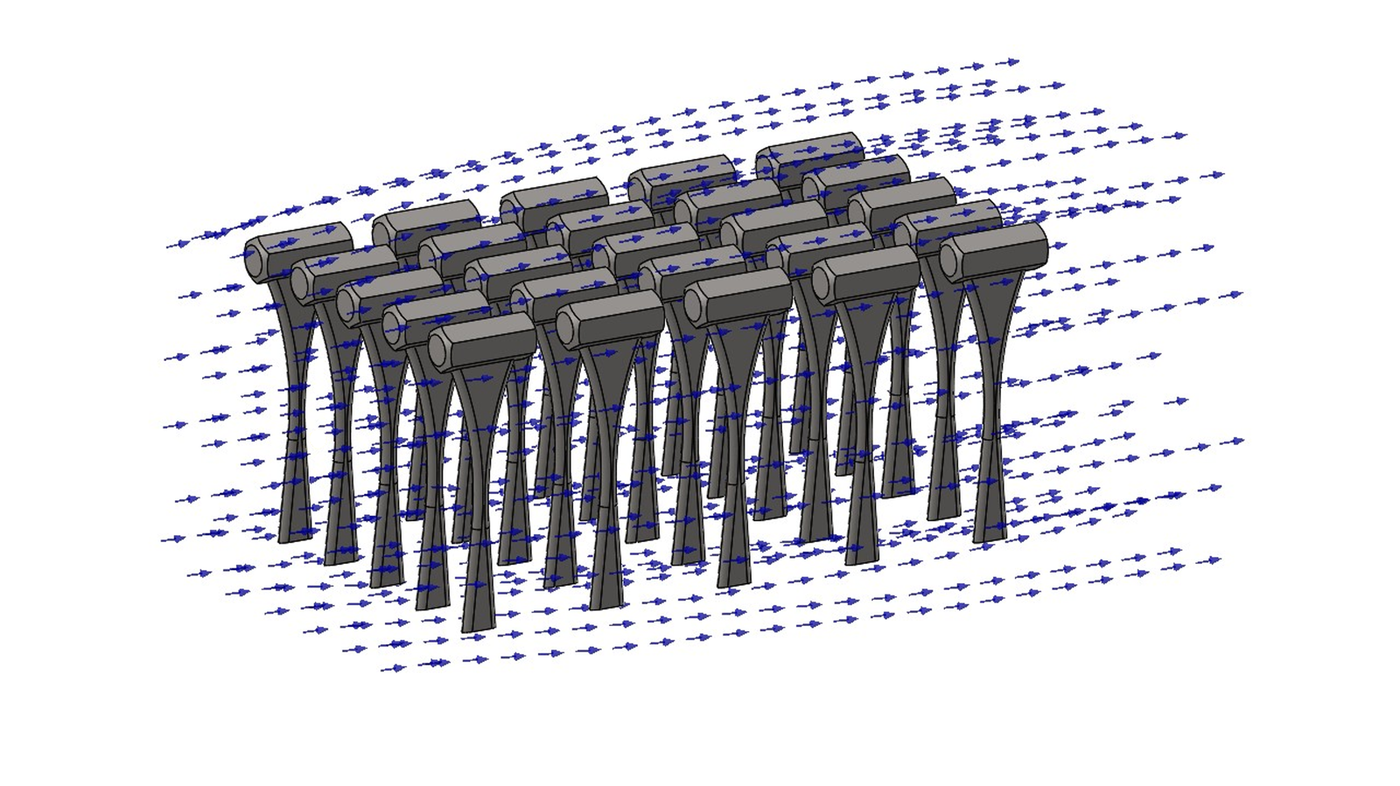
The model consists of multiple metal hammers arranged in rows. In the actual cooling process, the hammers would be suspended from a rack to allow air to flow around the parts. For this simulation, the rack and suspension hardware have been omitted to simplify the model.
The air flows over the parts at a velocity of 10 m/s (an imaginary fan or blower provides the ambient flow). The analysis is set up as a transient simulation, allowing the temperature of the hammers and surrounding flow to change over the course of the analysis.
With the model set up, the simulation must account for both the airflow around the hammers and the heat being transferred from the metal. Under normal conditions, the flow field continues to be solved throughout the analysis.
That raises an interesting question: once the airflow has developed, do we really need to keep calculating it?
What Is Flow Freezing?
Some simulations contain physical processes that develop at very different rates. If one process becomes steady much faster than another, continuing to recalculate the faster process can consume CPU time without providing much additional information.
In SOLIDWORKS Flow Simulation, convective mass, momentum, and energy transport generally develop faster than diffusion processes (like temperature changes or substance concentrations). Flow Freezing allows the pressure and velocity field to be fixed while the calculation continues to solve for temperature and composition. This can be particularly useful when a relatively steady flow field is combined with a slower thermal or species-diffusion process.
This closely resembles what’s happening in the simulation with the hammers. The air needs to flow around the hammers, but once that flow has developed, the main thing we are interested in is the much slower change in temperature of the metal.
Instead of continuing to spend computational effort recalculating a flow field that is already steady, we can freeze it and allow the thermal calculation to continue.
Applying Permanent Flow Freezing
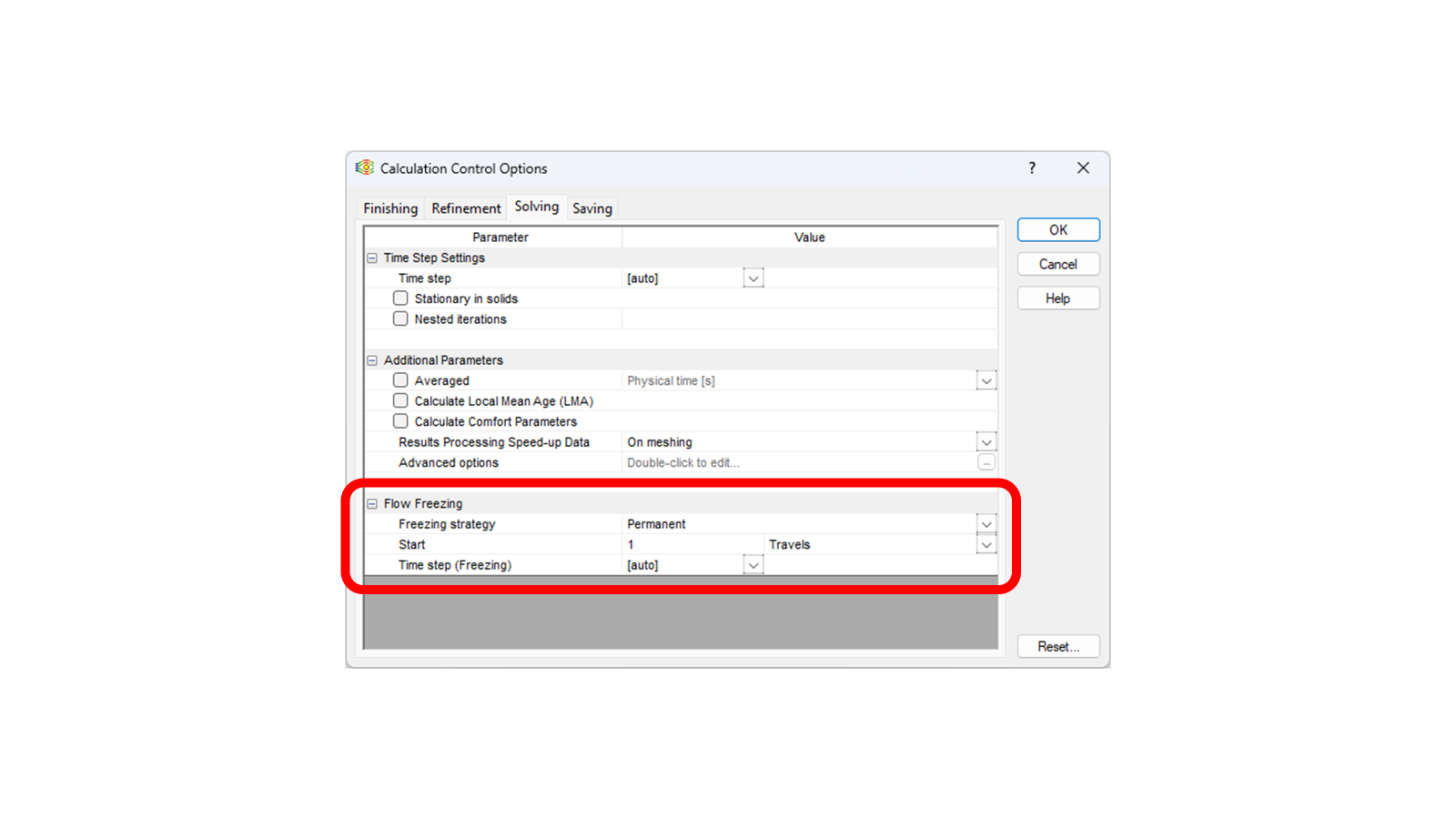
Flow Freezing is found under Calculation Control Options > Solving. There are three options: Disabled, Periodic, and Permanent. For this example, Permanent Flow Freezing will be used. The simulation initially runs normally, allowing the airflow to develop. The point at which Flow Freezing begins is user configurable, so the flow can be allowed to develop for an appropriate amount of time before it is frozen.
It would not make sense to freeze the flow too quickly. The airflow needs time to develop around the hammers first. If the flow is frozen too early, the velocity field may not accurately represent the established flow. Consider the extreme example of freezing the flow immediately. At the very beginning of the study, the air velocity will be zero or near zero. Freezing the flow then will lead to nonsensical results as the forced convection of 10 m/s will not be captured, nor will any natural convection even be allowed to develop since the air cannot change velocity.
The Flow Freezing guidance recommends an initial period of at least 0.25 travels, with 0.5 travels generally being sufficient for many problems. However, the development period can vary from case to case. Depending on the geometry and flow conditions, users may need to test different values in their own simulations to determine when the flow has developed sufficiently to be frozen.
For this example, Flow Freezing is set to begin after 1 travel. This gives the airflow time to develop before the velocity field is frozen. From that point forward, the established velocity field remains fixed while the hammers continue to cool.
What Happens After Freezing?
Once Permanent Flow Freezing is activated, the velocity field is no longer recalculated. Instead, the calculation can focus on the slower thermal process.
The hammers are still losing heat to the air, so their temperatures continue to change with time. As the metal cools, the heat transfer from the hammers to the surrounding air also changes. The simulation can continue until the desired temperature is reached.
In this case, the question remains the same: how long does it take for the hammers to cool from 1000 °C to 200 °C?
How Much Time Can It Save?
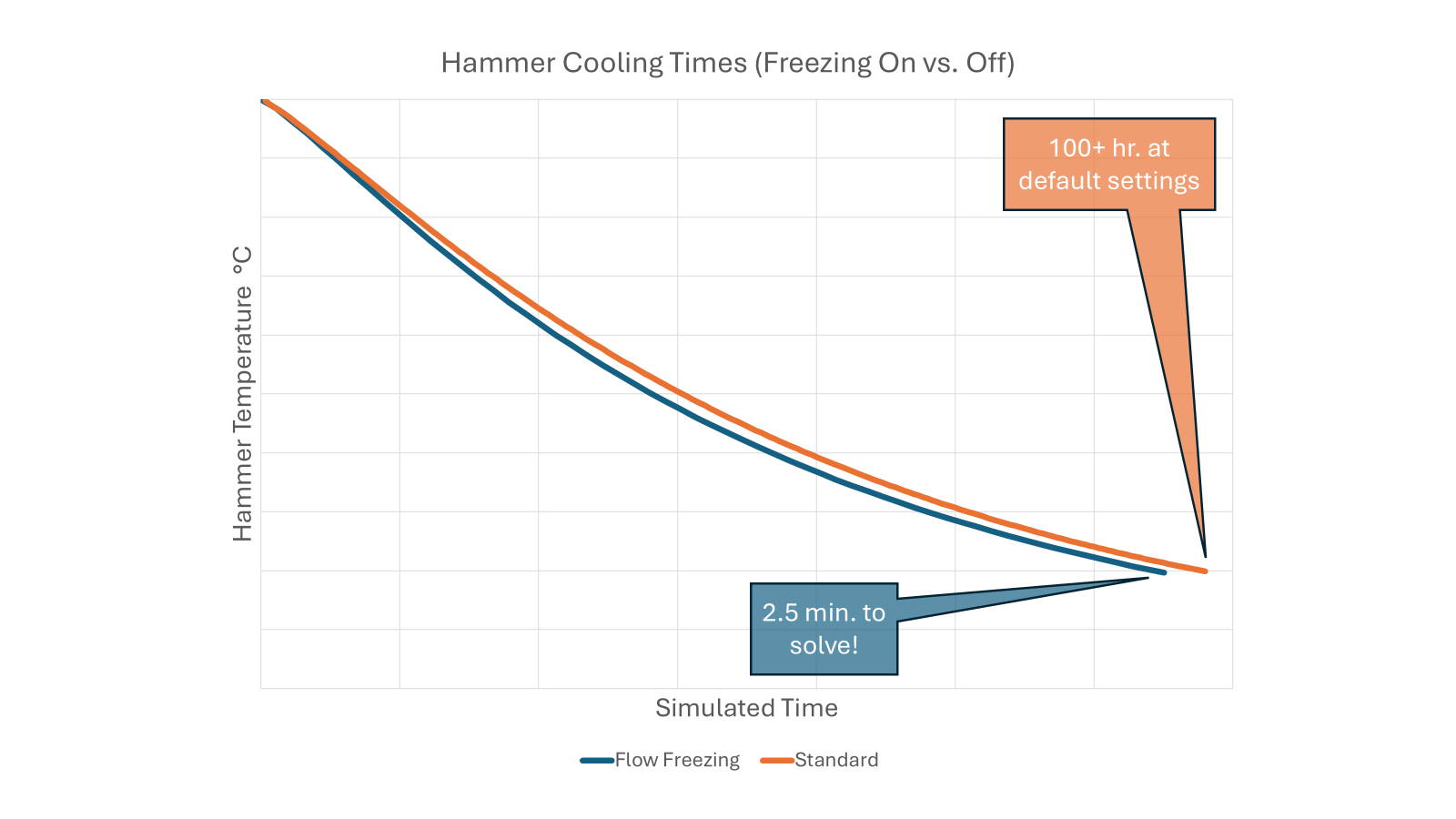
Without Flow Freezing, the flow velocity field continues to be calculated throughout the entire simulation. Because of that, the timestep needs to be relatively small. For this hammer example, the standard simulation timestep determined is around 0.003 s. With Flow Freezing, the velocity is held constant (or frozen) and just the thermal diffusion of hot to cold is calculated. This means the timestep can be much larger without running into instabilities common with large time steps. In this case, the timestep post-freeze is on the order of 30 s (an increase of 10,000×!).
The simulation without freezing enabled was projected to take about 100 hours to run. With freezing enabled, the entire simulation completed in about 2.5 minutes.
Without Flow Freezing, users may be tempted to simply increase the size of the timestep to get results sooner. In this study that could be reasonably done. The 0.003 s timestep in the default study is very small, and it could be made larger without too much instability. This is not always the case, though. In some flow simulations, increasing the timestep enough to meaningfully shorten the solution time leads to instabilities where velocities become extremely large or temperatures spike to unrealistic values.
Periodic Flow Freezing
Permanent Flow Freezing works when the velocity field can be treated as steady while the temperature or other slower process continues to change. However, this is not always the case. This is where Periodic Flow Freezing can be useful.
Instead of permanently stopping the flow calculation, Periodic Flow Freezing alternates between periods where the flow is frozen and periods where the velocity field is recalculated. Temperature and concentration are still calculated during every iteration.
This can be useful for situations where velocity depends on temperature, such as flows where fluid density changes significantly with temperature or natural convection problems where buoyancy affects the flow. For the hammer cooling example, since the airflow is held constant at 10 m/s regardless of the hammer temperatures, permanent freezing is a better choice as it runs quicker.
When Flow Freezing Makes Transient Studies Practical
Cooling these hammers is a good example of a simulation where different physical processes occur on different timescales. The airflow around the hammers can reach a relatively steady condition much faster than the metal cools. Running the entire transient simulation normally means continuing to calculate the flow field even after it has largely stabilized.
With Flow Freezing, the simulation can first be allowed to establish the airflow. Once the flow is sufficiently developed, the velocity field can be frozen and the calculation can continue focusing on the slower thermal process.
The practical takeaway is this: when a problem sees velocity and pressure level off relatively quickly while a slower process like thermal or species diffusion takes much longer, using Flow Freezing can provide potentially huge time savings.
Note: Flow Freezing can also be used in steady-state analyses. For an example, see Speeding Up Steady-State Flow Simulations with Flow Freezing.
Learn more: Explore SOLIDWORKS Flow Simulation and related SOLIDWORKS Simulation solutions from Hawk Ridge Systems.