LIMITED-TIME OFFER! Save Up to 28% on SOLIDWORKS Perpetual Licenses
Save Now
AI-Powered & Ready to Roll
What’s New in SOLIDWORKS 2027
Meet the agentic AI assistant working inside SOLIDWORKS, plus new tools that speed up drawings, imports, and large assemblies.

Release Highlights
Our six updates worth knowing and why it matters.
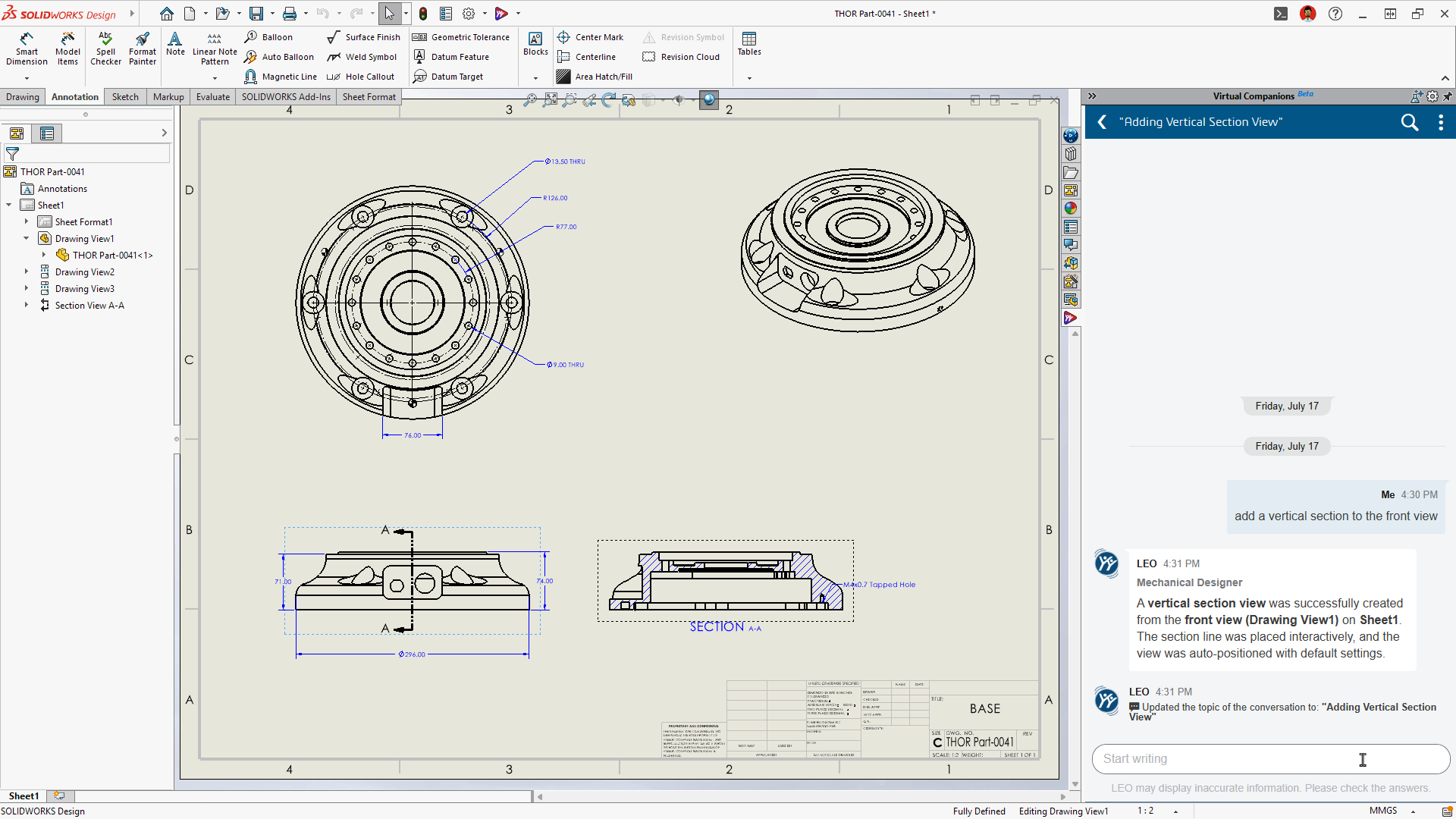
AI Drawing Generation
What's new
Describe the drawing you need, and LEO creates the views, dimensions, annotations, and sheet layout. The result is a regular SOLIDWORKS drawing you can edit.
Why it matters
The groundwork gets done for you, so your time goes to final detailing.
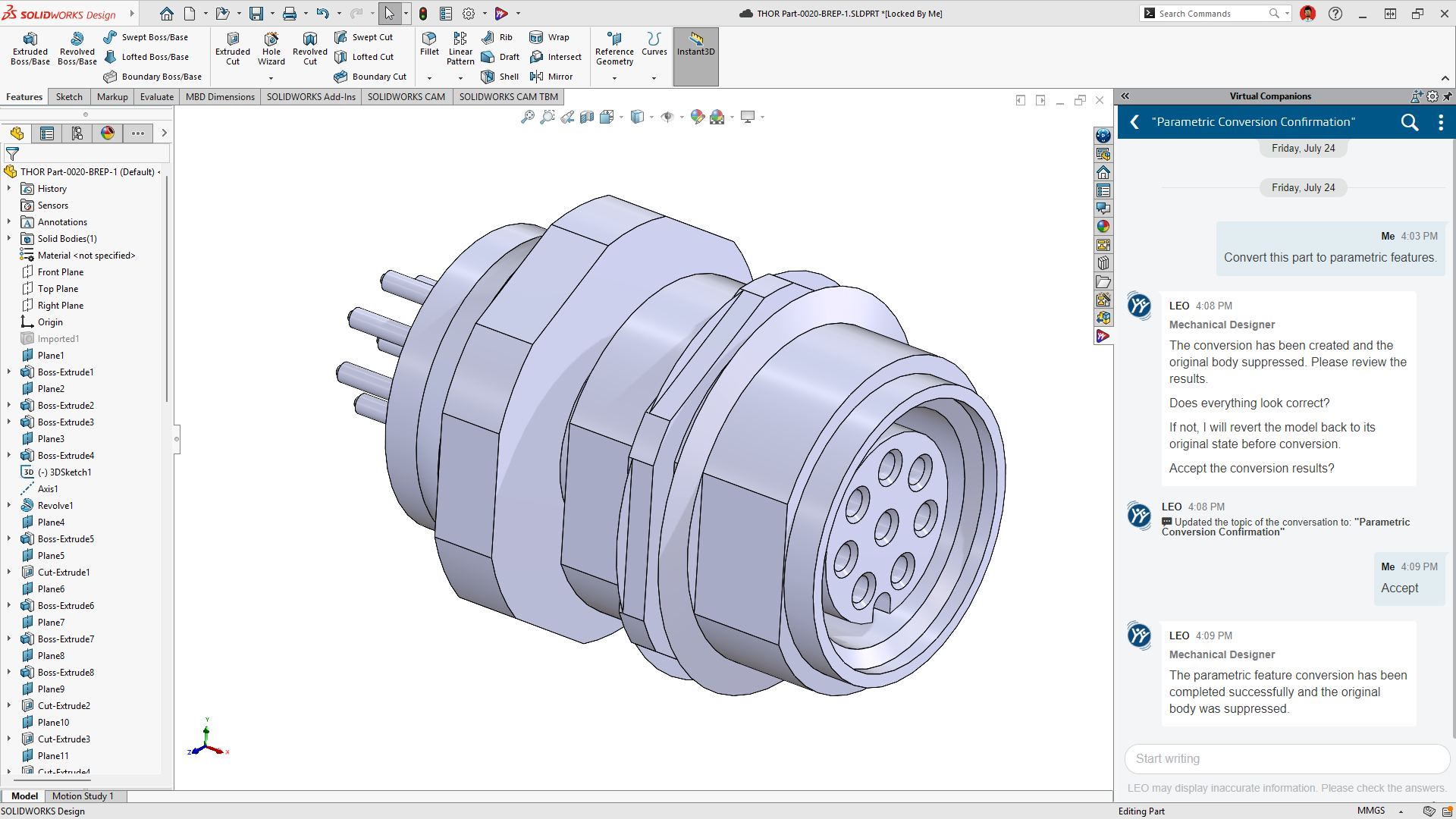
AI BREP-to-Parametric Conversion
What's new
Ask LEO to turn imported STEP or IGES geometry into native, editable SOLIDWORKS features.
Why it matters
Reuse existing CAD data instead of remodeling it from scratch.
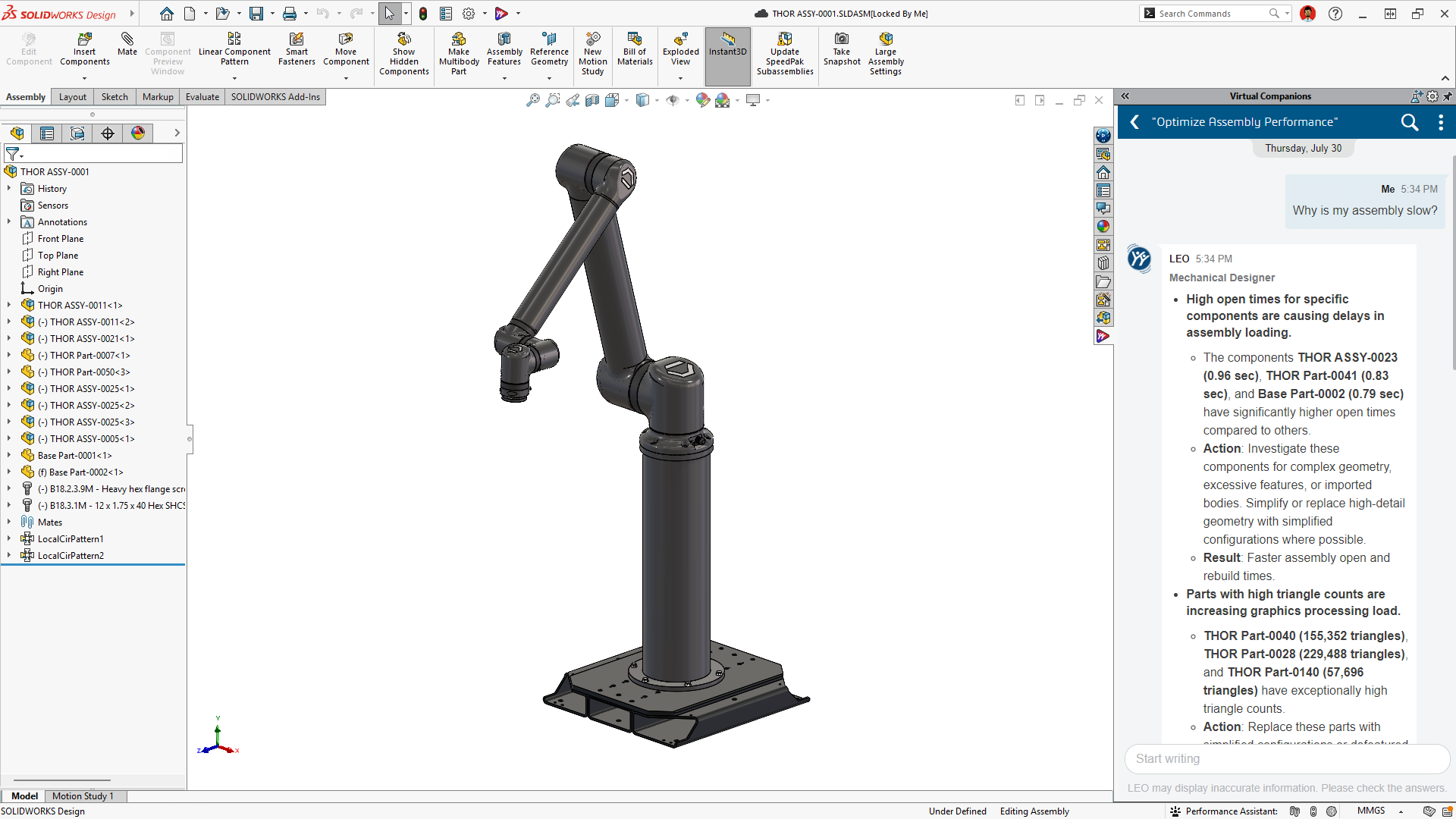
AI Assembly Performance Optimization
What's new
LEO pinpoints what slows an assembly down and can create SpeedPaks or suppress threads for you.
Why it matters
Fix your biggest slowdowns first, without trial and error.
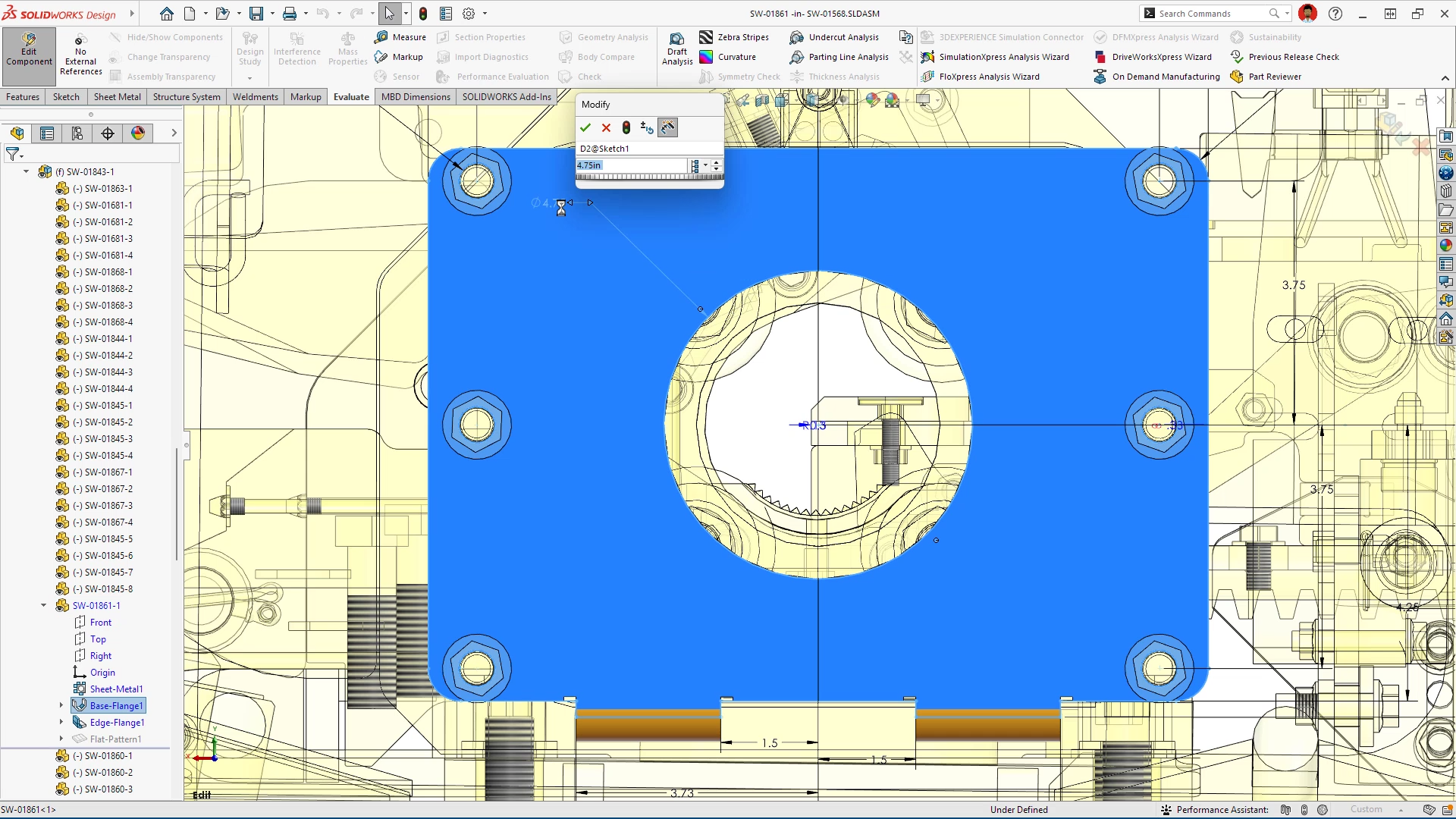
In-Context Editing in Large Design Review
What's new
Edit components inside an assembly opened in Large Design Review, while STEP and IGES imports and drawing updates run in the background.
Why it matters
The push for large-assembly performance continues, so you spend less time waiting.
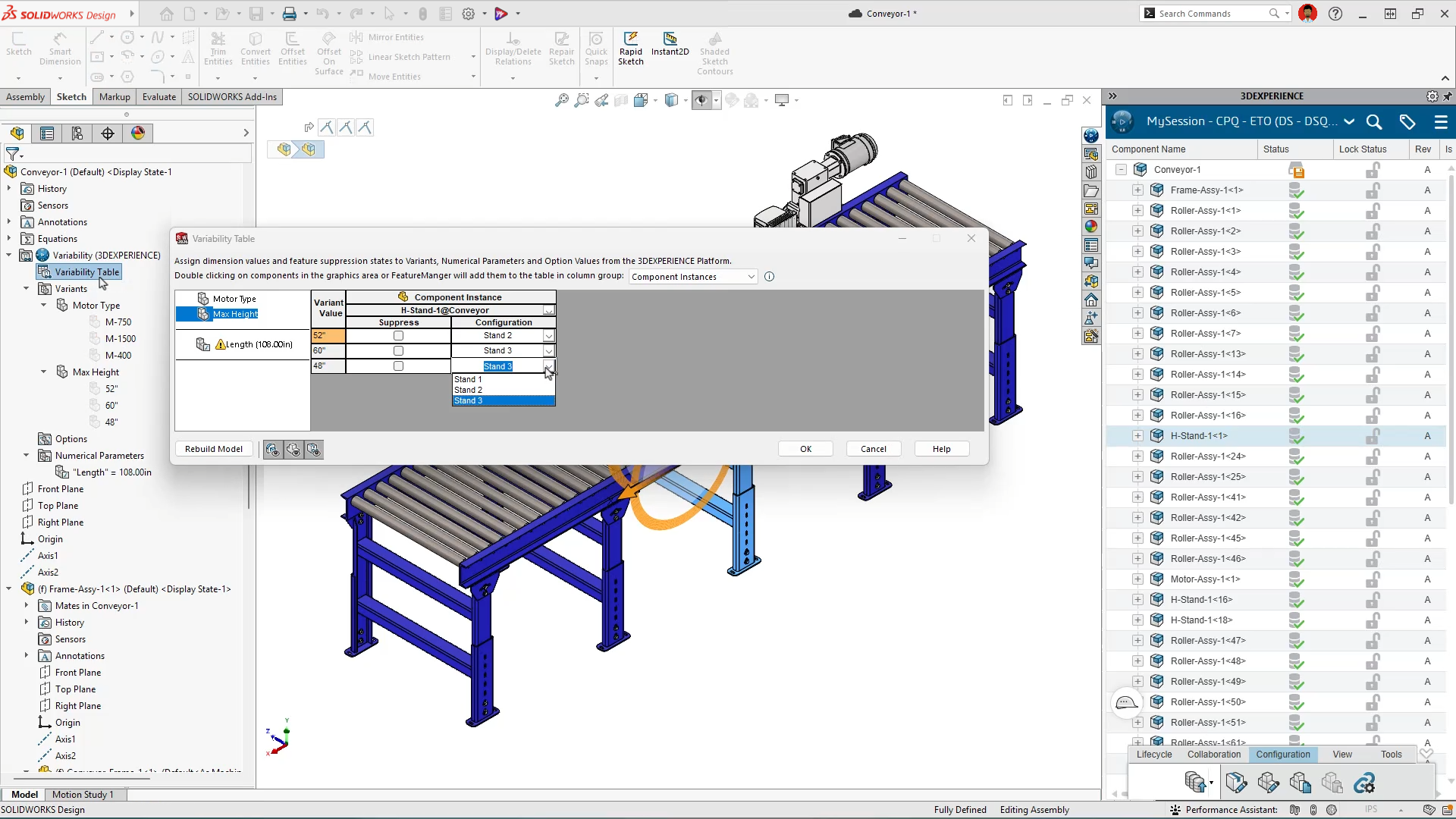
Model Variability
What's new
Define variants, options, and numeric parameters that drive part and assembly features.
Why it matters
Builds on last year’s configuration and design reuse tools to configure product families faster.
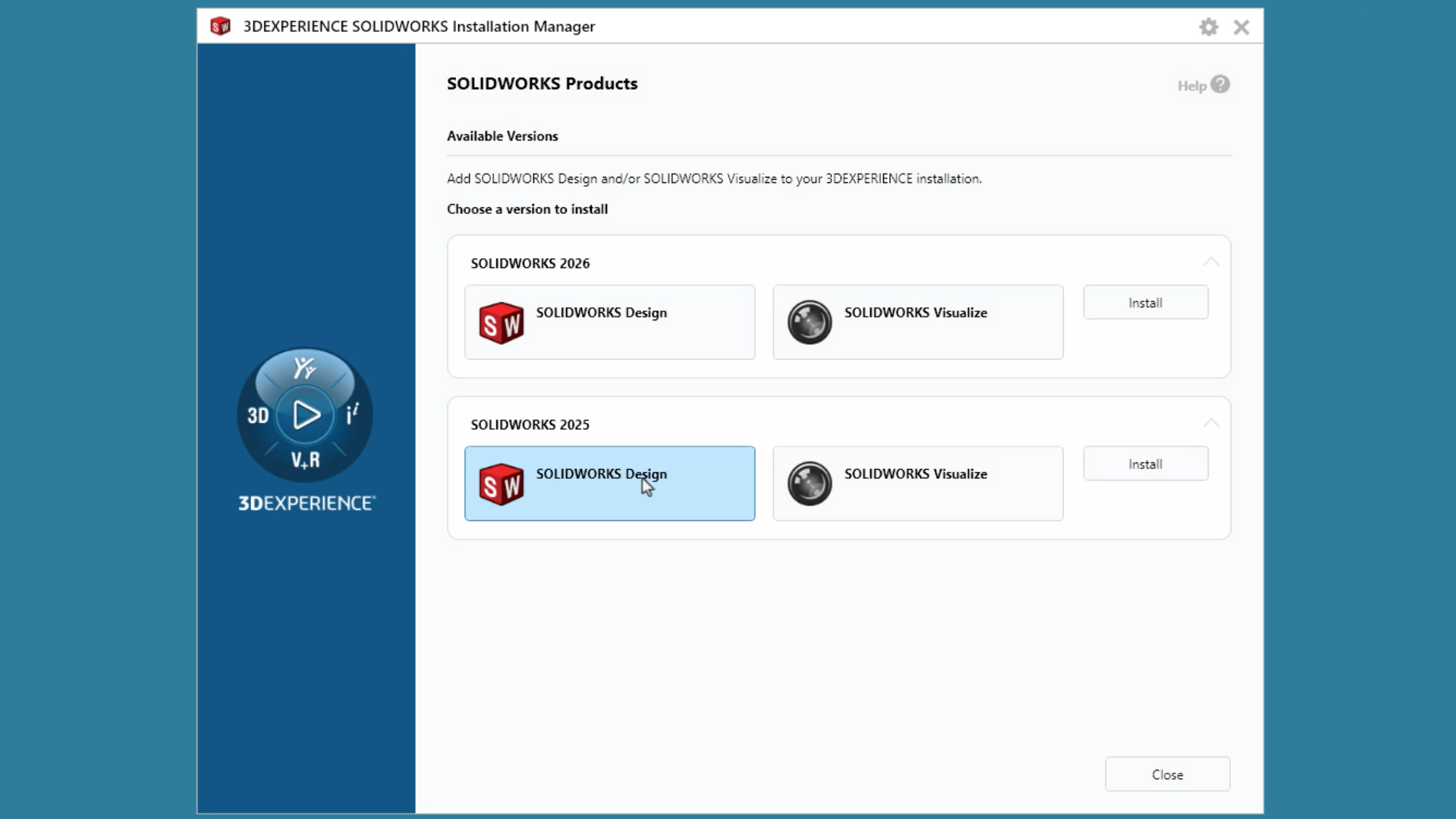
Multiple-Version Installation
What's new
Install more than one version of SOLIDWORKS Design on the same machine.
Why it matters
Paired with saving back two releases, it makes mixed-version teams and suppliers easier to work with.
On-Demand Webinar
What's New in SOLIDWORKS Design 2027?
Missed it live? Watch our D2M 2026 EVOLVE session to see the new AI skills, drawing updates, and assembly tools that make SOLIDWORKS 2027 worth the upgrade.
Chapters
- 0:00 Welcome
- 2:00 AI skills
- 12:30 Parts
- 18:20 Assemblies
- 23:00 Drawings
- 28:20 User interface
- 32:00 Import and export
- 35:30 Wrap-up
Session Highlights
Put SOLIDWORKS AI to Work
Watch AI companions simplify fasteners, generate exploded views and assembly instructions, nest sheet metal parts, and write macros from plain-language prompts.
Model & Assemble Smarter
See sheet metal stamps that fold across bends, chord width fillets, Pattern Assist for full hardware stacks, and locked rotation on coincident mates.
Keep Drawings & Files Moving
Learn how to update drawings and import files in the background, skip rebuilds on views that don’t need them, lock down sheet formats, and save to older versions by default.
Your Speakers

Nick Keglovits
Applications Engineer at Hawk Ridge Systems
Nick Keglovits is an Applications Engineer based in Oklahoma City, OK. He has 10+ years of industry experience in manufacturing tooling and building products and brings that understanding into his demonstrations and training. He is a Certified SOLIDWORKS Expert and is passionate about creating fun and engaging content for the SOLIDWORKS community!
Related Resources
Comparing releases?
See what changed last year or dig into any past release.
Frequently Asked Questions
Highlights include AI Virtual Companions, improved sheet metal modeling, simpler management of large assemblies, faster drawing creation, and tighter 3DEXPERIENCE platform integration. For the story behind the release, read our SOLIDWORKS 2027 sneak peek.
Yes. Virtual Companions work inside your design environment to cut repetitive tasks and help with decisions. AI use is measured with Tokens. Learn how they’re pooled and spent in our SOLIDWORKS AI Blue Tokens guide, or explore more AI tools for engineers and manufacturers.
If you have a SOLIDWORKS subscription, you can upgrade in four ways:
- Use the upgrade notification when you start SOLIDWORKS
- Check for updates manually through “Check for Updates” under the question icon, or in Windows go to Start > SOLIDWORKS Installation Manager > Check for Updates (requires administrator privileges)
- Get new installation media (only on special request)
- Start a new instance of SOLIDWORKS Installation Manager
Need help? Contact our tech support team, or let our Version Upgrade Services team plan and roll out the upgrade for you.
The short answer is, yes. If you have an active SOLIDWORKS subscription and work with vendors and clients who are using older versions, you have the “Save as Previous Version” option (usually lets you save back two years).
In cases where you are working in a newer version and others are using older versions, SOLIDWORKS runs compatibility checks using “Previous Release Check.” It will mark newer features as “incompatible” for you to address manually when you’re trying to back-save. The easiest way to manage them may be to delete areas where you used new features in the model.
If you need help, reach out to our tech support team.
Yes, you can. However, we recommend running SOLIDWORKS on a Windows-based machine rather than a non Windows-based machine, such as a Mac. We dive into extra steps and considerations to help you get set up in our blog on running SOLIDWORKS on a Mac.
A SOLIDWORKS license could range from $3,200 to $7,000, depending on the level of term you purchase. Each level offers a variety of comprehensive capabilities and tools. Take a look at our best guide for buying SOLIDWORKS.
If you’re looking to purchase SOLIDWORKS, contact us to make sure you get the right tools without paying for features you won’t need. You can also check our current promotions.
Need Help Upgrading or Buying SOLIDWORKS?
We’re here to help you get the latest version or find an exclusive offer that gets your team moving without missing a beat.
Not ready yet? Explore all product updates →